
gipdjalmbiackhnmpjlpafmiaciejfdf
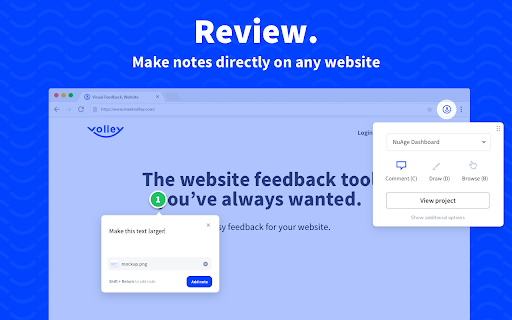

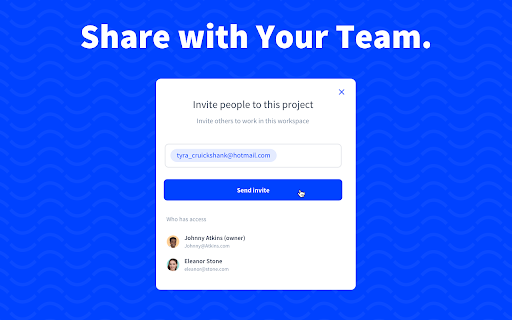

Volley lets you give fast, easy feedback for your website. Simply create a project, invite your team and use the chrome extension to start annotating your website. Your notes are sent to an easy-to-use collaborative workspace where your entire team can review and resolve the notes with ease.

Sendspark Video and Screen Recorder
Record and share professional-looking videos for business Easily capture & share professional-looking updates, pitches, presentations, and demos. Perfect for Marketing, Sales, Support and Customer Success: → Build personal relationships with customers → Collaborate with team members → Capture instant demos and tutorials → Drive more engagement and conversions → Increase customer delight and retention → Enhance marketing newsletters, automated email sequences, & quick personal messages Record → Personalized video messages → Screen recordings → Request recordings from others with a quick-share link Personalize at scale → Custom thumbnails that pop in email → Add your customer's name & logo → Use polished landing pages Convert with calls-to-action → Add a CTA below your content → Embed your calendar below recordings → Let viewers reply with a recording Share anywhere → Send in email → Embed in website or blog pages → Instant integrations with Gmail, LinkedIn, Outreach, and more Collaborate with your team → Edit together → Share in team folders → Request clips from coworkers Track engagement & conversions → CRM integrations with Salesforce, HubSpot, and Zoho → Real-time notifications → Detailed analytics and viewer insights

Reader Mode Premium
A feature-packed distraction-free web reader with dyslexia support and research tools Reader Mode is a feature-packed Chrome reading extension and web app that removes clutter, ads and distractions, while also includes dyslexia support, bookmarking, annotating, highlighting, text-to-speech and many other features all in one tool. Features: ✔ Distraction-free and ad-free "Reader Mode" ✔ Deletion of unwanted elements ✔ Theme customization ✔ Custom theme ✔ Custom CSS ✔ Print pages ✔ Fullscreen mode ✔ Auto-run ability ✔ Save edited pages ✔ Share To Twitter ✔ Dyslexia Fonts ✔ Dyslexia Ruler ✔ Text To Speech ✔ Article Outline ✔ Text annotating and highlighting ✔ Notes List ✔ Auto-scroll functionality ✔ Dark Panel Mode ✔ Google Search ✔ Google Translate ✔ Remove footer option ✔ Cloud storage ✔ Share pages in Reader Mode format ✔ Read-it-later mode ✔ Full-text search ✔ Favourites ✔ Organization folders ✔ Tags for pages ✔ Sync styles & settings To see all the features and learn more, check out https://readermode.io Version 1.2.8 (22/4/2020) -Fixed saving and fetching article’s data issue -Fixed tag’s close button color on dark mode Version 1.2.6 (22/4/2020) -Fixed links not working after deletion mode -Remove auto-close ability for OptionsSavedPanel -Set max-width for all elements to 100% Version 1.2.5 (15/4/2020) -Added Tags feature -Title, Description and Author is now editable -Author is default to “Unknown author” if not found -Show “Saved” notice if article is already saved -Auto-saved page when highlighting Version 1.2.1 -Added sync styles -Fixed outline li default style -Removed default line-height css from default and app -Removed inline css styles -Removed Headings from settings -Removed cr-saved-info and cd-footer default colors -Fixed TTS Pitch not saving issue Version 1.1.6 -Added indicator when the main menu is active -Moved Custom CSS settings panel to the bottom -Fixed auto height for options panel -Fixed some font styles not saving issue -Rearranged font options position -Added premium fonts Version 1.1.5 -Used global address for Google Search -Updated description -Included li tag in text color changes Version 1.1.4 -Fixed notes dissapearance -Auto hide “Saved Panel” -Updated the color of ReaderMode’s icon Version 1.0.9 - Fixed reader’s width not-saving issue - Fixed overflow text for meta info - Added style for quotes content - Fixed auto-run rules grammar mistakes - Removed Helvetica Neue font - Set default font as Arial - Notes List is set to “Show” by default

AI Meeting Notes Taker & Screen Recorder
Berrycast screen recorder records, transcribes and generates AI meeting summaries for Zoom, Google Meet and MS Teams. Berrycast is an AI powered screen recording and video messaging platform (used by 100,000+ Users) Our platform allows you to automatically record and transcribe your meeting conversations, then use AI to summarize the discussion. Afterward, share a link of the video with ease via email, instant message, or in your task management tool. Even if you are not the host of the meeting. You can also use Berrycast to communicate more effectively, efficiently, and expressively with everyone using Berrycast for creating and requesting screen recorded video messages as well. Here is how the Berrycast AI meeting notes taker and screen recorder works? ➕Install Chrome extension or Desktop application ⏺️Launch recorder & select recording mode - Screen + Camera or Camera Only ⏹️Stop recording. Video gets immediately uploaded to the cloud. 🎥Now video is available with transcripts (we detect 60+ languages) to review 🤖Use AIWriter to summarize video conversation or use different prompts 🔗 Now share video via direct link, email and social media with transcripts and AI summary Berrycast also supports the following features: 🎥 Screen + Face recorder ✂️ Trim your video 📑 Transcripts (60+ languages) 🤖 ChatGPT powered AIWriter ⬇️ Download your video 📧 Email integrations (Gmail and Outlook) 👀 See who has viewed your video 📺 Video replies and comments More than 100,000 people use Berrycast every day to capture their meetings, record screen and video messages including project managers, marketers, sales people, recruiters, developers and engineers without worrying about note taking. You need to simply launch the recorder and your video will start recording with the transcript. Then once the video is recorded and available to view, you can use our AIWriter feature to do the following to generate meeting notes: 👉 Summarize Conversation - Generate a quick summary out of the entire meeting in one or two paragraphs. 👉 Define Action Items & To-dos - Summarize entire meeting conversation in the form of actions items and to-dos. 👉 Clean my transcript - Simply correct the meeting (grammar and spelling mistakes) transcripts through AI. 👉 Email ready to send - Get ready to send email draft that is pre-written and can be sent immediately. ❓ How do I record screens on Windows & Mac? 👉 You can install the Chrome extension or you can install our desktop application as well. ❓ Is Berrycast a free screen recorder tool? 👉 Yes. We offer a 14 day full feature trial. ❓ Does the Berrycast screen recorder record audio and video? 👉 Yes. Our tool records both system and microphone audio. ❓ Is it possible to record meetings without noticing anyone? 👉 Yes. Our recorder is bot free. Hence nobody would notice your video being recorded. ❓ Can I edit my screen recording videos? 👉 Yes. We offer video trim/edit functionalities. ❓ Can I edit/correct transcripts? 👉 Yes. You can edit and update the transcript to correct your mistakes. ❓ Can I download the transcripts? 👉 Yes. You can download the transcripts. ❓ Can I use AIWriter multiple times? 👉 Yes. You can use the prompts unlimited times. ❓ Can I share videos with others? 👉 Yes. You can copy the direct link, send email and embed it on an external website. ❓ Can I invite my team members to try the Berrycast tool? 👉 Yes. If you are on a pro plan. ❓ Which browsers does your online screen recorder work with? 👉 Berrycast works with Chromium based browsers & Safari.

Ruttl
Download this extension and sign-in to to your Ruttl account, and get the ability to review password-protected sites or… Download this extension and sign-in to to your Ruttl account, and get the ability to review password-protected sites or login-based apps on Ruttl. Go through the 3 simple steps explained below to begin reviewing: 1. Download our Chrome extension: Download the extension and pin it for easier access. 2. Click on the extension to login with your Ruttl account: Once you’ve added the extension to your browser, please click on the same to login with your Ruttl account. 3: Open your site or app in a new tab, click on our extension and select the type of project you'd like to create: For website projects - Add new projects, or add new pages to your existing projects & review them quickly. For web apps - Once you open your web app in the logged-in state, scroll to the bottom of the page, click on our extension and add it to your project. For bug tracking - Once you open your site in a new tab, click on our extension, create a new project and you'll be able to instantly see the floating action pill on the bottom-left of your screen. Now create tickets, which will reflect on your project (dashboard/workflow). You can also add tickets to your existing project(s) respectively once you switch the toggle on for that project.
