
pdcdbpcmjffmfmcolgnnigdadkhiadlo
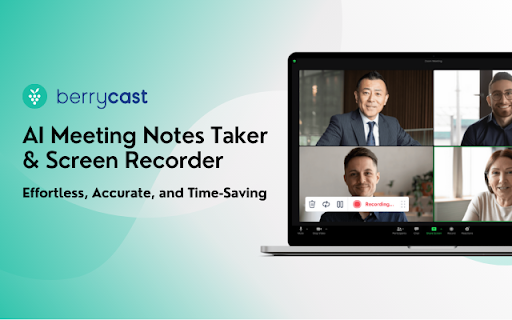


Berrycast screen recorder records, transcribes and generates AI meeting summaries for Zoom, Google Meet and MS Teams. Berrycast is an AI powered screen recording and video messaging platform (used by 100,000+ Users) Our platform allows you to automatically record and transcribe your meeting conversations, then use AI to summarize the discussion. Afterward, share a link of the video with ease via email, instant message, or in your task management tool. Even if you are not the host of the meeting. You can also use Berrycast to communicate more effectively, efficiently, and expressively with everyone using Berrycast for creating and requesting screen recorded video messages as well. Here is how the Berrycast AI meeting notes taker and screen recorder works? ➕Install Chrome extension or Desktop application ⏺️Launch recorder & select recording mode - Screen + Camera or Camera Only ⏹️Stop recording. Video gets immediately uploaded to the cloud. 🎥Now video is available with transcripts (we detect 60+ languages) to review 🤖Use AIWriter to summarize video conversation or use different prompts 🔗 Now share video via direct link, email and social media with transcripts and AI summary Berrycast also supports the following features: 🎥 Screen + Face recorder ✂️ Trim your video 📑 Transcripts (60+ languages) 🤖 ChatGPT powered AIWriter ⬇️ Download your video 📧 Email integrations (Gmail and Outlook) 👀 See who has viewed your video 📺 Video replies and comments More than 100,000 people use Berrycast every day to capture their meetings, record screen and video messages including project managers, marketers, sales people, recruiters, developers and engineers without worrying about note taking. You need to simply launch the recorder and your video will start recording with the transcript. Then once the video is recorded and available to view, you can use our AIWriter feature to do the following to generate meeting notes: 👉 Summarize Conversation - Generate a quick summary out of the entire meeting in one or two paragraphs. 👉 Define Action Items & To-dos - Summarize entire meeting conversation in the form of actions items and to-dos. 👉 Clean my transcript - Simply correct the meeting (grammar and spelling mistakes) transcripts through AI. 👉 Email ready to send - Get ready to send email draft that is pre-written and can be sent immediately. ❓ How do I record screens on Windows & Mac? 👉 You can install the Chrome extension or you can install our desktop application as well. ❓ Is Berrycast a free screen recorder tool? 👉 Yes. We offer a 14 day full feature trial. ❓ Does the Berrycast screen recorder record audio and video? 👉 Yes. Our tool records both system and microphone audio. ❓ Is it possible to record meetings without noticing anyone? 👉 Yes. Our recorder is bot free. Hence nobody would notice your video being recorded. ❓ Can I edit my screen recording videos? 👉 Yes. We offer video trim/edit functionalities. ❓ Can I edit/correct transcripts? 👉 Yes. You can edit and update the transcript to correct your mistakes. ❓ Can I download the transcripts? 👉 Yes. You can download the transcripts. ❓ Can I use AIWriter multiple times? 👉 Yes. You can use the prompts unlimited times. ❓ Can I share videos with others? 👉 Yes. You can copy the direct link, send email and embed it on an external website. ❓ Can I invite my team members to try the Berrycast tool? 👉 Yes. If you are on a pro plan. ❓ Which browsers does your online screen recorder work with? 👉 Berrycast works with Chromium based browsers & Safari.

InTab
edit any website's HTML and CSS visually 👓 Visually edit any website with InTab's No-Code CSS editor 🔍 Hover to inspect CSS - no need to open devtools 📱 Test your website responsiveness in 20+ devices with real-time sync 🏃♀️ Write CSS faster with built-in templates for animations/flexbox/grid layout 👇 1 Click to export auto-generated media quires and global CSS

blurweb.app
Blur any element text, image, input or paragraphs with single click. 🔒 Blurweb.app - Protect Your Sensitive Data on the Web Instantly! 🔒 Whether you're recording, screen sharing, or presenting online, blurweb.app ensures your sensitive information remains private. No editing required! 🎥✨ Easily blur text, paragraphs, images, inputs, or any selected elements with just one click. Now featuring a new 'Keep Blur' function that maintains your blur settings even after a reload. 🔄 💨 Single Click Blur: Effortlessly blur headings, paragraphs, images, or videos with just one click. 🖍️ Blur Area: Draw a rectangle anywhere on the page, and we'll blur it while keeping it in place. 🔄 Keep Blur: Click 'Keep Blur' before applying any blurs to maintain them after reloading or revisiting the URL. 🔧 Customizable: Control blur intensity, clear all blurs with a click, and even blur selected text. Plus, hide tab titles & icons for added privacy. 🔥 Use Cases 🔥 📺 Content creators: Protect sensitive information while live streaming or recording. 🏢 Agency owners: Share client projects securely during presentations or demos. 👩🏫 Teachers: Keep students' personal information confidential during online classes. 💼 Professionals: Safeguard sensitive company data during remote meetings. 🛍️ Online shoppers: Conceal personal details while sharing screens for shopping assistance. 🎮 Gamers: Hide private in-game chats or messages while live streaming. ✅ Pros Easy to use: Simply click to blur any element on the page. Customizable: Adjust blur intensity, hide tab titles & icons. Versatile: Suitable for various professional and personal use cases. ❌ Cons Requires a license: Visit blurweb.app to purchase your license. Limited compatibility: May not work with certain websites or web elements. 🛍️ Frequently Bought Together 🛍️ blurscreen.app: Blur anything on your screen. quickpresent.app: One-click worry-free screen sharing. Join 5000+ content creators, agency owners, teachers, and more who already trust blurweb.app for their privacy needs. Visit blurweb.app to grab your license today! 🚀 🎉 Enjoy a more secure and private browsing experience with blurweb.app! 🎉

Paced Email
Temporary disposable emails by Paced Email. Temp mail with extra privacy and anonymous identity protection. Create disposable or personalised email addresses from your browser with the official Paced Email extension. Anonymously shield your real identity from companies and advertisers who want to track you online. Block and unblock them anytime you want. Boost your productivity by choosing when inbound messages reach you. Batch into daily, weekly, or monthly digests for a calmer inbox. Extension features: • Email field icon to auto-generate burner emails with a single click • Right-click context menu • Single click copy to clipboard • Generate and manage Paced Email inboxes • Account switching

Stepsy: create step-by-step guide with screenshots
Struggle to describe your every step with screenshots in the browser manually? Welcome to Stepsy, your free AI-powered go-to solution for generating powerful, yet easy-to-understand step-by-step guides, SOPs, process tasks, or manuals, and sharing them with your colleagues and customers. Our software features have been proven to deliver exceptional results. With our intuitive interface and robust functionality, you can streamline your processes and achieve greater efficiency. Stepsy is free to use, along with Personal and Team plans to fit any team's needs. BENEFITS OF USING STEPSY: 📈 Increase data processing efficiency 📊 Improve workflow documentation accuracy ⚙️Ensure consistency across instructions ⏳ Save time of tedious work for each guide 🎯 Simplify the training and onboarding process STEPSY’S FEATURES: 📸Record your steps with screenshots on clicks: Just do your work, and we will automatically capture the screenshots with auto-generated descriptions. ✨Customize your screenshots: No need for other tools, we have a built-in image editor. ⚙️AI-tuned step descriptions and document summaries: Eliminate the need for manual repetitive text input, let us care about it. 📥Export and share via GDrive: Your guide quickly becomes shareable online via your own GDrive. 🔐Keep your screenshots safe: Your screenshots never leave YOUR space. Everything happens in YOUR browser and then gets exported directly to YOUR GDrive or YOUR local workstation. HOW TO USE STEPSY: Step 1. Get started Begin by downloading our extension for free. Step 2. Capture the process Navigate to the website you want to document. Then, open the Stepsy icon in your Chrome toolbar and click the “Record a Guide” icon to initiate the process. Once you've captured your process, you can edit and customize it with a built-in toolset. Step 3. Publish your results Simply click the “Finish and share” button and publish it as a Google Docs document directly to your Google Drive. WHO'S STEPSY FOR WHAT YOU CAN CREATE WITH STEPSY ✔️ Any documentation you need! What used to take hours, now takes seconds with our free step-by-step guide creator — empowering you and your team's productivity as well as allowing you all to focus on what truly matters: innovation and growth.
