
pllimkccefnbmghgcikpjkmmcadeddfn
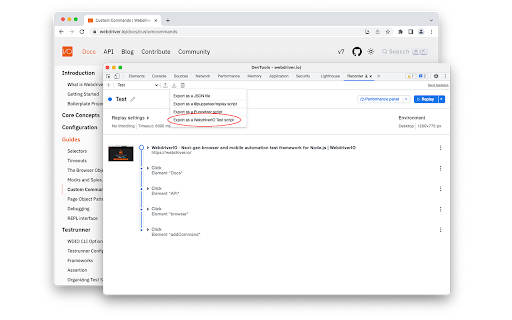
WebdriverIO Extension for Devtools that allows you to export tests directly from the Recorder panel. WebdriverIO Extension for DevTools that allows you to export tests directly from the Recorder panel. WebdriverIO Chrome Recorder Extension lets you export user flows as WebdriverIO test scripts from the Recorder panel in Chrome DevTools. With Chrome Recorder and the WebdriverIO Chrome Recorder Extension, you can start creating test scripts for WebdriverIO with just a few clicks. After installing this extension, you will see a new "Export as WebdriverIO Test Script" option available under the export menu. Learn more about Chrome Recorder and the WebdriverIO extension with our official guide: https://bit.ly/wdio-recorder

Ranorex Selocity
Auto-generate robust XPath, link text, RanoreXPath, and CSS selectors for use with Selenium. * Rapidly generate selectors with one click directly in the DevTools sidebar panel. The smart selector generator automatically detects and ignores dynamically generated IDs. * Manual selection: Ranorex Selocity generates XPath, link text, RanoreXPath, and CSS selectors. Because only you know which selector fits your needs the best. * Instantly generate selectors for elements within iframes, both same-origin and cross-origin. * Exploratory selector creation: If you choose to modify a selector yourself, Ranorex Selocity provides instant feedback to ensure the selector is useful. * Automatic escaping of selectors: If desired, quotes and escape characters are automatically added to your selector, ready for instant use in locators in Selenium tests. * Unique RanoreXPath selector: The generated RanoreXPath (RxPath) simplifies the XPath and provides additional attributes and operators, making the resulting selector shorter and more robust against changes. * Dark theme and light theme

Cypress Chrome Recorder
Cypress extension for DevTools that allows you to export tests directly from the Recorder panel. This extension allows you to quickly export recordings from Chrome DevTools Recorder as Cypress tests. Once installed, a new export option will appear in the Recorder panel labeled "Export as a Cypress Test script". Click that and download the exported code as a file. Make sure to save the file with the extension `.cy.{ts,js)` if you are using Cypress >= 10. For more information about the Cypress Chrome Recorder, please watch https://youtu.be/-RJuZrq-wOk

Playwright Chrome Recorder
Playwright extension for DevTools that allows you to export tests directly from the Recorder panel. Records a user session and generates Playwright code for automation and testing purposes. Playwright Recorder Playwright Recorder is a developer tool that records user interaction within a web application and generates Playwright scripts to allow the developer to replicate that particular session. This will speed up your development cycle by facilitating the creation of unit and integration tests. Getting Started Click 'Add to Chrome'. That's it! Once you see our icon at the upper-right of your browser window, you are ready to start generating Playwright scripts. Features This extension will allow you to: * Record clicks, typing, submits, and navigation in the browser. * See the scripts render live as they are generated. * Delete accidental actions. * Reorder actions as necessary. * Pause and resume recording within a single session. * Record navigation within a domain. * Copy the generated code to your clipboard. Usage * Open the extension and click 'Start Recording' to begin recording actions. * Click links, submit forms, etc. * Check your saved actions by opening the popup at any time. * Click 'Stop Recording' to stop recording. From there, you will have the option to resume recording, reset, or copy your generated code to your clipboard. * You can also use keyboard shortcuts: On Macs: - ctrl + R to start and stop recording - ctrl + G to reset On PCs and Linux: - alt + R to start and stop recording - alt + G to reset

WebDriver Element Locator
To use this extension, simply right click on the web element you wish to locate, select an appropriate locator string and it'll be copied to your clipboard. This extension will attempt to populate the context menu with usable webdriver XPATH-based findElement commands for the dotnet, python and ruby bindings and Support Locator Library references for the focused web element. To help prevent buggy tests (and save your time debugging), it will also check the locators for uniqueness, signified by red crosses and green ticks. In addition, if elements have long, fragile, auto-generated attributes such as id="ctl00_ElementContainer_Inputs_txtForename" it will attempt to locate based on the final (and most significant) part of the value only. After installing the extension a browser restart is recommended to ensure the extension functions as expected.
