
pkaglmndhfgdaiaccjglghcbnfinfffa
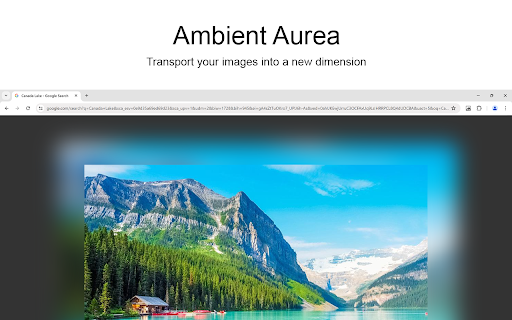


Instantly craft stunning photo galleries with ambient lighting effects in a single click. Transform your browsing experience with Ambient Aurea, the revolutionary browser extension that transports your images into a new dimension. With just a click, it focuses on the selected image with a beautiful glow that matches what is in the image. Ambient Aurea is a lightweight and useful add-in designed to get a fast a gallery of the images on that website. And around this image you see a glow around that matched with the content of the photo. Just like the Ambilight TV from the company Phillips but here for your favorite photos. It is great tool for users with ADHD mental disorder and concentration problem. It is a tool that all photographers, professional or not, need to isolate the rest of the web and enhance their viewing experience. Browser extension features: ◆ Image Gallery: Instantly access a gallery of all images on any website with just a click on the mountain icon in your web browser toolbar. Ensuring compatibility across all websites, including major platforms like Pinterest, Facebook, Instagram, Flickr, and more. ◆ Timer: Choose the time interval for the next image in the slideshow. ◆ Total Images on Web page: Option to see the total number of images in the slideshow. ◆ Customizable Layers: Tailor the color and opacity of the glow effect to suit your preferences via the intuitive options page. Choose from one custom solid glow color, up to four custom glow colors, and realistic color options. ◆ Vivid Mode: Amplify the visual impact of selected photos with the immersive Vivid Mode effect. ◆ Share Bar: Share your favorite images effortlessly on Pinterest, Facebook, and X. ◆ Customizable Settings: Fine-tune the glow blur and spreading to create your ideal ambiance. ◆ Custom Toolbar Icon: Select your preferred toolbar icon in either light or dark mode, adapting to your visual preferences. ◆ Shortcut Key: - Effortlessly access your photo gallery with a custom shortcut tailored to your convenience. - Use arrow keys to navigate through images seamlessly. ◆ Support for Dark Mode Project Information: https://www.stefanvd.net/project/ambient-aurea/browser-extension/ Required Permissions: ◆ "activeTab": The currently open tab allows to create a photo gallery with a glow effects. ◆ "contextMenus": Add a context menu to instantly open the photo gallery. ◆ "storage": Save settings locally and sync with your web browser account. >> Unlock an option feature to protect your eyes at night and focus on the video player, such as YouTube™, by installing Turn Off the Lights browser extension for YouTube and Beyond. https://chromewebstore.google.com/detail/turn-off-the-lights/bfbmjmiodbnnpllbbbfblcplfjjepjdn

Turn Off the Lights
The entire page will be fading to dark, so you can watch the videos as if you were in the cinema. Works for YouTube™ and beyond. Immerse yourself in a cinematic atmosphere while watching videos online with Turn Off the Lights. This powerful browser extension dims everything on the web page except for the video you are watching, bringing your focus to the content that matters most. 🏆🥇 Turn Off the Lights browser extension has also been featured on several popular websites, including Lifehacker, CNET, ZDNet, BuzzFeed, and PC World. With its growing popularity and positive feedback, it is no surprise that the Turn Off the Lights browser extension has become one of the most popular and trusted browser extensions in the market. 🔷 Please share your feedback, suggestions, and thoughts with us https://www.turnoffthelights.com/support Enjoy a simplified browsing experience with the Turn Off the Lights browser extension. With just one click on the lamp button, your page will smoothly fade into darkness, focusing automatically on the video. Another click restores the page to its original state. Explore additional customization options on the Turn Off the Lights Options page to tailor your viewing experience to your preferences. Turn Off the Lights is a lightweight and useful add-on designed for a more comfortable watching experience. It is more than just a dimming tool; it is your gateway to an enhanced viewing experience tailored for three key types of users: + Video Lovers: Whether you are binge-watching your favorite series or catching up on the latest viral clips, Turn Off the Lights creates the perfect ambiance for uninterrupted viewing pleasure. + Dark Mode Enthusiasts: Embrace the dark side of browsing with Turn Off the Lights, converting all websites into your personalized dark mode theme. + Eye Protection Advocates: Shield your eyes from harsh screen glare and blue light emissions. With its accessibility features, Turn Off the Lights helps prioritize your visual health while you enjoy your favorite online content. Plus, keep the dark layer always enabled, even when you click on a hyperlink. Browser extension features: ◆ Effortless Control: Toggle the lights with a simple click, effortlessly enhancing your viewing pleasure, akin to reading a newspaper with a dark reader tint. ◆ Cinematic Experience: Dive into your favorite videos without distractions as everything else fades into the background. ◆ Support multiple video sites: Enjoy distraction-free viewing on YouTube, Dailymotion, Vimeo, Twitch, and more of your favorite platforms. ◆ Enhance your YouTube experience with features like: - Auto HD: Set videos to play in HD automatically. Users can select from highres > 8K > 5K > 4K > 1080p > 720p > 480p > 360p > 240p > 144p > default. - Auto Wide: Automatically adjusts the video to the widest mode for enhanced viewing. - 60 FPS Block: Disable YouTube 60 FPS and watch YouTube Auto HD 30 FPS video quality. - Top Layer: Place elements at the top of the dark layer, such as the number of YouTube subscribers, title, video suggestions, etc. ◆ Multitasking: Watch your video with Audio Visualisation in Picture-in-picture (PiP) mode, maximizing productivity without sacrificing entertainment. ◆ Easter Eggs: Shortcut key: Tap 'T' for a genuine movie theater ambiance, bringing nostalgia to your viewing sessions. T -> Do you like a real movie theater feeling? ◆ Option to make the screen dark when the user clicks on the play button: Enhance immersion by dimming the surroundings when the video starts playing. ◆ Option to turn on/off the fade in and fade out effects: Tailor your experience by toggling the transition effects according to your preference. ◆ Custom Dark Layer: Personalize the dark layer with your preferred color and opacity value. Alternatively, select your own background image to use as the dark layer. ◆ Option to Show Dimness Level Bar: Keep track of the dimness level with a visible indicator for better control. ◆ Eye Protection Options: Ensure comfortable viewing, especially at night, with customizable eye protection settings. - A screen shader that blends the web page with an orange color to reduce eye strain and fatigue, while also supporting your brain's day/night cycle. - An option to click through the dark layer and keep the lights always off. - Whitelist/blacklist filters for greater control over your browsing experience. ◆ Option to show the dark layer on the top of the window: Enjoy enhanced focus by obscuring distractions outside of the video window. ◆ Custom Colors: Personalize the lighting with custom colors to match your mood or aesthetic. ◆ Multimedia Detection: Option to enable flash objects, iframe video elements, and more to appear on top of the dark layer. ◆ Dimness Level Bar: Display a floating dimness level bar at the bottom of the current web page for easy adjustment of the dark layer opacity. ◆ Nighttime Eye Protection: Activate eye protection mode during nighttime browsing with customizable whitelist/blacklist filters. ◆ Atmosphere Lighting: Experience an immersive glow around the video player, adding to the ambiance of your viewing environment. - Vivid Mode: Realistic and lifelike color glow effects match the video content - One solid: 1 Custom color around the video player - Four solid: 4 Custom colors around the video player ◆ Dark Layer Overlay: Choose to show a dark layer overlay on top of the window for enhanced focus. ◆ Shortcut Keys: Ctrl + Shift + L: Toggle the lights Alt + F8: Restore default opacity value Alt + F9: Save current opacity value Alt + F10: Enable/disable the Eye Protection feature Alt + (Arrow Up): Increase opacity Alt + (Arrow Down): Decrease opacity Alt + *: Toggle lights on all open tabs ◆ Mouse Wheel Volume Control: Adjust the volume using your mouse wheel for individual video players. ◆ Video Player Filters: Apply various filters like grayscale, sepia, invert, contrast, saturate, hue rotation, and brightness to the current video player. ◆ Audio Visualization Effects: Enjoy visual effects like blocks, frequency, and music tunnel on top of the current video. ◆ Full Tab Video Player: Expand the video player to fill your entire current tab for immersive viewing. ◆ Video Looping: Loop your current video player for continuous playback. ◆ Night Mode: Transform all websites into your personalized dark mode theme or switch between black and white themes. - Customizable whitelist/blacklist to apply night mode selectively to certain websites. - Timestamp: Activate Night Mode within specified time intervals. - Blackout: Dim the web page and activate Night Mode. - Darker Images: Dim images when dark mode is enabled. - Customizable Colors: Personalize background, text, hyperlink, and button colors to match your preferred dark theme settings. - Option to convert Dark Mode PDF files, network files, and local files ◆ Stop Auto-Playing: Prevent YouTube and HTML5 videos from automatically playing. ◆ Video Screen Capture: Capture snapshots of YouTube and HTML5 videos with customizable filters such as Invert, Blur, Saturation, Grayscale, Hue rotate, etc. And save the screenshot in PNG, JPEG, BMP, or WEBP image format. ◆ Custom Toolbar Icon: Select your preferred toolbar icon in either light or dark mode, adapting to your visual preferences. ◆ Zoom In or Out the Video: Adjust the zoom level of the video player content. ◆ Customizable Video Playback Rate: Adjust the playback rate for optimal viewing. ◆ Game Controller Support: Control the current video player using Xbox and PlayStation game controllers. ◆ Translated into 55 languages ◆ And more… Required Permissions: ◆ "contextMenus": This permission allows the addition of the "Darken this page" menu item to the web browser's context menu. ◆ "tabs": This permission allows us to display the welcome and guide page, detect the currently playing video, take a screenshot of the video, and provide options to dim all open tabs. ◆ "storage": Save settings locally and sync with your web browser account. ◆ "webNavigation": This permission is used to load the Night Mode feature before the web page is fully loaded, providing an instant Dark Mode experience. ◆ "scripting": This permission allows injecting JavaScript and CSS into websites. ◆ "": Control the lamp button on all websites, including http, https, ftp, and file. Free and Open Source: https://github.com/turnoffthelights Licensed under the GNU General Public License Version 2 (GPLv2), we believe in the principles of transparency and collaboration. Compatible with Adblock, AdBlock Pus, Adguard AdBlocker, and uBlock Origin browser extension. Note: YouTube is a trademark of Google Inc. Use of this trademark is subject to Google Permissions. Turn Off the Lights™ is not created by, affiliated with, or supported by Google Inc.

Black Menu for Wikipedia
Easy access to the Wikipedia universe Black Menu for Wikipedia lets you access the best of the Wikipedia Universe, in a simple, easy, and convenient way. This extension has a comprehensive menu of Wikimedia Foundation projects. You can access them by browsing through the black menu entries. By clicking the menu entry of your choice, you'll go to the corresponding Wikimedia Foundation project in a new tab. Wikipedia – The primary page, containing a search box which lets you access the vast collection of Wikipedia articles right inside Black Menu for Wikipedia. This page also features today's featured Wikipedia article and recent news reported by Wikipedia. Wiktionary – Search for thousands of words featured in the Wiktionary dictionary and thesaurus. This page also features Wiktionary the word of the day. Wikiquote – Browse Wikiquote's broad collection of quotes using the search bar or search for quotes by categories. This page also features the Wikiquote quote of the day. Wikibooks – The Wikibooks page includes an overview of the Wikibooks project and a search bar to search and access an array of 2,600+ books. Wikisource – Browse through the ample library of Wikisource texts using the search bar at the top of the page. The Wikisource page also include the featured text of the month, new texts, and Wikisource highlights. You can also browse through texts by categories and author. Wikispecies – Search through Wikispecies' collection of organisms using the search bar at the top of the page. A featured author and the species of the week are also displayed on this page. Wikinews – Check up on the news as reported by Wikipedia. If you want to look through the news archives, just use the search bar at the top of the Wikinews page. Wikiversity – This page includes a introduction to Wikiversity and the search bar at the top of this page lets you search through Wikiversity's extensive assortment of educational resources. Wikivoyage – Explore the world using the free worldwide travel guide that anyone can edit. Search for travel guides by continent or use the search bar at the top of the page. Also look for itineraries, phrasebooks, travel topics and other topics. The Wikivoyage page also features the destination of the month, a destination off the beaten path and the featured travel topic. Commons – Search for and view all the media files Wikipedia Commons has to offer using the search bar. Also browse through media files by topic, location, type, author, license and source. This page also features the Commons' picture of the day. Meta-Wiki – This page includes an introduction to Meta-Wiki, the global community site for Wikimedia projects and the Wikimedia movement. Use the search bar to browse through various projects and pages.

Font Size Increase for Google Chrome
Increase font size on any web page with one click. Font Size Increase is a lightweight and straightforward browser extension that brings a single, essential feature to your browsing experience: a button to increase the font size on any webpage with one simple click. Whether you are looking to make the text easier to read, reduce eye strain, or enhance accessibility, Font Size Increase makes it effortless to enlarge text instantly without affecting the page layout or performance. Install today and enjoy larger, more readable fonts with minimal effort. Font Size Increase is perfect for users who prefer an easy, no-fuss solution to improve readability, including those with visual impairments or anyone who spends long hours reading online. With just one button to increase the font size, this extension is designed for simplicity and ease of use. If you are also looking to decrease font size with a single click, we offer a companion extension, Font Size Decrease, for complete control over your text size preferences. https://chromewebstore.google.com/detail/font-size-decrease/mpajngnpcmjjeoflljdjpnehcfaldcia Browser extension features: ◆ One-Click Font Size Increase: Easily enlarge text on any website with a single click. ◆ Dark Mode Support: Designed to work seamlessly with dark mode, ensuring comfortable use regardless of your browser's theme. ◆ Toolbar Icon Customization: Choose from 6 custom icons for your toolbar to personalize the look of the extension. ◆ Double-Click Reset: Enable the option to reset the font size on the current web page by simply double-clicking the button. ◆ Right-Click Menu Integration: Optionally enable a right-click menu option to increase the font size on the current web page for quick access. ◆ Simple and Lightweight: No complicated settings—just a single button to increase font size instantly without slowing down your browsing experience. ◆ Companion Extension Available: If you want to decrease font size, check out our Font Size Decrease extension for a similarly easy-to-use tool. Project Information: https://www.stefanvd.net/project/font-size-increase/browser-extension Required Permissions: ◆ "contextMenus": This is to add the "Increase font size on this page" menu item in the web browser context menu. ◆ "activeTab": Allow the increase the font size function to be accessible on the currently visible tab page. ◆ "storage": Save settings locally and sync with your web browser account. >> Unlock an option feature to protect your eyes at night and focus on the video player, such as YouTube™, by installing Turn Off the Lights browser extension for YouTube and Beyond. https://chromewebstore.google.com/detail/turn-off-the-lights/bfbmjmiodbnnpllbbbfblcplfjjepjdn

Shortcuts for Google™ Products
The "Shortcuts for Google Products" extension lists all Google products in your browser's toolbar popup. Clicking on an icon will open the product in a new tab. Operation: Click: Opens in a new active tab next to the current tab Shift + Click: Opens in a new window Ctrl + Click or Command + Click: Open in a background tab next to the current tab Updates: 1. Drag & drop to re-arrange your icons. 2. Re-size popup and also icons. 3. Add a new custom product to the list Notes: 1. In order to change the popup width, please enter an integer value from 5 to 24 in the designated space. This value represents the number of columns in the popup. 2. In order to change the icon's size, please enter an integer value from 16 to 64 in the designated space. This value represents the icon size in pixels. 3. in order to see the new icons after each update (not for the first install), you need to reset the toolbar popup once. To do so, open the toolbar popup, click on the settings icon at the bottom left corner, and then click on the reset button.
