
pdlecffodcfabchelafoljcdphfpkpcl
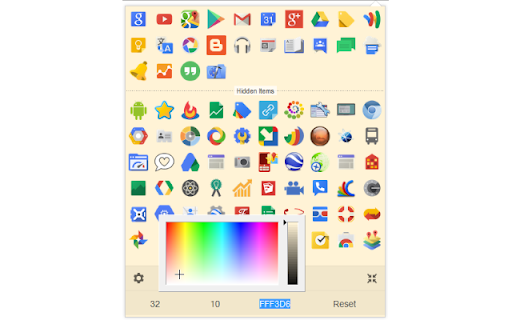


The "Shortcuts for Google Products" extension lists all Google products in your browser's toolbar popup. Clicking on an icon will open the product in a new tab. Operation: Click: Opens in a new active tab next to the current tab Shift + Click: Opens in a new window Ctrl + Click or Command + Click: Open in a background tab next to the current tab Updates: 1. Drag & drop to re-arrange your icons. 2. Re-size popup and also icons. 3. Add a new custom product to the list Notes: 1. In order to change the popup width, please enter an integer value from 5 to 24 in the designated space. This value represents the number of columns in the popup. 2. In order to change the icon's size, please enter an integer value from 16 to 64 in the designated space. This value represents the icon size in pixels. 3. in order to see the new icons after each update (not for the first install), you need to reset the toolbar popup once. To do so, open the toolbar popup, click on the settings icon at the bottom left corner, and then click on the reset button.

Awesome Button Bar
Button bar, combining downloads, bookmarks, extensions, history, view source, print, and more from a single button. Awesome! Extensions, history, downloads, bookmarks, view source, options, new window, and print are all here. Recently added buttons are duplicate tab, second home, and refresh all tabs. Showing each button on the bar is optional so you don’t have to have them all if you don’t want them all. Also, each button can be configured to open either in the current window or in a new window. Note: print to a new window now works too!

App Launcher in Popup
Allows you to access the Google App Launcher right from the Chrome toolbar This app has been replaced with G App Launcher, see: https://chromewebstore.google.com/detail/g-app-launcher-shortcuts/ponjkmladgjfjgllmhnkhgbgocdigcjm This extension allows you to access Google's App Launcher right from the chrome toolbar. This way, you don't need to open a new tab or browse to a google website to access it.

Black Menu for Wikipedia
Easy access to the Wikipedia universe Black Menu for Wikipedia lets you access the best of the Wikipedia Universe, in a simple, easy, and convenient way. This extension has a comprehensive menu of Wikimedia Foundation projects. You can access them by browsing through the black menu entries. By clicking the menu entry of your choice, you'll go to the corresponding Wikimedia Foundation project in a new tab. Wikipedia – The primary page, containing a search box which lets you access the vast collection of Wikipedia articles right inside Black Menu for Wikipedia. This page also features today's featured Wikipedia article and recent news reported by Wikipedia. Wiktionary – Search for thousands of words featured in the Wiktionary dictionary and thesaurus. This page also features Wiktionary the word of the day. Wikiquote – Browse Wikiquote's broad collection of quotes using the search bar or search for quotes by categories. This page also features the Wikiquote quote of the day. Wikibooks – The Wikibooks page includes an overview of the Wikibooks project and a search bar to search and access an array of 2,600+ books. Wikisource – Browse through the ample library of Wikisource texts using the search bar at the top of the page. The Wikisource page also include the featured text of the month, new texts, and Wikisource highlights. You can also browse through texts by categories and author. Wikispecies – Search through Wikispecies' collection of organisms using the search bar at the top of the page. A featured author and the species of the week are also displayed on this page. Wikinews – Check up on the news as reported by Wikipedia. If you want to look through the news archives, just use the search bar at the top of the Wikinews page. Wikiversity – This page includes a introduction to Wikiversity and the search bar at the top of this page lets you search through Wikiversity's extensive assortment of educational resources. Wikivoyage – Explore the world using the free worldwide travel guide that anyone can edit. Search for travel guides by continent or use the search bar at the top of the page. Also look for itineraries, phrasebooks, travel topics and other topics. The Wikivoyage page also features the destination of the month, a destination off the beaten path and the featured travel topic. Commons – Search for and view all the media files Wikipedia Commons has to offer using the search bar. Also browse through media files by topic, location, type, author, license and source. This page also features the Commons' picture of the day. Meta-Wiki – This page includes an introduction to Meta-Wiki, the global community site for Wikimedia projects and the Wikimedia movement. Use the search bar to browse through various projects and pages.

Launchpad for Google
A fast, clean launchpad for your Google apps Get instant access to your Google web apps with a clean, elegant launchpad built for speed and simplicity.
