
onphnbdaloaeamdhncmepiklcplinpke
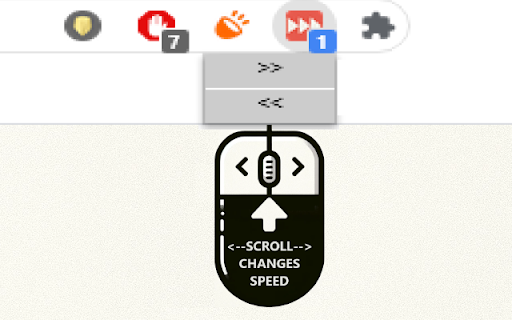
Control the playback speed of videos beyond standard limits. Quick Guide: To increase speed: Click '>>' or scroll up To decrease speed: Click '

YouTube Fast Forward
Customizable Buttons to Skip Forward/Rewind and Seek Through videos on YouTube. • Adjust fast forward and rewind intervals to suit your preferences. • Choose whether to override your keyboard's arrow/J+L keys. • Skip at your own pace: set a custom delay between each skip event and execution timing. • The buttons blend right into the player by using youtube's UI style. • Instant Sync Across Tabs: Any changes you make to the skip intervals and seek through values are instantly applied across all open youtube tabs. • Automatic Save: Your custom settings are saved automatically in your browser's local storage, so you don't have to set them every time. Note: • Please be aware that settings saved in your browser's local storage may be cleared if you clear your browser's cache or cookies. • Skip intervals are adjustable in seconds, with a maximum limit of 99 seconds. • Seek through values are adjustable in milliseconds, with the min/max limits stated under each setting. • Keyboard override setting is OFF by default. • If you are experiencing issues with the popup not hiding along with the rest of the elements after your mouse leaves the player, enable the new setting for injecting the buttons outside the player until it is fixed. They will be injected next to the subscribe button.

Controls for Youtube
Quickly seek Youtube video playback forwards and backwards by either 3 or 15 seconds. Quickly seek Youtube video playback forwards and backwards by either 3 or 15 seconds. ==================================== What This Extension Does ==================================== This tiny and efficient extension helps you easily seek forwards and backwards in Youtube™ videos. If you ever watch long videos and want to seek backwards a little bit so you can see something again, but get frustrated trying to drag that tiny slider just the right amount, this extension is for you! This extension will add keyboard shortcuts which let you quickly seek ahead or back by either 3 or 15 seconds (configurable). Additionally, it can also optionally add new buttons to the player which you can click to seek ahead or back. 1) Load any web page that contains a YT-video 2) Click the video to make it play 3) The extension will automatically detect the video and add the new seek buttons to it 4) To seek forwards or backwards, you can either click the buttons, or use the Keyboard Controls *Note - like many other extensions, any webpages you loaded before installing the extension must be reloaded before the extension will work. List of Keycombos http://rehfeld.us/browser-extensions/controls-for-youtube/keyboard-controls For example, it's really easy to hold your ctrl key and then press your left arrow key twice to quickly go back 6 seconds! You can configure how far ahead and back each key takes you via the extension config page. Also, if you don't like the buttons that get added to the player, you can disable some or all of them. To see the config page, click the extension icon on the top-right of your browser, then select "options", just like on any other extension. Alternatively, goto the chrome://extensions url, click the "Details" btn for this extension, then click "Extension Options". TIP: You can skip through some advertisements by just fast forwarding! Try using the "Seek forward to end" keycombo. You can also rewind the ad, if you like. TIP2: You can modify the seek duration when you click a seek button using the mouse: ctrl + click will be half the normal duration, shift + click will be double, and shift + ctrl + click will be 5x. Non-Obvious Feature: Note that the keyboard controls work properly even when you're on a non-youtube.com website which embeds the YT-video into their webpage. When using keycombos, you don't need to give the video "mouse focus" by clicking on it, which allows you to freely interact with the parent web page without worrying about losing mouse focus due to clicking something else. This can be handy, for example, if you've scrolled to the bottom of the page to read comments, and suddenly wish to rewind or pause the video without having to scroll back to the top - just use the keys. While native YT-videos do have their own keycombos to pause the video (the space bar), it only works on non-youtube.com pages when the video currently has mouse focus. This extension offers its own pause control (Ctrl + SpaceBar) which works without the video needing focus. The same goes for all the keycombos - they all work without needing the player to have focus! The browser tab does need focus, however. Limitation: -The GUI buttons can only be added to the player if there's enough width - small players may not be wide enough. If you maximize the player, they should show up, or you can always just use the keyboard controls. Youtube™ is a registered trademark. This extension was developed independently, by someone who is not related or affiliated with them, without any help or endorsement from them. http://rehfeld.us/browser-extensions/controls-for-youtube/privacy-policy http://rehfeld.us/browser-extensions/controls-for-youtube/changelog

Custom Video Speed for YouTube™
change the current & default speed of YouTube™ videos by steps of 0.1 from 0.1 up to 8.0 using sliders, buttons, and/or the keyboard 10.0.0 UPDATE! Version 9.0.0 is rolled back. There is NO LONGER the music check feature. In the development and deployment of 9.0.0, a serious bug was introduced. Until this bug can be solved, the extension features are being rolled back to the 8.0.0 version. A new version number is necessary when publishing to the web store, but version 10.0.0 has the exact same features and functionality as 8.0.0 did. 9.0.0 UPDATE! This is a major update that introduces a new feature: the detection of music videos! The extension now has an option to detect music videos and reset speed to 1 if it does. This only works for music from official YouTube™ Music channels (the ones with the little music note by the artist name). By default this is disabled so as not to disrupt the typical experience but it can be turned on in the options page! 8.0.0 UPDATE! There are no major User-facing changes in this update, however the extension now uses Manifest v3. This is necessary because Google will soon remove support for Manifest v2 from Chrome. No features or options should change and this update should be entirely transparent. 7.0.0 UPDATE! Text fields no longer mess with the extension's functionality. By default, when typing text on a webpage, the extension will ignore your hot keys so the speed doesn't change, and you can write comments in peace! You can still turn this option back on if, for some reason, you like changing speed while typing in the options page. 6.1.2 UPDATE! Replaced Icon and text due to guidelines 6.1.0 UPDATE! Contributions from @jclaveau on GitHub to enable features in embedded YouTube™s and iframes from YouTube. This is a breaking change. In an effort to make the extension work as closely as possible to how it was in 5.1.0 provided no options are changed, the following things were done 1. 'keypress' was changed to 'keydown' this due to how macOS reports codes in keypress. This should be transparent to the users 2. The options page no longer uses `keyCode` it now uses `key`. `keyCode` is deprecated and inconsistent between platforms and more opaque to use. 3. `event.preventDefault()` is now an option and no longer forced on. Not calling preventDefault() is the old behavior of 5.1.0 so this decision is so that the extension more closely works like 5.1.0 if no key bindings are changed This will make the extension act more like it did before 5.2.0. It does however break the keyboard shortcuts that people might have set until now NEW FEATURE: Change the keyboard shortcuts for the app! You can now change the keys that control the extension. Below (in the description) you can see the default keys used to control the extension. You can use the new options page to change which keys do what. There is also (though there has been for a while) the option to disable keyboard controls entirely if you prefer. --- 5.1.0 UPDATE! This update has all of your favorite features of the last update PLUS now you can change the values of the buttons in the extension to whatever value you want so you have easy access to your favorite speed settings. --- 5.0.0 RECENTLY UPDATED!!! BUGS FIXED!! I noticed that when ads play it resets the speed the video. I have added a mechanism that ensures the speed is always moving at the current setting when the video is playing even after an ad interrupts it!! 5.0.2 Fixed issue with the grave key and added number formatting so there are no long decimal points --- This extension lets you change the speed of YouTube™ videos in a more granular way than the default options in the player. The player on YouTube™ let's you change the speed to 0.25x, 0.5x, 0.75x, 1x, 1.25x, 1.5x, 1.75x, and 2.0x the normal speed. This extension lets you change the speed of playback to between 0.1x to 8.0x normal speed by steps of 1.0, 0.5, 0.1, or 0.05. Once you find a speed you like, you can also save it as the default speed which all YouTube™ videos will play at when opening. You can also program up to 7 "preset speeds" that allow you to simply click a button and set the speed of the YouTube video to your stored preset. By default this extension adds a the ability to control the speed of a YouTube™ video and some playback with keyboard shortcuts. The '+' and '-' keys to change the speed by 0.1 and to the '*' and '/' keys change the speed in increments of 1.0. If you hold shift while pressing these, '+' and '-' move in steps of 0.05 and '*' and '/' move in steps of 0.5. It also assigns '`' to reset the speed to 1.0x normal speed. Finally, it uses '[' and ']' to move through the video in time steps proportional to the speed of the video, rather than in increments of 5 or 10 seconds. These shortcuts *can* be disabled on demand if you prefer not to have them and can be re-enabled at any time I made this extension for fun and because it really made my YouTube™ experience better. I published it because I thought it might be useful for other people as well. I cannot promise every single YouTube page and video will work perfectly with this extension. YouTube has a lot of places like gaming, educational playlists, livestreams, etc. This extension is open source on GitHub (see website) link, and I am open to suggestions, issues, and fixes but I cannot make any promises about what I will do with those things if i receive them.

Video Dominator
Hover over any video, hold the right mouse button down, and use mouse wheels or buttons to seek, adjust volume, speed, and more. Hover over different areas of any video, hold the activation key down (right mouse button by default), and use mouse wheels or buttons to perform an unlimited number of custom actions such as: - play/pause the video - seek by, seek to (units available: second, frame, %) - adjust or set playback rate (0x to 16x) - adjust or set volume - toggle mute - toggle picture-in-picture mode - toggle custom player On some websites, you can also: Overlay Element - hover over a video, hold the activation key down and use mouse wheels or buttons - activation key can be the Right Mouse Button, Ctrl, Alt, or Shift - available on almost any website Video Element - hover over a video and use mouse wheels or buttons - works only when the video is a top-most element (on websites such as YouTube, Odysee, Nebula, CuriosityStream) - customizable overlay temporarily shows you info depending on the last action, such as: - volume - playback rate - current time, current time / duration, remaining time - time can be based on the current playback rate - a full window or full screen player with minimalist UI and no popups or any other distractions - you don't need to hold the activation key down while using mouse controls - unlimited number of custom keyboard shortcuts - customizable progress bar - none - the extension will run on all domains - blacklist - the extension will not run on listed domains - whitelist - the extension will run only on listed domains Storage - for storing extension settings Downloads (optional) - for downloading media files This extension does not collect personal data from users, and it does not send any user data to a remote server. The only data it collects are extension settings, and this is stored locally on your PC.
