
pknkmgaijamjmeeglhmgkpfgbkogkbob

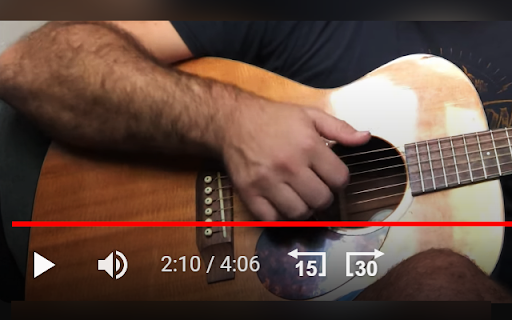

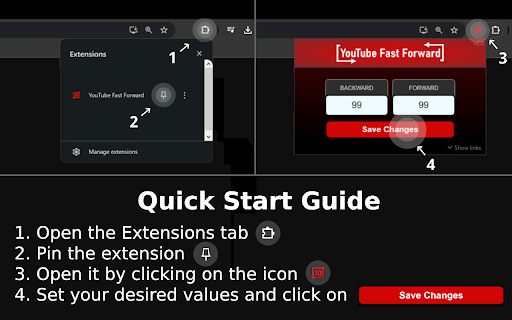

Customizable Buttons to Skip Forward/Rewind and Seek Through videos on YouTube. • Adjust fast forward and rewind intervals to suit your preferences. • Choose whether to override your keyboard's arrow/J+L keys. • Skip at your own pace: set a custom delay between each skip event and execution timing. • The buttons blend right into the player by using youtube's UI style. • Instant Sync Across Tabs: Any changes you make to the skip intervals and seek through values are instantly applied across all open youtube tabs. • Automatic Save: Your custom settings are saved automatically in your browser's local storage, so you don't have to set them every time. Note: • Please be aware that settings saved in your browser's local storage may be cleared if you clear your browser's cache or cookies. • Skip intervals are adjustable in seconds, with a maximum limit of 99 seconds. • Seek through values are adjustable in milliseconds, with the min/max limits stated under each setting. • Keyboard override setting is OFF by default. • If you are experiencing issues with the popup not hiding along with the rest of the elements after your mouse leaves the player, enable the new setting for injecting the buttons outside the player until it is fixed. They will be injected next to the subscribe button.

UnTrap for YouTube — Block YouTube Shorts & Remove Recommendations
Make YouTube more focused and distraction-free. UnTrap turns YouTube into a clean, focused, and intentional space. It removes distractions like Shorts, visual noise, and attention-grabbing UI elements, so you can watch content without endless scrolling or interruptions. UnTrap offers 250+ powerful features that let you fully customize how YouTube looks and behaves — from layout and content filters to automation, focus tools, and AI-powered summaries. Short videos are one of the biggest attention traps. UnTrap lets you remove Shorts entirely or treat them as regular videos, so you stay in control without breaking your workflow. You can disable Shorts, open them in the standard player, or keep them hidden for a cleaner interface. Decide what stays and what goes. Remove related videos, comments, suggestions, live chat, notifications, buttons, sidebars, and trending sections when they pull attention away. Reduce visual noise by hiding thumbnails, overlays, promotions, and ad banners, or even the Home feed entirely. Get instant AI video summaries with key insights, timestamps, and enhanced transcripts. Jump directly to important moments, expand transcripts or descriptions, and save summaries for later — with multilingual support across content types. A calm interface and mindful controls help reduce overstimulation and support healthier viewing habits. Whether you’re building productivity habits or simply trying to stay focused, UnTrap adapts to your workflow. Enjoy a distraction-free player with full-window viewing, resizable layout, and precise playback controls. Personalize YouTube with themes, cinema mode, or full-size theater mode. Restore the old YouTube layout, use legacy list views, or switch to a minimal interface. Small tweaks like disabling ambient lighting or improving in-page search refine everyday use. Filter content, block unwanted videos or channels, mute topics, and apply keyword-based rules to shape your feed. UnTrap supports advanced content filtering and parental control tools to help build a safer, distraction-free environment. Save time with smart automation. Disable autoplay, auto-skip video promotions, add intentional opening delays, set default playback speed, enable fullscreen automatically, redirect the Home page, and control YouTube with custom keyboard shortcuts. YouTube adapts to you — not the other way around. UnTrap works across desktop, mobile, and embedded YouTube players, making it a reliable YouTube enhancement wherever you watch.

YouTube Fast Forward & Rewind
Fast Forward and Rewind YouTube videos by a customizable amount of seconds! Enhance your YouTube playback with YouTube Fast Forward & Rewind. Add custom skip buttons and configure keyboard shortcuts for precise seeking control. Custom Skip Buttons: Add fast-forward/rewind buttons to the player controls with your preferred skip times. On-Screen Skip Indicator: When you use your keyboard's arrow keys (`←` / `→`) to skip, a sleek new indicator now appears on the video. It shows you exactly how many seconds you're skipping and has smooth animations to give you clear feedback. Usage Statistics: Curious about how much time you've saved? A new "Statistics" panel in the Advanced Settings tracks your total skips. This data is **100% private**, stored only on your computer, and is never collected or viewed by me. You can reset your stats at any time. Action Delay Control: Fine-tune player responsiveness with a new experimental setting to add a small delay (in ms) after a skip command. Perfect for preventing buffering on some systems. Custom Keyboard Seeking: Set custom skip durations for the left/right arrow keys. Integrated Controls: Buttons fit seamlessly into the YouTube player interface. Auto-Save: Your custom skip time settings are saved automatically. Control your YouTube navigation exactly the way you want. View on GitHub: https://github.com/Laskco/YouTube-Fast-Forward-and-Rewind

YouTube Rewind & Fast Forward Buttons
Enhance your YouTube experience with the Rewind & Fast Forward Chrome extension. This tool adds dedicated buttons for rewinding and fast-forwarding videos. 1. Customizable Time Skips — Choose the skip duration for each button individually, with up to four customizable buttons. 2. Arrow Key Override — Choose whether to synchronize the Left and Right arrow keys with your configured skip durations. (Default: No override) 3. Media Key Integration — Map your keyboard's media keys (Previous/Next track) to use the same skip durations as the extension buttons. How to Access the Options Page 1. If you've pinned the extension, click the extension icon and then click "Open the options page". 2. If you haven't pinned it, click the Chrome extensions icon; you'll have two options: - Click the three dots next to "YouTube Rewind & Fast Forward Buttons" and select Options. - Click the extension name, then click "Open the options page". See the screenshots below for guidance.

YouTube Scoll Seek
Seek YouTube videos by hovering mouse over video and scrolling Up / Down (Forward / Backward) This extension allows you to use your mouse wheel to seek through YouTube videos.
