
oficbncopphljnpdgcccjiffknmhniao

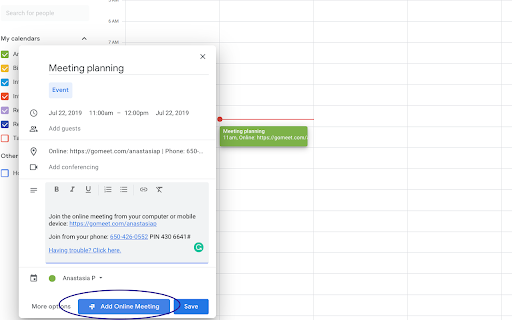

Elevate Chrome Extension Elevate is a full-featured UCaaS solution that combines cloud PBX voice, chat, business SMS, video conferencing, file sharing and contact center into a single platform. Seamlessly connect communication and collaboration functionalities of Elevate with Google products to streamline business workflows and increase employee productivity. • Place calls: Click-to-call phone numbers on any web page from your Google Chrome browser. • Schedule Meetings: Quickly and easily add Online Meeting details to any new or existing Google Calendar events. • Start Meetings: Click to start meetings from your Google Chrome browser or Google Calendar events. • Increase productivity: Embed Elevate into your Google products to automate business workflows and maximize employee efficiency. • Streamline workflows: Save time from switching between applications. • Easy to use: Elevate for G-Suite is easy to use and easy to deploy, with no heavy training or implementation costs. Note: The Elevate Desktop Application must be installed in order to use this extension. Learn more here: https://serverdata.net/elevateapps/ Elevate is available across desktop, softphone and a mobile app providing anytime access from virtually any device, anywhere, anytime. Our solution is built for MSPs and is available to sell via private label or cobranded models depending on your business needs.

Custom Cursor for Chrome™
Fun custom cursors for Chrome™. Use a large collection of free cursors or upload your own. Customize your Chrome browser experience with our free collection of mouse cursors at Custom Cursor. At Custom Cursor we have created a giant collection of hand-drawn cute cursors. We have over 10,000 different packs available on our website for you to enjoy. With your help, our collection has grown so big that we divided it into categories that should fit every taste, like: - Minecraft; - Cute Cursors; - Anime mouse packs; - Memes; - Spy x Family pointer packs with Anya Forger; - Among Us; - Two types of Minimal pointers for work and studies; - Games; - Roblox; - And many, many other funny elements for you to play with. Some of our mouse pointer packs are bundled with the Custom Cursor browser extension, but most of them await you on our website. Keep an eye out for new and trending additions. To simplify navigation, we've organised our collection into Editor's Picks collections, each with a unique theme. Examples include: - Green arrows for autumn; - Christmas themed arrows; - Holidays editor's picks; - Halloween; - Custom Cursor collaboration with Daieny Schuttz; - Pink pointers editor picks; - Summer mouse decorations; - Rainbow colors; and much, much more on our website. If you can't find what you're looking for, use the "UPLOAD CURSOR" button to add your own. Manage your personal arrow collection on the Upload page and adjust cursor size in the "Manage" section. Newly added collections will be uploaded to the Custom Cursor for Chrome extension and can be found at the bottom of the collection list. Your added packs will appear in “My Collection”. Create your own collection of mouse cursors from any images with Custom Cursor Creator tool on our website. It will allow you to create new packs from almost any arrow or pointer shaped image on the internet. ------------------- ! After installing the extension, refresh previously opened tabs to use it on those pages. Note that the extension may not work on Chrome Web Store pages or the home page. Open another website (e.g., google.com) to test the extension. If you like the extension you can also check our Custom Cursor for Windows app. Preview arrow appearance by clicking on it in the extension window and moving the mouse to the empty space within the window.

Relume Chrome Extension for Webflow
Boost your productivity in Webflow with the Relume Chrome Extension. ★ Access 1,000+ Webflow components from the Relume Library, right inside of Webflow designer. Copy components into your project with 1 click. ★ Class Sync enables you to sync Relume components with updated classes in the designer, preventing class duplication. When you turn on Class Sync and paste a component, the component will adapt to match the styles of your Webflow project. ★ Paste SVGs directly into your Webflow project, with Relume's free SVG to HTML embed converter. ★ Create and save components in your own private Relume Library. Share with with clients and your team. The Relume Library includes everything you need to start a Client-First Webflow project: ✓Navbars ✓Footers ✓Header sections ✓Feature sections ✓CTA sections ✓FAQ sections ✓Contact sections ✓Pricing sections ✓UI Elements (including Buttons, Accordions, Sliders, Dropdowns, Cards, Tabs & more) ✓Page Templates (including Home, About, Blog, Contact, Portfolio & more) Browse the full library online: https://library.relume.io/dashboard Don't waste time rebuilding layouts for every new project. Install the Relume Chrome Extension to access all of these components right inside Webflow. Some features require a Relume account or paid subscription. Find out more inside the extension or online: https://library.relume.io/pricing

Zoom Out Chrome
Control your web page zoom with Zoom Out Chrome! This extension makes it easy to zoom out on Chrome, improving readability. Zoom Out Chrome: Master Your Web View! 🔍🔎 🥱 Tired of squinting at tiny text or feeling overwhelmed by giant images on websites? Wish you could easily adjust the view or magnify with total precision? Take command of your browsing experience with the Zoom Out Chrome extension! No more fiddling with awkward browser settings – get the perfect view on every page, instantly. With our extension, you gain effortless control over your web page display size. How to zoom out on Chrome becomes a question of the past! One click, and you're in control. 🚀 Get Started in Seconds: ⬇️ Install the "Zoom Out Chrome" extension directly from the Chrome Web Store. 🖱️ Click the extension icon to reveal the user-friendly size controls. ➕➖ Use the slider or buttons to adjust the scale to your exact preference. Double click on icon and reset the view to default size (100%). 🌟 Key Features That Make You the Display Master: 🤯 Forget Complex Menus: No more hunting through settings! Chrome scaling in and out is now at your fingertips. 🎯 Precise Scale Control: Use the intuitive slider for fine-grained adjustments, or the buttons for quick jumps. How to magnify and shrink on Chrome has never been easier! 💾 Per-Tab View Memory: The extension remembers your preferred display size for each tab! Revisit a site, and it's exactly how you left it. No more constantly having to figure out how to zoom out on google chrome! 🌍 Global Scale Control: Want to apply the same level to all open tabs? We've got you covered! 💯 Double-Click Reset: Instantly return to 100% view with a simple double-click on the extension icon. Perfect if your chrome scaled out unexpectedly. 🛠️ Customizable Scale Range: Set your preferred minimum and maximum levels in the extension's settings. Take total control and solve how to control the scale on google chrome once and for all! 🔔 Visual Badge Indicator: The extension icon displays the current percentage, so you're always in the know. 🚫 HTTP-Only Safety: A helpful modal window alerts you if you try to use it on a non-HTTP page (like Chrome's internal settings), keeping things secure. 💎 Ideal for Every Chrome User: 👓 Visual Comfort: Whether you need larger text for readability or want to see more content at once, easily adjust the display for optimal viewing. How to shrink a webpage? Simple! 💻 Developers & Designers: Quickly check how your website looks at different sizes for responsive design testing. 🖥️ Presentations: Ensure everyone in the room can see your screen clearly by adjusting the display on the fly. 🧑💻 Multi-Monitor Setups: Match sizes across different screens for a consistent experience. 📰 Reading Articles: Make long-form content more comfortable to read, you no need think how to magnify in browser. 🖼️ Viewing Images: Enlarge details or shrink to see the whole picture. ❓Anyone: Easy way to change text size chrome. 💬 Frequently Asked Questions: ❓ How to zoom out in Chrome using this extension? 💡 Simply click the extension icon and use the slider or buttons! ❓ How do you shrink on Chrome if it's stuck enlarged? 💡 Double-click the extension icon to reset to 100%. ❓ How to magnify and reduce in Chrome on specific pages? 💡 The extension remembers your size level for each tab individually. ❓ How to scale down Chrome entirely? 💡 Use the global feature to apply the same level to all tabs. ❓ I accidentally scaled! How to unzoom google? 💡 Double click on extention icon! ❓ How to unzoom a web page? 💡 Adjust the slider to a smaller percentage. ❓Can i use chrome custom scaling? 💡Yes! You can set any level you like. ❓My chrome screen zoomed in, what should I do? 💡Use the Zoom Out Chrome extension to quickly reduce to your preferred level. ❓ How to enlarge google screen? 💡 Use the + in slider to make things bigger. ❓How to reduce the size of a website? 💡Use extension settings. 🚀 Take Control of Your Visual Experience! 👆🏻 Click "Add to Chrome" now and enjoy a more comfortable and productive browsing experience. Say goodbye to eye strain and hello to perfectly sized web pages!

Google Translate Open SideBar in Chrome
Google Translate Extensions For Chrome. Google Translate Open SideBar in Chrome The only site and application that comes to mind for translation is Google Translate. Google Translate has made a difference in translation. Google Translate Extensions For Chrome. Google Translate Open SideBar in Chrome
