
oajmcmcpiboagipoflploplebgicaadj
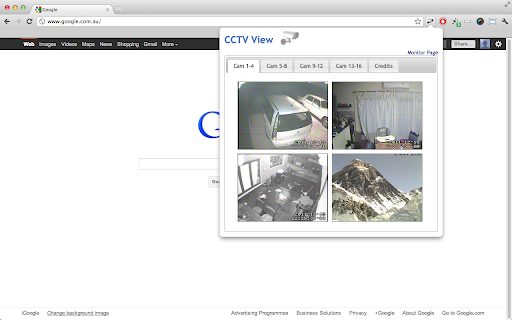
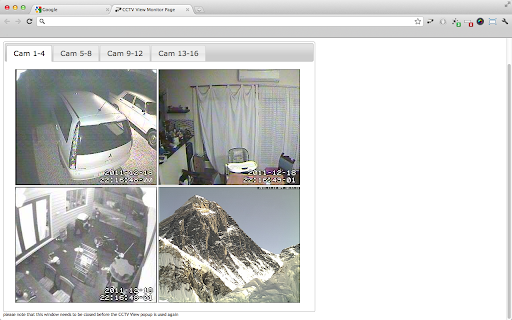

Watch up to 20 webcams or CCTV cams within your browser. This extension allows you to define up to 16 cctv or webcam urls. Every time the toolbar button is clicked it will show an updated version of the image. I wrote it to be able to look at my cctv cameras with the click of a button. I use Zoneminder (http://www.zoneminder.com), an open source cctv monitoring system. you can either use the image url from the watch window or the jpeg stream url from the montage window. For still images just copy the image url from the watch window (should look something like http://server/cgi-bin/nph-zms?mode=single&monitor=13&scale=100&connkey=193577&rand=1314794770 and paste this in the image url fields on the CCTV View options page. For streaming jpeg images you'll need to copy the url parameter from the video stream on the montage window. This extension needs access to connect.facebook.net to allow the facebook like button. It also needs access to tabs which unfortunately includes browsing activity, this is needed to allow the monitor page to be loaded and for the target links you can set for each camera. 1.1.0.6 - Removed paypal donation button (Apparently Google doesn't like it...) - Replaced minified jquery and jquery-ui by the non-minified versions (Another thing Google may not like) 1.1.0.5 - Updated jquery to 2.1.1 - Updated jquery-ui to 1.10.4 - Removed unused javascript and css files 1.1.0.0 - Settings are now synchronised to all your chrome instances on other computers when logged into chrome - some minor layout changes and code improvements. 1.0.9.5 - Fixed manifest.json again. - Fixed issue with html element creation (createElement('image') no longer works, should be createElement('img') now). - Replaced background page with a script - Updated jQuery to a more recent version 1.0.9.4 - updated manifest to version 2 - removed the 'Share' tab from the options page until I can work out how to make that work again - moved all javascript to separate files as per Google's requirements 1.0.9.3 - Major overhaul of the options page 1.0.9.2 - Added tabbed support for up to 16 cameras 1.0.8.6 - Added Facebook like button to the options page 1.0.8.5 - Added fadeIn effect to images in popup - Added 'Target Url' fields on the settings page. This allows you to add a url to each cam image. Clicking on the cam image will open a new tab to the Target Url. - Added a Monitor Page, clicking the 'Monitor Page' link on the popup will open a new tab with all camera images, this allows you to keep your cameras open. - Opens the CCTV View wiki page at first installation 1.0.8.4 - fixed layout issue with the homepage link 1.0.8.2 - Added tool tips on the options page - Fixed a javascript issue that caused 4 (broken) images to be displayed when less than 4 images were added on the option page - Fixed scaling of the popup depending on the amount of images configured - Added an option to display a link to your CCTV homepage in the popup. This option requires access to tabs. 1.0.8.1 - Cosmetic fixes - Popup window scales to the amount of images - Removed default image for empty image fields - Added options to hide donation and help box on the options page - Display Advanced Options is now persistent Leave a comment with any bugs/requests @Dai Saabaru: Authentication will be added in one of the next releases.

YouTube DJ effects / EQ / Volume Booster / Bass Booster
This extension brings DJ tools such Equalizer, Volume Booster, Sound Effects, to YouTube but also any other website! Designed by audio engineers, this extension is powered by the technology of the popular YouDJ DJ software. You will hear the difference with other audio extensions... ;) Here is the audio tools you will get : - volume booster / bass booster on any website! - 8 audio DJ effects (echo, reverb, flanger...) - 3 bands equalizer with a -60dB cut - the popular hipass/lowpass DJ filter - volume limiter (to avoid distortion) - sound launchpad (are you readyyy...) - scratch and backspin effects - and finally a cool fire effect ;) PS : Chrome asks for the permission to "read" all your websites because the extension is capturing the audio from any website to process it. All audio extensions (equalizers, volume boosters...) will ask the same permission. No worries :)

Earth 3D Maps
Explore bird’s eye 3D maps of the Earth – cities, mountains, wonders and new places. Travel virtual around the Earth with 3D maps. Plan your next real-world adventure by exploring destinations virtually with Earth 3D Maps: bringing the wonders of the world directly to your screen through your Chrome browser. Discover new destinations from the comfort of home — install Earth 3D Maps and start your virtual journey today! On the popup of the extension Earth 3D Maps you will explore the globe in 3D. When you click the "Open larger map" button, a new 3D map of the Earth opens on an external website. You can zoom in and out, rotate and move around on the 3D maps. We have created this extension to plan your next vacation in popular cities and places on Earth. Earth 3D Maps Chrome extension uses ArcGIS embed code in iframe. User Agreement Use the Chrome extension “Earth 3D Maps” at your own risk. No guarantee or warranty is given. The author shall not be held liable for any damage or loss of data caused by its use. Usage of “Earth 3D Maps” means that you agree to these terms. We collect information about your Web Browser, IP, ISP, the time and date of your visit with Google Analytics. This is standard procedure and most of the extension do the same. Disclaimer The Chrome extension “Earth 3D Maps” is have no affiliations with the popular website Google Maps. All copyrights belong to their respective owners. Google doesn’t endorse or sponsor this Chrome extension. This Chrome extension is not owned by, is not licensed by and is not a subsidiary of Google Inc. All copyrights belong to their respective owners. Contact Us We will be very happy to help. Please send us a message on the support tab. Uninstall of Earth 3D Maps To the right of your address bar, look for the extension's icon - a blue Earth circle. Right-click the icon and select Remove from Chrome.

IEability - Open in IE
Runs Internet Explorer (IE) in Chrome with IE Tab mode, supporting legacy websites, Java, ActiveX, Flash and enterprise systems. IEability integrates the Internet Explorer (IE) rendering engine directly into Chrome, allowing users to open web pages in IE Tab mode seamlessly, just like using a regular Chrome tab. Access legacy websites, Silverlight, ActiveX, SharePoint, Flash and Java applications seamlessly in Chrome with IE Tab mode! The ultimate Internet Explorer integration extension, enabling you to browse all websites in a single browser environment. Ideal for: Enterprise users, developers, and anyone requiring IE compatibility without switching browsers. 1. Advanced IE Tab Mode: - Instantly access legacy websites with the native IETab rendering engine. - Full support for IE versions (IE7 - IE11). - Perfect for banking, enterprise portals, and outdated web applications. 2. Smart Automation: - Automatically switch to IE Tab mode based on custom URL rules. - Seamless cookie synchronization between Chrome and IE. - Single sign-on support—no repeated logins required. 3. Enterprise-Grade Compatibility: - Complete support for ActiveX controls. - Full compatibility with Flash, Java, SharePoint, and Silverlight. - Includes built-in IE Developer Tools for efficient debugging. 4. Effortless User Experience: - Operates just like a standard Chrome tab. - Quick and smooth switching between Chrome and IE modes. - Clean and familiar interface for ease of use. 1. Why is ieability.exe necessary? It enables integration of the IE engine within Chrome, especially after NPAPI support was discontinued. 2. Is it safe? Yes, it is fully security-certified and virus-scanned. You can verify its safety at: (https://www.virustotal.com/gui/file/123437a7f07d96d245681620b4103af2e05b2dab3a7e22a6d987e734e975bcaf). - Basic Version: Free forever. - Premium Version: Unlocks advanced features for enhanced functionality. For more details, view our Privacy Policy: (https://ieability.com/privacy.html)

NetSupport School Student
The #1 choice for IT educators worldwide, NetSupport School delivers the tools you need to help maximize the effectiveness of… The #1 choice for IT educators worldwide, NetSupport School delivers the tools you need to help maximize the effectiveness of computer-led teaching and now you can utilize the power of NetSupport School in a Google Chrome environment. For use in your existing NetSupport-managed classroom, the NetSupport School Student extension can be installed on each student machine running the Google Chrome OS. From the teacher's machine (Chrome OS or Windows) you can then connect to each system enabling you to monitor and interact with each student quickly and efficiently. KEY FEATURES: - View a crystal clear thumbnail of each student device in a single view and zoom in to view a larger thumbnail of any selected student Chromebook. - Open a separate view session to discreetly monitor a selected student’s screen and take a closer look at activity – perfect for ensuring students are on task with their learning activities. (The open Browser activity can be viewed in Thumbnail and View modes along with the option to view the full desktop if required.) - The teacher can set objectives and expected outcomes for the current lesson. - Ask students to register at the start of each lesson. - The teacher can show their desktop to students’ Chromebooks to help demonstrate a point or show students how to do a particular task. - Lock the student's mouse and keyboard when instructing. - The teacher can send an instant survey to students during or at the end of a session, helping to instantly capture students’ understanding of a topic. - The Feedback and Wellbeing feature can be used by teachers to gauge how students feel, their confidence with a topic and whether they need extra support. - The teacher can open a discussion session that all or selected students can join, enter their comments and share with the rest of the class. - Send an attention-grabbing message or instruction to each student machine. - Request Help facility - students can send a request for help to the teacher. - Block unauthorized websites. - Use approved websites only. - Block all Internet access. - Launch a website on the student Chromebook. - Block FTP Access. - See details of the website that students are currently viewing. CHROME INCOGNITO MODE: To ensure you retain full visibility of your students' internet use, it is recommended that you ‘disallow’ Incognito Mode in the Chrome OS User Settings via Google Apps for Education. INSTALLATION and PRE-REQUISITES: For a teacher to be able to monitor and interact with their students using Google Chromebooks, the NetSupport Name & Connectivity Server must be installed on a Windows Server; the NetSupport School Tutor app for Google Chrome must be installed on the teacher's Chrome OS machine or for mixed platform classrooms, the NetSupport School Windows Tutor application can also connect to student Chromebooks; and the NetSupport School Student extension installed onto each of the students' Chromebooks. An IT Admin can centrally manage the configuration and deployment of the Student extension within the Google Admin Console. The NetSupport School student for Chrome OS can be used with the existing NetSupport School licences you have already purchased (as long as you have sufficient unused licences). Please visit www.netsupportschool.com/chrome for more information and a simple step-by-step guide to managing your Chrome OS students in the classroom. - Performance and operability enhancements.
