
nnnhkcbkfhoibfabdjfjechkdfcdndgj

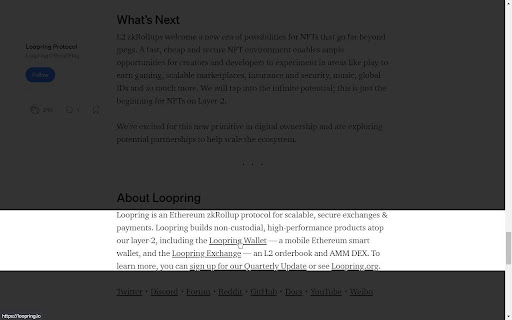
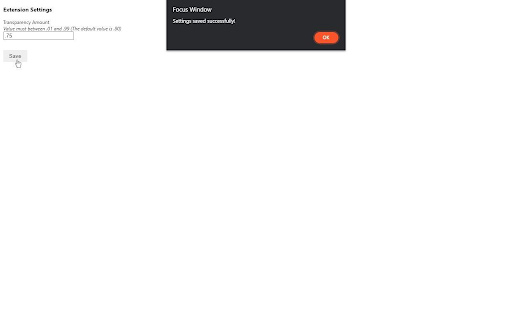
ADHD-based extension helps you cut out distractions on the page so you can focus on what actually matters Enabling the Focus Window extension hides most of the page behind a slightly less transparent background to reveal a much smaller area of the screen to allow your focus to remain on the content that you care about. This narrow focus area will follow your cursor around and still allows you to interact with items on the page. This extension is made to help users with ADD or ADHD improve their focus but can be used by anyone who wants to limit the amount of information being thrown at them at any given time on a webpage.

Viewer for ADHD
Helps people with ADHD focus on reading webpages. Viewer for ADHD helps users focus on reading by dimming unnecessary content on webpages. It creates a viewing strip that follows the mouse cursor, reducing distractions and improving concentration. 🔹 Features: ✅ Adjustable dimming opacity. ✅ Customizable viewing strip height. ✅ Auto-dim — dimming deepens when the cursor stops, and lightens when you move. Helps maintain focus without manual adjustments. ✅ Spotlight — replaces the standard strip with a movable focus window that follows your cursor in all directions. Customize width, height, and corner radius — even make it a circle. ✅ Color filter — apply Sepia, Green, Blue or Grayscale filter to page content with adjustable intensity. Enable "Always on" to keep the filter active even when the cursor leaves the page. ✅ Disable on this site — turn off the extension on specific websites with one toggle. ✅ Auto-hide effect when the cursor is near the screen edges. ✅ Simple enable/disable toggle. Enhance your reading experience and stay focused with Viewer for ADHD! 🚀

Wiki Readifyer
Have you ever tried to read an Wikipedia article, trying to gain knowledge but the page's design just hindered your eyes from locating the words that held the desired wisdom? Well, worry no more! Wiki Readifyer makes the knowledge you are searching for pleasantly readable. The wisdom you desire to read is just one installation away! And the best thing: It doesn't remove anything from the page it only changes the layout while staying 100% faithful* to the original contents. The following changes are applied to guarantee the best possible experience: • responsive layout: articles are pleasantly readable at any window size • slight reduction of text-background-contrast • reduction of article width • moving the table of contents to the right where it stays even when scrolling • the title also stays visible when scrolling down • some other little adjustments *However, if the window width is too small the extension will hide the left sidebar, only to guarantee the best use of your precious screen space. To make it visible again, just make the window wider. In 2023, many Wikipedias changed their default theme to Vector 2022, a more modern and user-friendly theme. Wiki Readifyer does not touch Wikipedia's layout if any theme other than the old (legacy) Vector theme is active. This means, to get the advertised layouts on Wikipedias with the new theme, you have to turn off the new skin.

Riffling
Riffling is a new method facilitating the reading process by guiding the eyes through text with artificial fixation points, based on the "Bionic Reading" method. As a result, the reader is only focusing on the highlighted initial letters and lets the brain center complete the word. This improved version of bionic reading, allows you to play with many tunable parameters, based on your preferences. You can change: * the Fixation (increase or decrease the number of characters per words highlighted) * the Saccades (increase or decrease how often do we highlight a word) * the Opacity (increase or decrease the font-weight for the highlighted words) * the Stopwords (increase or decrease the number of words that are considered as "not meaningful") * the StopWordsBehavior (how do we handle the stopwords: remove , underline, strikethrough, ignore or bold them) * the MaxRareWordsFrequency (increase or decrease the frequency of apparation of a word to be considered as "very Important") * the MaxRareWordsBehavior (how do we handle the stopwords: highlight , underline, strikethrough, ignore or bold them)

Sentence Segmenter
This extension will make your text easily readable by separating sentences based on periods. This extension can help make text easier to read by putting each sentence of a webpage on a new line (separated based on periods). You can activate the segmentation by clicking on the top-right icon. If you need to reread, it can be faster to find the beginning of sentences that all start on the left. If you’re skimming, you can abandon a sentence, and quickly find another sentence. Segmenting a page is like creating a snapshot. Certain elements can't be clicked on and expanded anymore, like comment threads. Expand first if necessary, and then segment. You can refresh the page to turn off the segmentation effect. Spacing between sentences is similar to the Microsoft Word setting: Microsoft Word -> Home -> Paragraph -> Indents and Spacing -> Spacing -> Line spacing single Before After 6 pt To create a shortcut that activates the sentence segmenter, go to the extensions page (chrome://extensions/), and click on Keyboard Shortcuts at the bottom. In addition to replacing "period" "space" with "period" "new-line", you can replace with "period""space""space". Right-click the icon, and go to "options". > Although comprehension was not affected by punctuation spacing, the eye movement record suggested that initial processing of the text was facilitated when periods were followed by two spaces, supporting the change made to the APA Manual.
