
ncpjnjohbcgocheijdaafoidjnkpajka

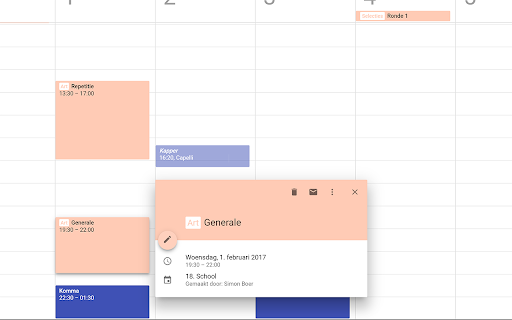
A little visual addon that adds special markup to tags and question marks in event names. This add-on causes two markup changes in of Google Calendar. Event names containing a colon (:) will have the part before the colon being displayed as a colored tag that helps discerning different kinds of events without the need for creating dozens of calendars. For example: "Tag: Event name" becomes "[Tag] Event name". Event names ending with a question mark will be displayed in italic and transparent, as a kind of optional or yet to be confirmed event.

Meeting Dolphin Google Calendar Tags
The best Google Calendar companion. Enables you to add tags to events, drive insights, search & filter and much more. Meeting Dolphin helps you maximise your Google Calendar experience and optimize it for work purposes. Use it to tag calendar events, organise your week, set Active Hours, and Remove timestamps, ... all in one extension. Learn more @ https://meetingdolphin.com/extension Our blog @ https://meetingdolphin.com/blog FEATURES 🏷️ Tagging for Google Calendar Drag and drop tags to categorize an event. This makes it easy to visualize your week. 📊 Time Analytics See your weekly or monthly time allocation by tag as you shift views. Export your tag data to CSV on the web app. 🔍 Search & Filter Search and filter either by Tags or by Text using the search bar. The matches are highlighted directly in your current calendar view. Set Work/Active Hours You never need to scroll up and down because Meeting Dolphin fixes your view to only your work/active hours. Hide timestamps: Clean up your events by removing the time stamps. At Meeting Dolphin, we believe that great software shouldn't come at a cost to privacy. Our extension securely stores your tags in the cloud so you can keep them backed up and accessible from anywhere you need them. Your data belongs to you, and we store it to provide value to you. Our extension uses read-only permissions for your calendar events. We do not store this data; its purpose is to programmatically link your tags to events. If you ever have questions about Meeting Dolphin's security practices or your data, reach out to us at security@meetingdolphin.com. Feel free to contact support at support@meetingdolphin.com and we'll reply as soon as possible.

Google Calendar AutoHide Toolbars
• Google Calendar's top and left toolbars are hidden by default. • Shows toolbars only when you need them. • To activate the top toolbar, hover on the bar at the top of the calendar. • To activate the left toolbar, hover on the bar at the left of the calendar. • Note! You must have the left toolbar activated for the hover bar to show. • TIP: Use forward slash "/" keyboard shortcut to activate Search without using mouse. v 0.3.4: Add support for native dark mode v 0.3.3: More dark mode tweaks v 0.3.2: Play nicer with Dark Reader extension v 0.3.1: Update to Manifest Version 3 v 0.3.0: Add support for Calendar Dark Mode extension. v 0.2.9: Better support for Search and Settings v 0.2.8: Disable top toolbar hiding while in Edit and Search results v 0.2.7: Fix to hide Create button

Google Calendar Weekend Highlighter
Custom Colour for Weekends in Google Calendar >>>>>>>>>>>>>>>>>>> LET'S GO DARK! >>>>>>>>>>>>>>>>> Important NOTE!!! >>>>>>>>>>>>>>>>>>>>> DONATE!

More Colors for Calendar!
HOW TO USE: This extension adds the ability to insert custom colors into Google Calendar events. Upon installing the extension, you might need to refresh Google Calendar for it to load. Once the extension has been installed, you can access the custom color creation by either right clicking events (accessing the color palette), or double clicking the event and accessing the other color palette within the advanced event details page. You can verify that the extension has been installed properly by the existence of an additional circle in the color palette with a plus (+) sign. Clicking on this plus sign should prompt you to insert a custom color defined by a hexcode (For example, typing 000000 will give you the color black. One recommended place to find colors is https://htmlcolorcodes.com/). Pressing "OK" on the color entry prompt will add this custom color to your color palette for coloring events. You can remove custom colors from your color palette by clicking on the extension icon in your browser's extension bar. This will open a small window where clicking on a color will remove it from the extension and your color palette. NEW FEATURE: The window that was used for removing custom colors now contains a button to toggle between cloud and local mode. Originally, this extension only ran on cloud mode. This allowed your calendar colors to be synced across different computers and browsers. However, it also came with the limitation of max 512 events. Now, with the local mode, this limitation has been increased dramatically. Choose whichever option is better for you! You can toggle between the two as well, and they are managed independently. Note: The colors are only available on the web version of Google Calendar. The colors will only be consistent on one browser on a computer unless Google Chrome sync is enabled, in which case the colors will be tied to your Google Chrome profile.
