
pdbcjcpinemooahpfnncddnmjgjhcfod
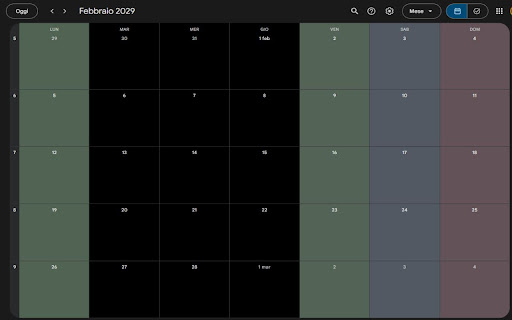


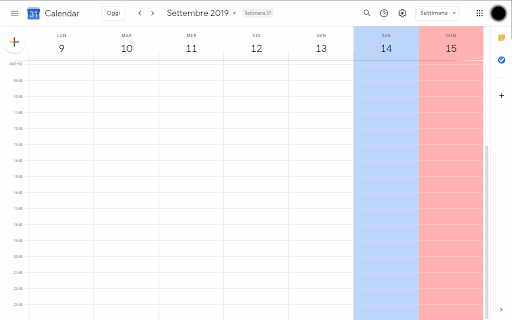
Custom Colour for Weekends in Google Calendar >>>>>>>>>>>>>>>>>>> LET'S GO DARK! >>>>>>>>>>>>>>>>> Important NOTE!!! >>>>>>>>>>>>>>>>>>>>> DONATE!

Custom Calendar Background
Modify the Google Calendar UI to include full-page background images or colors. Use your own images, or purchase from sets of provided themes. For support, see: https://github.com/padster/CalendarThemeExtension/issues **Note** Calendar recently added a dark mode. Support is coming, but for now if wanting to use the extension, it is recommended you use light mode, and instead set a 'dark overlay' in the extension's settings page.

Shade Calendar – Time Blocking for Google Calendar
Color-code your time blocks in Google Calendar. Make your schedule easier to read, plan, and manage 📆 📆 Shade Calendar – Color-Code Time Blocks in Google Calendar • Make your Google Calendar more visual and intuitive. • Shade specific time blocks in Google Calendar to organise your day, highlight events, and separate work, personal, or custom schedules. 💡 Features • Color-code time blocks in Google Calendar’s day, week, and 4-day views • Visually block out time for work hours, personal time, childcare, exercise, or focus sessions • Create your own weekly schedule with flexible, recurring time shading • Works seamlessly with multiple calendars, including personal and shared setups • Helps with time blocking, calendar planning, and visual scheduling 🧭 How to Use • Click the extension icon to open the time block editor • Choose which hours to shade and select a color • Set a unique time block schedule for each day of the week • View your new visual layout directly inside Google Calendar 🎯 Who This Is For This extension is perfect if you: • Practice time blocking • Use Google Calendar for both work and personal life • Want to separate tasks visually (e.g. meetings vs deep work) • Need better visual cues for commitments like workouts, childcare, or study time ⚠️ Disclaimer • Shade Calendar is an independent tool and is not affiliated with Google or the Google Calendar brand.

TeamCal for Google Calendar™
The missing schedule view for Google Calendar TeamCal provides a timeline view layout for Google Calendar that displays many calendars at once TeamCal transforms your Google Calendar into the perfect tool to schedule your employees, contractors, rooms, machinery, and resources. Google Calendar can become very cluttered when displaying multiple calendars. TeamCal will display your calendar data as a nice Gantt like “Schedule View”. The TeamCal schedule view is a new horizontal timeline view for Google Calendar that displays many calendars at once. See employee availability easily by comparing events on a horizontal Gantt like timeline view. With a glance, you can identify scheduling gaps and prevent overbooking. Perfect for scheduling staff rotations, on-call duty times, and team vacations. Stop switching between Google Calendar and other tools for scheduling your team. Because TeamCal uses your Google Calendar data, all information required for scheduling is available in a single place. Create new events or change existing ones directly within TeamCal. Share your schedule with employees and clients to keep everyone updated. With TeamCal, you can embed your schedule on a website, TV screen, or show it as a dashboard. You can export a PDF of your schedule, too. Print or send your planning results by email. Features: - Integrated & synced with Google Calendar - Customizable Scheduling view - Share, Print, and Export your schedules - Support for mobile and tablets - Multi-user functionality - And much more! Chrome Extension: This Chrome extension shows you all TeamCal schedules in a convenient drop down. Access your schedules directly from the Chrome toolbar.

Google Calendar Quick Duplicate
A simple Chrome Extension to quickly duplicate events on Google Calendar. This extension adds a "Duplicate event" icon on the event preview card, letting you quickly duplicate it with one single click. You can also quickly duplicate an event by holding alt (option on Mac OS) while clicking the event.
