
gmfgalicoeacemhkeakceigfeofbchod
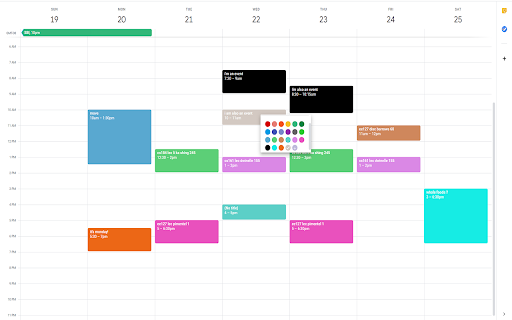


HOW TO USE: This extension adds the ability to insert custom colors into Google Calendar events. Upon installing the extension, you might need to refresh Google Calendar for it to load. Once the extension has been installed, you can access the custom color creation by either right clicking events (accessing the color palette), or double clicking the event and accessing the other color palette within the advanced event details page. You can verify that the extension has been installed properly by the existence of an additional circle in the color palette with a plus (+) sign. Clicking on this plus sign should prompt you to insert a custom color defined by a hexcode (For example, typing 000000 will give you the color black. One recommended place to find colors is https://htmlcolorcodes.com/). Pressing "OK" on the color entry prompt will add this custom color to your color palette for coloring events. You can remove custom colors from your color palette by clicking on the extension icon in your browser's extension bar. This will open a small window where clicking on a color will remove it from the extension and your color palette. NEW FEATURE: The window that was used for removing custom colors now contains a button to toggle between cloud and local mode. Originally, this extension only ran on cloud mode. This allowed your calendar colors to be synced across different computers and browsers. However, it also came with the limitation of max 512 events. Now, with the local mode, this limitation has been increased dramatically. Choose whichever option is better for you! You can toggle between the two as well, and they are managed independently. Note: The colors are only available on the web version of Google Calendar. The colors will only be consistent on one browser on a computer unless Google Chrome sync is enabled, in which case the colors will be tied to your Google Chrome profile.

Colorful Calendar Events
This extension allows you to customize the color of Google Calendar events based on event names. Note: To set the colors for your calendar events go to the extension options or click on the extension.

Google Calendar Event Checker
Mark events as completed or cancelled in Google Calendar with emojis or strikethroughs. Mark Google Calendar events as completed with checkmarks, emojis, or strikethrough and turn your calendar into a task tracker. It’s the perfect tool for professionals, students, and anyone who wants to mark events as done or canceled and boost productivity. 🆓 Free Version Features 🆓 Available immediately after installation - no sign-in or subscription required: ▸ Customizable completion marks: choose between emojis (✅ or ❌), unicode checkmark (✓), or strikethrough effect (title crossed off). ▸ Automatic timestamps: save completion date/time in event description for easy reference. ▸ Edit-page marking: mark events as done from the calendar event edit page. ▸ Minimal and Privacy-Oriented: the extension is designed to be minimalistic and don’t track any user data. ⭐ Premium Version Features ⭐ Unlock advanced productivity and simplicity features: ▸ Quick-mark from event dialog: complete events with one click from the event popup. ▸ Daily events dashboard: view all today's events in the extension popup with completion status. ▸ Mark from any tab: complete calendar events without opening Google Calendar. ▸ Custom checkmark slots: add up to 5 emojis or unicode symbols as completion markers. ▸ Still Minimal and Privacy-Oriented: we don't see or store any of your events and never share your data. How to use free version: ▸ Install the extension, no sign in needed ▸ Open any Google Calendar event for editing ▸ Click the completion mark button (✅) ▸ Save the event ▸ Go to the extension's options to configure the completion marks and a strike-through effect. How to use premium version: ▸ Pin extension and sign in with your Google account ▸ Start free trial (no credit card needed) ▸ Mark events as completed from an event dialog ▸ Mark events as completed from "Today events" view ▸ Configure custom checkmarks and a strike-through effect in ⚙️ User Settings page (available after sign in). ⚠️ Troubleshooting ⚠️ If something isn't working properly, here's what you can try: ▸ Make sure you can edit event title from an event edit page - some events are not editable at all - for example: working locations, contacts’ birthdays calendar, shared calendars if you don’t have proper permissions. ▸ Sign out and sign back to the extension (for premium users). ▸ Reinstall the extension. ▸ Report an issue to support@calcheckr.com, include screenshots if possible as it might help to resolve your case more quickly, make sure to mention what browser you’re using. ❓Frequently Asked Questions❓ Q: How do I mark Google Calendar events as completed? A: Install the extension, open any event, and use the completion button or choose your preferred visual mark (checkmark, emoji, or strikethrough). Q: Will other people see my completion marks? A: Yes! Since changes save directly to Google Calendar, anyone with calendar access sees the completion marks. Great for team collaboration. Q: Does this work with Google Workspace? A: Absolutely! Works with personal Google accounts and Google Workspace (formerly G Suite) accounts. Q: Does it work with recurring events? A: Yes! Mark individual instances or the entire series. Q: Can I use the free version forever? A: Yes! The free plan includes core features. Upgrade to Premium only if you want one-click marking, daily views, and custom checkmarks. Q: Is my calendar data secure? A: Absolutely! We use only Google infrastructure. Authentication tokens are encrypted, and we never see, store, or share your calendar events data. Q: How do I cancel Premium? A: Cancel anytime from the Stripe customer portal. Premium features remain active until your billing period ends, then you automatically return to the free plan. 📧 Contacts 📧 For any questions, comments and ideas please reach out to support@calcheckr.com 2.2.0 - 12/10/2025: - premium: strikethrough effect in popup view - premium: date picker for quick navigation 2.1.2 - 12/06/2025: - internal fixes: make completion detection to be based on the default + custom checkmarks only 2.1.1 - 12/03/2025: - internal fixes - options page UI refactoring 2.0.2 - 11/24/2025: - internal fixes - add support id in extension options 2.0.1 - 11/18/2025: - internal fixes - show onboarding page once - start introducing premium version 1.6.2 - 12/13/2022: - Fix issue with not showing button (input selector got updated) 1.6.0 - 10/09/2022: - Add error and usage reporting option 1.3.0 - 10/07/2021: - the strikethrough effect is now configurable in options 1.2.0 - 10/05/2021: - issue with search was fixed by saving origin event's title in the description area (configurable in options) - add date and time label when it was completed to the description textarea (configurable in options) 1.1.0 - 10/04/2020: - add check emoji in the beginning (configurable in options) - fix issue for event titles with emojis

Add More Colors to Calendar
Enhance your Google Calendar with a Chrome extension that adds custom colors to each event for a personalized, organized schedule. Add More Colors to Calendar gives you the option to create any custom color for your Google Calendar! Finally, More Colors for Google Calendar! Add any color palette you would like with our Google Calendar Color Extension. 1. After installing the extension, click the extension tab on the top bar of Chrome and then log in with your Google account to "Add More Colors to Calendar" 2. After logging into the extension, go to your Google Calendar and create an event. 3. In the event popup, you will have the option to change the color of the event. Click the color selector and then click the "+" that appears at the bottom of the default Google Calendar colors. 4. Select any color from the selector then click "Apply". 5. Save your event! Hint: You can also right-click already created Google Calendar events and change the color quicker. HOW TO CANCEL YOUR PRO SUBSCRIPTION 1. Click on the Add More Colors to Calendar logo on the top chrome bar. 2. Click the "Manage Subscription" link 3. Log in to your user account in Stripe 4. Click the "Cancel Subscription" button on the right of the screen HOW TO DELETE A COLOR 1. Click the Extension logo in the top of the Chrome browser 2. Log in if needed 3. Click the "X" beside a color you have selected 4. Delete the color. 5. You can now add a new color to replace the one that was deleted UPDATE 10/20 We have released an update of the extension to work with Chrome's new version FEATURE UPDATE 4/17 We have reduced the price of the Pro version of the extension to $8. We have also implemented a recurring payment model so the price is $4 per month for Add More Colors to Calendar Pro FEATURE UPDATE 3/26 We have added the ability to input your own #hex color to have more accuracy in the color selection process. We would love any feedback on the feature and any suggestions you have for future releases. Are you tired of the limited color options in Google Calendar? Feel like your calendar could use a splash of personality or a more systematic color-coding scheme that truly fits your style or your company's branding? Our Google Chrome extension is here to transform your calendar experience. Introducing the ultimate solution for everyone seeking to add more colors to their Google Calendar. Whether you aim for a more organized calendar, desire more aesthetic appeal, or need your employees' calendars to match your company's colors, this extension is crafted just for you. Why Add More Colors to Your Google Calendar? Google Calendar is a powerful tool for managing your time, organizing your schedule, and keeping track of events and appointments. However, with its default color palette, users often find themselves wishing for more options to customize their calendars. That's where our extension comes into play, offering limitless possibilities to personalize your calendar. Here's how it makes a difference: Enhanced Organization: By allowing for custom color coding, our extension lets you categorize events, tasks, and appointments more effectively. This makes your calendar not just a scheduling tool but a visual representation of how your time is allocated. Aesthetic Appeal: Transform your Google Calendar into a work of art. With custom colors, you can match your calendar's look to your personal style, your desktop theme, or even your mood. Company Branding: For businesses, this extension is a game-changer. Align your employees' calendars with your company's color scheme, reinforcing brand identity and ensuring a uniform appearance in all calendar-related communications. Unlimited Color Options: Break free from the default palette and choose any color under the sun. Our user-friendly color picker ensures that you can select precisely the shade you need. Easy to Use: With a simple and intuitive interface, customizing your calendar's colors is a breeze. No technical expertise required! Compatibility: Designed specifically for Google Chrome, this extension integrates seamlessly with Google Calendar, offering a smooth and stable experience. Perfect for Teams: Make your team's calendars a reflection of your company's brand. Our extension supports shared calendars, making it easy to apply a uniform color scheme across your organization. Free to Try: Get started with our extension at no cost. Explore the full range of features and see how it transforms your Google Calendar experience. Transform Your Google Calendar Today Ready to take your Google Calendar from functional to fabulous? With our Chrome extension, adding more colors to your Google Calendar has never been easier. Whether you're looking to improve organization, enhance aesthetic appeal, or align your team's calendars with your company's branding, our extension is the key to unlocking a more personalized and visually appealing calendar experience. Don't settle for a bland and impersonal calendar. Embrace color, embrace creativity, and embrace the full potential of your Google Calendar with our extension. Try it today and see the difference for yourself!

Google Calendar Weekend Highlighter
Custom Colour for Weekends in Google Calendar >>>>>>>>>>>>>>>>>>> LET'S GO DARK! >>>>>>>>>>>>>>>>> Important NOTE!!! >>>>>>>>>>>>>>>>>>>>> DONATE!
