
mjgccddjodbakimbncbmobdgpmoddalc
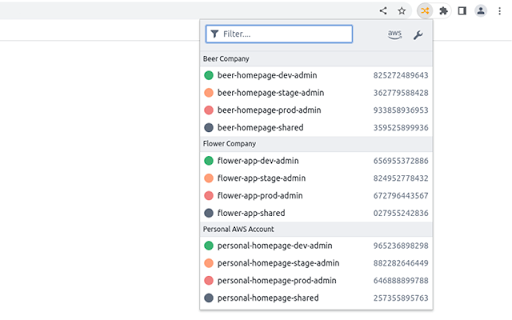
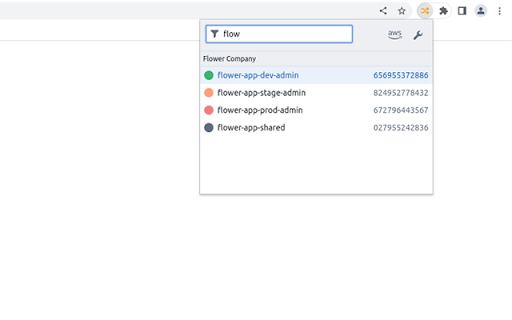
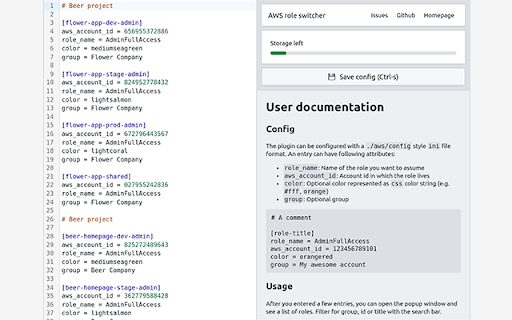
Quickly switch between roles on the AWS console Browser plugin to quickly switch between roles on the AWS console. This plugin shows a popup with aws roles you configured via a config ini file. It can be triggered via a keyboard combination, a role can then be selected via up and down arrow keys. * Edit your roles in a ./aws/config style ini format via a code editor * Group roles together * Store ~2k roles * Sync config via sync storage on different devices * Open popup via Ctrl + Shift + l * Navigate through roles with arrow keys, press enter to assume * Neat dark/light theme based on your browser settings You can store up to 5 roles in the AWS console. If you have a bunch of roles over many accounts this browser plugin might be a good choice to store your roles. It can store roughly 2000 roles and syncs it with browsers on other devices. You might also checkout aws-extend-switch-roles which is another browser plugin to switch roles. When i started to write this plugin i learned a lot of how the switching works. Originally i intended to contribute to this repository because i needed some features that aren’t implemented there. However, it’s written in a very oldschool style of Javascript, so i decided to rewrite it and give it a modern paint.

Simple AWS Launcher
Simple popup launcher for hundreds of AWS services. Just press ctrl(cmd)+shift+L, or click an icon to open. Introducing our simple popup launcher for accessing hundreds of AWS services on Chrome. With just a press of ctrl(cmd)+shift+L or a click of an icon, you can open the launcher and easily access your desired service without the need for mouse controls. For instance, to open the S3 console, simply press "ctrl(cmd)+shift+L" and type "s3" into the search box. The hotkey can be edited in settings by visiting "chrome://extensions/shortcuts" and recreating the shortcuts. In case the hotkey doesn't work on your browser, try the recreated shortcuts. Our extension covers almost all AWS services, making it a convenient tool for your daily AWS tasks. Should you have any issues or requests for improving the extension, please let us know by adding an issue on the repository. https://github.com/kota-imai/awslauncher-chromeex/issues Install our Simple AWS Launcher now and streamline your AWS experience.

AWS Colorize
Color codes your AWS header based on what account you are logged into. AWS Colorize allows you to choose a name and color to represent the AWS accounts you log into. This is useful when you have different environments deployed to different AWS accounts. When logging into these accounts directly, as one does when using SSO, it's often hard to tell what environment you are logged into. Mistaking `prod` for `test` is not desireable ;) When using AWS Colorize you can choose a nickname and color to be displayed in the header of the AWS console next to the loggd in user's name. If using AWS Organizations and sub accounts and using AWS switch role to switch between them, You'd probably be better served by the `AWS Extend Swtich Roles` extension.

AWS SSO Colourise
Change the AWS navbar colour based on account (and a few other little niceties) Version 1.3.0 - Adds support for AWS GovCloud and AWS China. Fixes some issues experienced with the script. This extension gives you the ability to customise the AWS Console navigation bar, to indicate what account you are currently signed in as. In addition, it will make the name of the AWS Region you are using, and the Account Name visible by default on the Navigation bar Previously when you used "Switch Roles" you could set a colour when changing from one account to another. However, when switching to AWS SSO (or now know as IAM Identity Center), you do not have this ability with the Console. A Simple dialog lets you configure each account/account alias and the relevant colour you want to have, and this will be auto applied on the console page loading. See screenshots for some examples!

AWS Account Identifier
Adds a description with a specific color to the AWS's navigation bar depending on the account you are connected to. Adds a header to the Navigation Bar of AWS with a description and color based on the account you are connected to. In a multi account environment this is a very useful tool to help you to quickly identify the current account. A new feature has been added so you can import the accounts from the AWS SSO start page. This makes maintaining the accounts in this extension a lot easier. As from version 1.1.0 we stopped using an extra row on the navbar for the description as certain console feature were designed with a fixed position what would make it impossible to access certain functionalities of the AWS Console. Instead, we moved the description to the lower bar where enough space is available to add the description. version 1.2.1: Fix Account detection and improve style.
