
lajondecmobodlejlcjllhojikagldgd


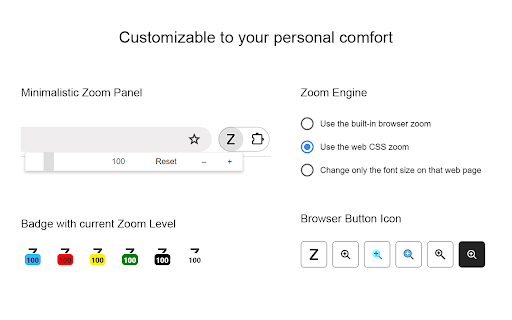
Zoom in or out on web content using the zoom button and mouse scroll wheel for more comfortable reading. That to each percent value. Are you tired of struggling to zoom in and out of web pages? Look no further! The Zoom browser extension is the ultimate solution, featuring an intuitive slider and zoom buttons for effortless navigation. Ranked as the number one and best magnifying browser extension, it allows you to customize the zoom value of any webpage, enhancing readability and comfort. Zoom is a lightweight and useful add-in designed to get a perfect zoom experience. Whether you are dealing with bad vision issues, myopia, lazy eye, or amblyopia, this extension can enhance your vision on any website. Simply increase the zoom slider to select your preferred scale. Additionally, you have the option to switch between the zoom engine, allowing you to zoom the entire page or only text zoom. Browser extension features: ◆ Slider Zoom: The slider offers a perfect zoom experience, allowing you to adjust the zoom factor from 1 up to 400. ◆ Scroll and Zoom: Click the Z button and scroll up or down with your mouse to witness live changes in the webpage's zoom. ◆ Zoom All Together In/Out: Enable this option to simultaneously zoom in/out on all open web pages. ◆ Save Website Zoom Value: Automatically save the current zoom value of a website, ensuring it is restored when you return. Easily reset to default zoom with the "Reset" button. ◆ Zoom Engine Options: Choose between the default browser zoom engine, the CSS website style zoom, or the font-size engine for text adjustment. The font-size engine will specifically increase or decrease the text on that website while preserving the page's layout and formatting. ◆ Manage Zoom for Each Website: Edit or remove zoom values for specific websites in the options page. That according to the domain or web page level. By utilizing the web page level and the built-in zoom engine, it enables the browser's built-in zoom per tab. ◆ Display Options: - Show Zoom value percent number in the Z button as a badge. - Display right-click context menu with necessary zoom percentages. - Display right-click context menu with your chosen zoom percentages. - Hold mouse click and scroll to zoom in or out. - Include visual cues, such as a circle or square magnifying glass around the cursor. Specify the magnifier glass size, and zoom scale to determine the degree of magnification. ◆ Set Default Zoom: Choose default zoom ratio and zoom step for a personalized experience. ◆ Video and Web Enhancement: Improve your video entertainment by enlarging web pages and increasing video player sizes on platforms like YouTube™ and HTML5 video. You can achieve this with the widely-used Turn Off the Lights browser extension, which dims the surrounding area around the video player, providing a more immersive viewing environment. ◆ Custom Zoom Keyboard Combinations: - Shortcut to display the magnifying glass. - Shortcut to zoom in. - Shortcut to zoom out. - Shortcut to reset zoom value. ◆ Zoom Popup Design Options: - Choose between a minimalist popup design. - Opt for a larger popup window for enhanced accessibility. - Explore the new default modern panel with direct control of your magnifying glass. ◆ Support for Dark Mode Project Information: https://www.stefanvd.net/project/zoom/browser-extension/ Required Permissions: ◆ "contextMenus": Add Zoom percentage levels to the web browser context menu. ◆ "tabs": Manage zoom on open tabs, show welcome/guide page, and access Options page. ◆ "storage": Save settings locally and sync with your web browser account. ◆ "": Control the button on all websites, including http, https, ftp, and file. Note: Windows: CTRL and + or CTRL and - Linux: CTRL and + or CTRL and - Mac: ⌘ and + or CTRL and - Performing the same action is possible with this browser extension. However, this extension enhances user experience by enabling you to adjust the zoom to a custom percentage with greater ease. >> Unlock an option feature to protect your eyes at night and focus on the video player, such as YouTube™, by installing Turn Off the Lights browser extension for YouTube and Beyond. https://chromewebstore.google.com/detail/turn-off-the-lights/bfbmjmiodbnnpllbbbfblcplfjjepjdn

Turn Off the Lights
The entire page will be fading to dark, so you can watch the videos as if you were in the cinema. Works for YouTube™ and beyond. Immerse yourself in a cinematic atmosphere while watching videos online with Turn Off the Lights. This powerful browser extension dims everything on the web page except for the video you are watching, bringing your focus to the content that matters most. 🏆🥇 Turn Off the Lights browser extension has also been featured on several popular websites, including Lifehacker, CNET, ZDNet, BuzzFeed, and PC World. With its growing popularity and positive feedback, it is no surprise that the Turn Off the Lights browser extension has become one of the most popular and trusted browser extensions in the market. 🔷 Please share your feedback, suggestions, and thoughts with us https://www.turnoffthelights.com/support Enjoy a simplified browsing experience with the Turn Off the Lights browser extension. With just one click on the lamp button, your page will smoothly fade into darkness, focusing automatically on the video. Another click restores the page to its original state. Explore additional customization options on the Turn Off the Lights Options page to tailor your viewing experience to your preferences. Turn Off the Lights is a lightweight and useful add-on designed for a more comfortable watching experience. It is more than just a dimming tool; it is your gateway to an enhanced viewing experience tailored for three key types of users: + Video Lovers: Whether you are binge-watching your favorite series or catching up on the latest viral clips, Turn Off the Lights creates the perfect ambiance for uninterrupted viewing pleasure. + Dark Mode Enthusiasts: Embrace the dark side of browsing with Turn Off the Lights, converting all websites into your personalized dark mode theme. + Eye Protection Advocates: Shield your eyes from harsh screen glare and blue light emissions. With its accessibility features, Turn Off the Lights helps prioritize your visual health while you enjoy your favorite online content. Plus, keep the dark layer always enabled, even when you click on a hyperlink. Browser extension features: ◆ Effortless Control: Toggle the lights with a simple click, effortlessly enhancing your viewing pleasure, akin to reading a newspaper with a dark reader tint. ◆ Cinematic Experience: Dive into your favorite videos without distractions as everything else fades into the background. ◆ Support multiple video sites: Enjoy distraction-free viewing on YouTube, Dailymotion, Vimeo, Twitch, and more of your favorite platforms. ◆ Enhance your YouTube experience with features like: - Auto HD: Set videos to play in HD automatically. Users can select from highres > 8K > 5K > 4K > 1080p > 720p > 480p > 360p > 240p > 144p > default. - Auto Wide: Automatically adjusts the video to the widest mode for enhanced viewing. - 60 FPS Block: Disable YouTube 60 FPS and watch YouTube Auto HD 30 FPS video quality. - Top Layer: Place elements at the top of the dark layer, such as the number of YouTube subscribers, title, video suggestions, etc. ◆ Multitasking: Watch your video with Audio Visualisation in Picture-in-picture (PiP) mode, maximizing productivity without sacrificing entertainment. ◆ Easter Eggs: Shortcut key: Tap 'T' for a genuine movie theater ambiance, bringing nostalgia to your viewing sessions. T -> Do you like a real movie theater feeling? ◆ Option to make the screen dark when the user clicks on the play button: Enhance immersion by dimming the surroundings when the video starts playing. ◆ Option to turn on/off the fade in and fade out effects: Tailor your experience by toggling the transition effects according to your preference. ◆ Custom Dark Layer: Personalize the dark layer with your preferred color and opacity value. Alternatively, select your own background image to use as the dark layer. ◆ Option to Show Dimness Level Bar: Keep track of the dimness level with a visible indicator for better control. ◆ Eye Protection Options: Ensure comfortable viewing, especially at night, with customizable eye protection settings. - A screen shader that blends the web page with an orange color to reduce eye strain and fatigue, while also supporting your brain's day/night cycle. - An option to click through the dark layer and keep the lights always off. - Whitelist/blacklist filters for greater control over your browsing experience. ◆ Option to show the dark layer on the top of the window: Enjoy enhanced focus by obscuring distractions outside of the video window. ◆ Custom Colors: Personalize the lighting with custom colors to match your mood or aesthetic. ◆ Multimedia Detection: Option to enable flash objects, iframe video elements, and more to appear on top of the dark layer. ◆ Dimness Level Bar: Display a floating dimness level bar at the bottom of the current web page for easy adjustment of the dark layer opacity. ◆ Nighttime Eye Protection: Activate eye protection mode during nighttime browsing with customizable whitelist/blacklist filters. ◆ Atmosphere Lighting: Experience an immersive glow around the video player, adding to the ambiance of your viewing environment. - Vivid Mode: Realistic and lifelike color glow effects match the video content - One solid: 1 Custom color around the video player - Four solid: 4 Custom colors around the video player ◆ Dark Layer Overlay: Choose to show a dark layer overlay on top of the window for enhanced focus. ◆ Shortcut Keys: Ctrl + Shift + L: Toggle the lights Alt + F8: Restore default opacity value Alt + F9: Save current opacity value Alt + F10: Enable/disable the Eye Protection feature Alt + (Arrow Up): Increase opacity Alt + (Arrow Down): Decrease opacity Alt + *: Toggle lights on all open tabs ◆ Mouse Wheel Volume Control: Adjust the volume using your mouse wheel for individual video players. ◆ Video Player Filters: Apply various filters like grayscale, sepia, invert, contrast, saturate, hue rotation, and brightness to the current video player. ◆ Audio Visualization Effects: Enjoy visual effects like blocks, frequency, and music tunnel on top of the current video. ◆ Full Tab Video Player: Expand the video player to fill your entire current tab for immersive viewing. ◆ Video Looping: Loop your current video player for continuous playback. ◆ Night Mode: Transform all websites into your personalized dark mode theme or switch between black and white themes. - Customizable whitelist/blacklist to apply night mode selectively to certain websites. - Timestamp: Activate Night Mode within specified time intervals. - Blackout: Dim the web page and activate Night Mode. - Darker Images: Dim images when dark mode is enabled. - Customizable Colors: Personalize background, text, hyperlink, and button colors to match your preferred dark theme settings. - Option to convert Dark Mode PDF files, network files, and local files ◆ Stop Auto-Playing: Prevent YouTube and HTML5 videos from automatically playing. ◆ Video Screen Capture: Capture snapshots of YouTube and HTML5 videos with customizable filters such as Invert, Blur, Saturation, Grayscale, Hue rotate, etc. And save the screenshot in PNG, JPEG, BMP, or WEBP image format. ◆ Custom Toolbar Icon: Select your preferred toolbar icon in either light or dark mode, adapting to your visual preferences. ◆ Zoom In or Out the Video: Adjust the zoom level of the video player content. ◆ Customizable Video Playback Rate: Adjust the playback rate for optimal viewing. ◆ Game Controller Support: Control the current video player using Xbox and PlayStation game controllers. ◆ Translated into 55 languages ◆ And more… Required Permissions: ◆ "contextMenus": This permission allows the addition of the "Darken this page" menu item to the web browser's context menu. ◆ "tabs": This permission allows us to display the welcome and guide page, detect the currently playing video, take a screenshot of the video, and provide options to dim all open tabs. ◆ "storage": Save settings locally and sync with your web browser account. ◆ "webNavigation": This permission is used to load the Night Mode feature before the web page is fully loaded, providing an instant Dark Mode experience. ◆ "scripting": This permission allows injecting JavaScript and CSS into websites. ◆ "": Control the lamp button on all websites, including http, https, ftp, and file. Free and Open Source: https://github.com/turnoffthelights Licensed under the GNU General Public License Version 2 (GPLv2), we believe in the principles of transparency and collaboration. Compatible with Adblock, AdBlock Pus, Adguard AdBlocker, and uBlock Origin browser extension. Note: YouTube is a trademark of Google Inc. Use of this trademark is subject to Google Permissions. Turn Off the Lights™ is not created by, affiliated with, or supported by Google Inc.

Hover Zoom+
Zoom images/videos on all your favorite websites (Facebook, Amazon, etc). Simply hover your mouse over the image to enlarge it. Hover your mouse over any image on the supported websites and the extension will automatically enlarge the image to its full size, making sure that it still fits into the browser window. This is an open source version of the original HoverZoom extension which is now overrun by malware and deleted from store. In this version all spyware has been removed, many bugs were fixed and new features were added. It doesn't collect any statistics by default. The only permission it needs is to access data on all websites (to extract full images), and *optional* permissions to access browser history, download/save images or get tab urls for per-site configuration. Sometimes sites change design and when it happens extension needs to be updated. Please report any issues with zoom not working by using Support tab or https://github.com/extesy/hoverzoom/issues page.

Magnifying Glass (Hover Zoom)
Press on the toolbar button to see the magnifying glass on the current page. Magnifying Glass (Hover Zoom) is a lite addon that enables you to magnify a portion of a webpage with a click of a button. Please click on the toolbar button once to see the magnifying glass. Then move your mouse to see the magnified page within a circular section. If you want to hide the magnifier, simply click on the toolbar button once or click anywhere on the page. This addon has also an options page to adjust the magnifier zoom level and coverage area. Moreover, the toolbar button serves as an ON|OFF switch to turn the addon ON or OFF. Note 1: when you install the addon, it is turned off. Please click on the toolbar button once to activate the addon. The toolbar icon is red when the addon is active and grey when it is inactive. Note 2: if you want to change the zoom level, please visit the addon's options page. To report bugs, please fill out the bug report form on the addon's homepage (https://mybrowseraddon.com/magnifying-glass.html).

Zoom Per Tab
Zoom one tab without affecting other tabs of the same domain! Chrome doesn't let you adjust the zooming of different tabs under the same domain independently? Well you found the cure! I know there are a couple of similar extensions out there. At first, I wanted to just download one and save myself some time. I soon realized that existing extensions out there for this purpose are so bulky and complicated. Some of them even ask you to install a daemon process that's available on Windows only - this is real bad, and dangerous, but also real bad. This extension simply makes page zoom settings independent across tabs, regardless of whether they have the same origin. It's ultra-lightweight. It uses a built-in Chrome API, just a few lines of code, no configuration needed at all! You can unpack the extension to verify that it's not doing anything malicious. In fact I encourage everyone to read it because it's so simple. You could've written it yourself! A copy of the source code is at https://github.com/xinan/zoom-per-tab.
