
gfcbebjdigncefnokoncehghgfndjcgn

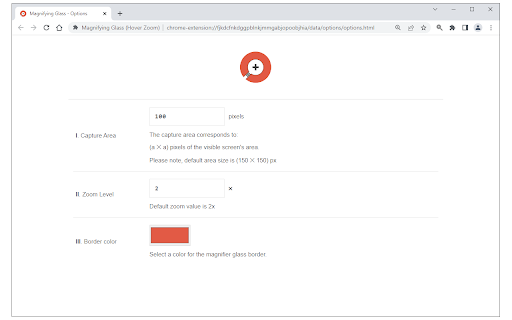
Press on the toolbar button to see the magnifying glass on the current page. Magnifying Glass (Hover Zoom) is a lite addon that enables you to magnify a portion of a webpage with a click of a button. Please click on the toolbar button once to see the magnifying glass. Then move your mouse to see the magnified page within a circular section. If you want to hide the magnifier, simply click on the toolbar button once or click anywhere on the page. This addon has also an options page to adjust the magnifier zoom level and coverage area. Moreover, the toolbar button serves as an ON|OFF switch to turn the addon ON or OFF. Note 1: when you install the addon, it is turned off. Please click on the toolbar button once to activate the addon. The toolbar icon is red when the addon is active and grey when it is inactive. Note 2: if you want to change the zoom level, please visit the addon's options page. To report bugs, please fill out the bug report form on the addon's homepage (https://mybrowseraddon.com/magnifying-glass.html).

Hover zoom image
Activate this extension to automatically zoom images when you hover over them with your cursor Are you disappointed by the poor quality of images on the internet? That's where our Hover Zoom Image Chrome Extension comes to the rescue! This extension enlarges images when you hover over them, without requiring any clicks or the need to open a new tab. Spend less time and get more done with this smooth integration, designed for everyone from professionals to students to casual users. Zoom in and out of images on every website, social media platform, and online store effortlessly. Simply install Hover Zoom Image now and discover how the internet can be even better! Key Features of this chrome extension Automatic Zoom: This feature enlarges the images the moment the cursor is placed over it for a better view. Seamless Integration: Designed to complement your current browser without affecting other add-ons or plugins in any way. User-Friendly Interface: Easy to install and use, there are no complicated options to set, everything is intuitive. Customizable Settings: It is also possible to change the zoom level and the activation triggers of the zoom-in and zoom-out options. Step 1: First, you need to install the Extension. Open chrome web store and type in the word “image converter chrome extension” and hit enter. Now, click on the button “Add to Chrome” and then click on “Add extension” to continue with the installation process. Step 2: Turn On the Extension After the installation, click on the icon of the extension in the toolbar to turn on the extension. If you want to change the settings in any way to optimize the use of your zoom account, then you can do so. For example, open any website with images. Just place your mouse pointer over the image and the image will magnify (zoom) on its own. allowing you to view it in greater detail. This feature works seamlessly across various websites, including social media platforms, news sites, and online stores, providing an enhanced browsing experience. To Whom Is It Useful: It is very beneficial for photographers, designers, and artists who need to examine the images in detail instead of downloading them. It is also useful for students and researchers who often use detailed charts, graphs, and other visual data found on the internet. Further, they can use it to get more information about the product before buying it from online shopping sites. Why it is Useful? The Hover Zoom Image provides a simplified method of viewing larger images without requiring extra clicks or opening new tabs. This not only saves time but also increases the efficiency of the users as they can easily and effectively go through the visual content. Whether you are analyzing the design details or want a more engaging and rich experience while browsing, this extension enhances your productivity. Q: Is Hover Zoom Image safe to use and is it free? A: Yes, Hover Zoom Image is free to download and use and does not require any payment to be made. Q: Is the extension compatible with all websites? A: This extension is compatible with most websites especially the ones that have common image formats such as social media, news sites, commercial sites among others. Q: Can I make it enlarge or reduce? A: Yes, you can adjust the zoom level and other preferences of the extension from its options menu. Q: Does it mean that it will reduce the speed of my browser? A: It is a simple extension and therefore it should not slow down your browser or take a lot of your system resources. Q: If I don’t require the extension anymore, how can I turn it off? A: One can also disable the extension by clicking on the extension icon in the toolbar and unchecking it, or by visiting the extensions section in the browser settings.

Enlargify Magnifying Glass
Magnifying Glass – Effortless, Customizable, with Convenient Keyboard Shortcuts. See More, Zoom Smarter! See More, Zoom Smarter with Enlargify – the ultimate 🔍 magnifier tool for your browsing experience! Features: ➤ Magnifying glass: Activate the magnifying glass instantly from the toolbar. ➤ Convenient Keyboard Shortcuts: Use Ctrl-Z (Windows/Linux) or Cmd-Z (Mac OS). ➤ Customizable Zoom: Tailor the 🔍 magnifier glass size and adjust the degree of magnification to suit your needs. Upgrade your browsing clarity with Enlargify – where precision meets convenience!

Magnifying Glass
Convert your mouse cursor to a high-quality magnifying glass This extension transforms your cursor into a magnifying glass, enlarging the current object beneath it. You can adjust the size of the lens and the scaling value through the right-click context menu over the action button. To turn off the magnification and revert to the default cursor, use the left-click or the Escape key on your keyboard. When the extension is active, the action button appears red; when it is inactive, the color is blue.

Image Hover Zoom
This plugin is a plugin that allows you to see larger images.
