
kndieddefnlofcgjljoagkgmnclmkjhh
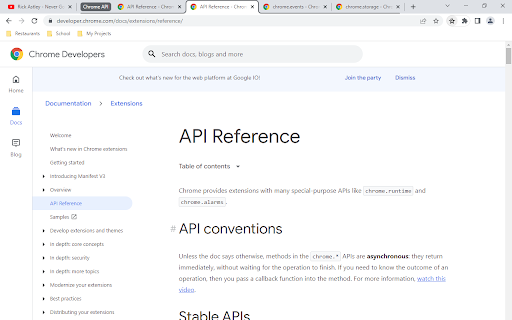
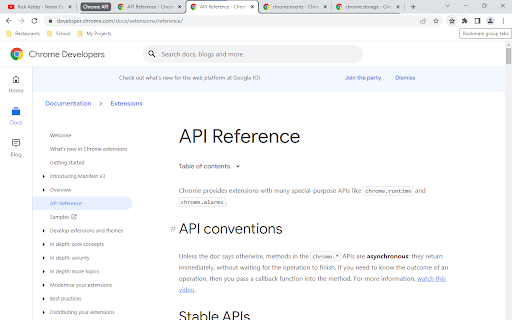
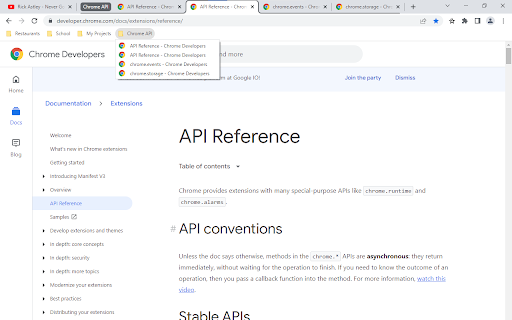
Bookmark in a folder all the tabs of a group If you have used Chrome's grouping feature, you probably experienced wanting to close a group of tabs without losing them. You then had to create a bookmark for each and every one of the tabs in the group. And it probably annoyed you :) You might know that by right-clicking on a bookmarks folder, you can open all its tabs in a group, which even gets the name of the folder. This extension allows you to do the opposite : by clicking on the extension's icon (top right corner of your screen), a folder containing the group's tabs is automatically created in your bookmarks bar, with the title of the group as title. To do so, the currently open tab simply needs to be in the desired group when you click on the extension's icon. You can then quickly move this new folder to the folder or location that suits you!

Tab Copy
Quickly copy tabs to the clipboard in a variety of formats ● Copy the current tab, tabs in the current window, or all tabs. Optionally group tabs by window. ● Select from a wide variety of formats like Link, URL, Title & URL, Markdown, CSV, JSON, HTML, and more ● Create your own formats with powerful format templates ● Choose between using a popup or copying tabs with one click ● Define keyboard shortcuts for your most commonly used ranges and formats ● Add copy actions to web page context menus ● Set up filtering for tabs you want to omit ● Fine-tune your experience with a robust set of options See the docs for more: https://tabcopy.com/docs

Bookmark All Tabs
𝗪𝗵𝗮𝘁 𝗶𝘀 𝗕𝗼𝗼𝗸𝗺𝗮𝗿𝗸 𝗔𝗹𝗹 𝗧𝗮𝗯𝘀? Save all tabs to any bookmarks folder anywhere at the press of a button. No annoying menus, popups or questions asking you to name things when bookmarking. Save bookmarks to an auto generated folder using values like the active page title you were on when saving, the current date, day, time etc. nested under any folder you want. Auto generate a “Recent” folder to quickly access your most frequently used bookmarks. Plus tons more features to tweak for whatever your workflow… • Save using date, day, time, current tab and more as nested sub folders. • Option to bookmark the active tab only.

Tab Groups to Bookmarks
Manage and Save Your Tab Groups Tab Groups to Bookmarks allows you to easily organize your tabs into groups and save them as bookmark folders. It was built for multitaskers who often find themselves with many unrelated tabs open. With it you’ll be able to easily switch between tasks and tabs while staying focused and keeping your chrome session clean. - It’s recommend to pin the extension in the extensions menu but you can also open it with Ctrl+M (MacCtrl+Command+M). - Most of the features are accessed by context menus: try right clicking groups, saved groups and tabs. 📚 Some of the features: - Group all tabs on a window; - Save a group as a bookmark folder (saved under the folder “Tab Groups”); - Drag tabs in/out of tab groups; - Copy or download the tab groups URLs; - Rename a tab group by double clicking it; - Close, ungroup or delete tab groups. --- The extension is open source and does not collect any sort of data. 📦 You can check the source code here: https://github.com/FernandoLins8/Tab-Groups-to-Bookmarks ☕ You can also buy me a coffee if you want to support the extension development. Thanks in advance.

Mark tab manager
Mark is a minimalist tab manager that organizes tabs as you browse. With Mark, tabs are automatically grouped by domain and sorted alphabetically so you can easily find them later. Mark uses the native tab groups feature of Chrome, meaning there’s no learning curve to get started. Simply install Mark and any open and newly created tabs will be grouped and sorted. Mark can be configured to only group tabs or only sort tabs depending on how you like to browse. Additionally, you can enable Mark to consolidate tabs across windows - meaning you won’t lose a tab because it’s hiding in its own window. You can pin the extension to your browser toolbar by clicking the puzzle looking icon located in the top right of your toolbar, scrolling down to Mark, and clicking the “Pin” icon. Pinning the icon makes it easily accessible for clicking to manually organize tabs in cleanup mode, which will collapse any open groups. Change one of the configuration settings by right clicking on the Mark extension icon, navigating to the “Settings” menu, and toggling one of the settings. Depending on the way you would like to browse, customizing some things could make for an even better experience. If you find yourself more curious about how Mark works or what other options and functionality are available, visit the “Resources” menu at any time by right clicking the Mark extension icon.
