
micdllihgoppmejpecmkilggmaagfdmb

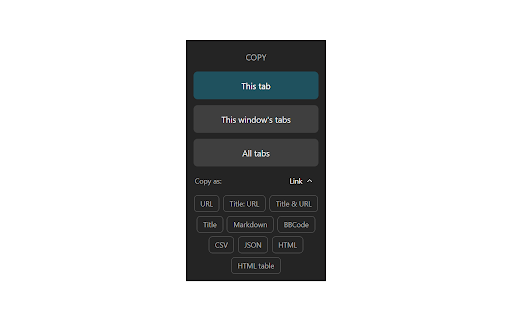


Quickly copy tabs to the clipboard in a variety of formats ● Copy the current tab, tabs in the current window, or all tabs. Optionally group tabs by window. ● Select from a wide variety of formats like Link, URL, Title & URL, Markdown, CSV, JSON, HTML, and more ● Create your own formats with powerful format templates ● Choose between using a popup or copying tabs with one click ● Define keyboard shortcuts for your most commonly used ranges and formats ● Add copy actions to web page context menus ● Set up filtering for tabs you want to omit ● Fine-tune your experience with a robust set of options See the docs for more: https://tabcopy.com/docs

Copy URLs
Copy all open pages (title and/or address) to clipboard. Select what to export (all tabs or just the web-pages; all windows or current window only) and how to export it (choose between several formats -- simple url list, HTML, CSV etc.) You can define your own (custom) format to generate specific url list (for example -- JavaScript array or XLS table ready to be copy/pasted in Excel)

CopyTab URLs
Effortlessly copy and organize the URLs of your open tabs in one click. CopyTab URLs is a powerful Chrome extension that allows you to effortlessly save and organize the links of all your open tabs in the current window. With just a click of a button, CopyTab URLs copies the URLs to your clipboard. 📌 What’s New in This Update: ➤ You can now copy links from just the current tab group 📌 Why Choose CopyTab URLs? Take control of your tabs with ease! Every time you hit "Copy," your links are not only copied but also displayed in an editable text box—so you can tweak them before sharing. ✔ Need page titles with your links? We've got you covered. ✔ Want to keep tab groups intact? Just check "Include group names." (Group names appear as [GroupName]. Don't worry, the old #GroupName format is still supported for opening links.) ✔ Have a list of links to open all at once? Paste them into the text box and hit "Open"—they’ll load in the same order. ✔ Switching computers? Copy all tabs in one click, paste them in the extension, and hit "Open"—your setup is instantly restored, groups and all! Access all your tabs just the way you saved them anywhere, anytime. Stay organized and save time with CopyTab URLs—perfect for researchers, content creators, and anyone who manages multiple URLs. Download now and streamline your tab management workflow! Note: The extension doesn't store any of your data.

Roam Highlighter
Web highlighter for Roam Research 📢 Update: I'm working on a new and improved version of this web highlighter called Markway. To learn more and get notified about the release, go to https://markway.io 🙂 DESCRIPTION: This extension offers an easy way to highlight text on a web page and import it to note-taking apps like Roam Research, Obsidian, Logseq or Notion in the format that best suits your workflow. This is especially helpful of you are doing research, want to build your own knowledge-base or just want to save your favorite blog articles. FEATURES: Easily highlight any text on a web page → Add tags to bring your highlights into context → Customise the format of your copied highlights with placeholders → Jump to the next open Roam Research tab, to quickly insert your highlight HOW TO GET THE MOST OUT THE EXTENSION? The quickest way to launch the extension is with a hotkey (e.g CMD + SHIFT + R). You can set a hotkey in the Chrome Settings for Extensions. Next you can create your own format for the highlights, by going into the widget settings. Play around with the placeholders and use spaces to indent content. QUESTIONS / FEEDBACK: Do you have questions or feedback? The best approach is to write me directly on x.com/wirtzdan PERMISSIONS: Roam Highlighter needs to modify the websites you visit to display the widget. That's why it needs the requested permissions to function properly. However, the exact phrase ("Read and change all your data on the website you visit") make it sound more invasive than it actually is. Currently, the extension runs completely on your local machine and the only thing that is saved, are the settings you make.

Copy URL To Clipboard
* When copying the URL of the page, right-click anywhere on the page and open the context menu, then select the format to copy. * When you right-click on a link (an anchor element), you can copy the URL of that link. * If you select some text before right-click, that selected text will be used for the content of the link. * You can edit content text when copying. * Copy to clipboard can be executed from the context menu, the tool button, or keyboard shortcut.
