
jjpmjccpemllnmgiaojaocgnakpmfgjg


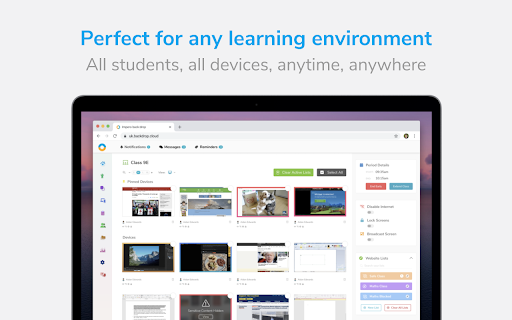

Real-time monitoring - see device activity in real time Send message - send a direct one way message to the device Launch website - open a web site on the device automatically Lock screen - lock the screen of the app Disable internet - disable internet access inside the app Restrict browsing - enforce allow and block website lists Tab management - view open browser tabs lists and close open tabs Broadcast Screen - Broadcast teacher and student screens to the class Key monitoring - Monitors typed words and sends captures to Backdrop if keywords are found Viewed words - Monitors viewed words in the Impero browser and sends captures to Backdrop if keywords are found This application is for Impero Classroom & Wellbeing, not Impero Education Pro or Impero Edlink.

Senso Extension
Connect your Chrome devices to senso.cloud to seamlessly teach, monitor and safeguard students in the classroom and beyond. Connect your Chrome devices to senso.cloud to seamlessly teach, monitor and safeguard students from anywhere. Important: Only use this extension if you have migrated to our new environment (app.senso.cloud). If you are unsure which environment you are currently on, please contact support before attempting to deploy. This extension is required for customers using Senso Cloud to monitor Chromebook devices and can be used with existing Senso Client licenses, subject to your license limits. For help and support, please visit https://support.senso.cloud. ----- Student Safety Tools: Ensure student safety on school-owned Chrome devices with our safeguarding software. Senso.cloud detects harmful or inappropriate behaviour and promptly alerts designated staff about users who may be vulnerable, at risk, or potentially pose a threat to others. Powered by advanced, AI-driven visual threat analysis, Senso.cloud provides continuous 24/7/365 monitoring. Every student keystroke log is logged with a corresponding screenshot, enabling Designated Safeguarding Leads (DSLs) to thoroughly review incidents and assess their severity using their expertise. ----- Classroom Management: Senso.cloud's teacher tools have been developed to empower teachers, giving full control, regardless of where you are. Monitor and teach students more effectively by blocking distractions and working collaboratively. Live Thumbnail View gives teachers the confidence to ensure their students are engaged and on-task. View a single student's screen or multiple screens at once in just a few clicks. ----- Content Filter: A cloud-based, category-based web content filter that appropriately filters and blocks students from harmful or inappropriate content. Devices provided to students to take away from school are protected by Senso's Content Filter with the same protective measures in place, while on and off your network.

Viso Agent
An all-in-one cloud-based device management platform, enabling users to increase administrative effectiveness, reduce operational complexity, and save time and money, making device management smarter and more focused. Radix VISO device management solution for Chrome devices is feature-rich, enabling IT admins to provide ad-hoc support with real-time remote screen view, see detailed device info, view browsing history, apply apps and websites usage policies, send messages, view device location in real-time and much more, while school leaders can run detailed usage reports to make fact-based decisions and optimize device usage.

LanSchool Web Helper
Helps your teacher maintain a great learning environment. This is the Web Helper extension for LanSchool. It extends the capabilities of the LanSchool Student software. This extension only works in a LanSchool classroom environment with LanSchool student software installed. If the LanSchool Student software is not connected, this extension becomes dormant.

NetSupport School Student
The #1 choice for IT educators worldwide, NetSupport School delivers the tools you need to help maximize the effectiveness of… The #1 choice for IT educators worldwide, NetSupport School delivers the tools you need to help maximize the effectiveness of computer-led teaching and now you can utilize the power of NetSupport School in a Google Chrome environment. For use in your existing NetSupport-managed classroom, the NetSupport School Student extension can be installed on each student machine running the Google Chrome OS. From the teacher's machine (Chrome OS or Windows) you can then connect to each system enabling you to monitor and interact with each student quickly and efficiently. KEY FEATURES: - View a crystal clear thumbnail of each student device in a single view and zoom in to view a larger thumbnail of any selected student Chromebook. - Open a separate view session to discreetly monitor a selected student’s screen and take a closer look at activity – perfect for ensuring students are on task with their learning activities. (The open Browser activity can be viewed in Thumbnail and View modes along with the option to view the full desktop if required.) - The teacher can set objectives and expected outcomes for the current lesson. - Ask students to register at the start of each lesson. - The teacher can show their desktop to students’ Chromebooks to help demonstrate a point or show students how to do a particular task. - Lock the student's mouse and keyboard when instructing. - The teacher can send an instant survey to students during or at the end of a session, helping to instantly capture students’ understanding of a topic. - The Feedback and Wellbeing feature can be used by teachers to gauge how students feel, their confidence with a topic and whether they need extra support. - The teacher can open a discussion session that all or selected students can join, enter their comments and share with the rest of the class. - Send an attention-grabbing message or instruction to each student machine. - Request Help facility - students can send a request for help to the teacher. - Block unauthorized websites. - Use approved websites only. - Block all Internet access. - Launch a website on the student Chromebook. - Block FTP Access. - See details of the website that students are currently viewing. CHROME INCOGNITO MODE: To ensure you retain full visibility of your students' internet use, it is recommended that you ‘disallow’ Incognito Mode in the Chrome OS User Settings via Google Apps for Education. INSTALLATION and PRE-REQUISITES: For a teacher to be able to monitor and interact with their students using Google Chromebooks, the NetSupport Name & Connectivity Server must be installed on a Windows Server; the NetSupport School Tutor app for Google Chrome must be installed on the teacher's Chrome OS machine or for mixed platform classrooms, the NetSupport School Windows Tutor application can also connect to student Chromebooks; and the NetSupport School Student extension installed onto each of the students' Chromebooks. An IT Admin can centrally manage the configuration and deployment of the Student extension within the Google Admin Console. The NetSupport School student for Chrome OS can be used with the existing NetSupport School licences you have already purchased (as long as you have sufficient unused licences). Please visit www.netsupportschool.com/chrome for more information and a simple step-by-step guide to managing your Chrome OS students in the classroom. - Performance and operability enhancements.
