
gkncegdiihdghhkfpnnodppcbjeeimkc


Connect your Chrome devices to senso.cloud to seamlessly teach, monitor and safeguard students in the classroom and beyond. Connect your Chrome devices to senso.cloud to seamlessly teach, monitor and safeguard students from anywhere. Important: Only use this extension if you have migrated to our new environment (app.senso.cloud). If you are unsure which environment you are currently on, please contact support before attempting to deploy. This extension is required for customers using Senso Cloud to monitor Chromebook devices and can be used with existing Senso Client licenses, subject to your license limits. For help and support, please visit https://support.senso.cloud. ----- Student Safety Tools: Ensure student safety on school-owned Chrome devices with our safeguarding software. Senso.cloud detects harmful or inappropriate behaviour and promptly alerts designated staff about users who may be vulnerable, at risk, or potentially pose a threat to others. Powered by advanced, AI-driven visual threat analysis, Senso.cloud provides continuous 24/7/365 monitoring. Every student keystroke log is logged with a corresponding screenshot, enabling Designated Safeguarding Leads (DSLs) to thoroughly review incidents and assess their severity using their expertise. ----- Classroom Management: Senso.cloud's teacher tools have been developed to empower teachers, giving full control, regardless of where you are. Monitor and teach students more effectively by blocking distractions and working collaboratively. Live Thumbnail View gives teachers the confidence to ensure their students are engaged and on-task. View a single student's screen or multiple screens at once in just a few clicks. ----- Content Filter: A cloud-based, category-based web content filter that appropriately filters and blocks students from harmful or inappropriate content. Devices provided to students to take away from school are protected by Senso's Content Filter with the same protective measures in place, while on and off your network.

Smartschool++
Enhance your Smartschool experience with themes and more Patch notes: 6.0.0 *More detailed patch notes are on our official site - Added many extra themes, and categories - Save multiple custom themes - Auto generate a theme based on an image - Added Glass style 5.0.0 *More detailed patch notes are on our official site -New settings window with much more customization -Many many bug fixes and UI upgrades -Pong++ 4.0.0 *More detailed patch notes are on our official site -Introduced a new Widget system for the homepage -Breakout++ -Assignments widget 3.0.0 -Global Chat Beta -Plant -Splashtekst -Bug fixes and UI changes -Better Weather overlay -Improved settings menu 2.0.0 -Flappy Bird++ -Minor bugs fixes -Planner on the home screen -Weather rework -Improved Quick Menu -More Easter eggs -Some buttons have icons -The title of the tab now showing relevant info 1.3.0 -DISCORD SERVER! -Added "Custom Theme". -Fixed many bugs and improved many things. -Most major visual disturbances should be removed now. -Work in progress Quick-Menu updates. -Preparations for next update "The Fun Update" / "Easter Egg Update" -A nice new look for "planner". 1.2.0 -New themes: "Sahara Oasis", "Fluorescent Galaxy", "Off White", "Ruby Eclipse", "Dark Mocha". -Renamed all themes and some minor updates to some themes. -Added Snake++ game (disabled by default). -Minor update to DeLijn and weather application. -Minor bugfixes and visual bugfixes. -Minor login app rework. 1.1.0 -Major update to DeLijn application. -Login problems because of Smartschool ++ for many users now resolved. -Minor bugfixes and visual bugfixes. ==ROADMAP== Major code-cleanup for performance.*

OptimiDoc Cloud
OptimiDoc Cloud printing for Chrome and Chromebooks. OptimiDoc Cloud Chrome extension allows you to print from Chome and ChromeOS to OptimiDoc Cloud print management solution.

Netsweeper Workstation Agent
The Netsweeper Workstation Agent is client software that allows users to be authenticated and associated with the appropriately configured filtering profile. Administrators can configure the Agent software using the gSuite enterprise managed JSON or by using Windows Group Policy to push the correct JSON configuration to the extension. This agent can be used in conjunction with the Netsweeper Client Filter or with a Netsweeper in-network filtering device. The agent provides no filtering functionality and only user authentication services.

classroom.cloud Student
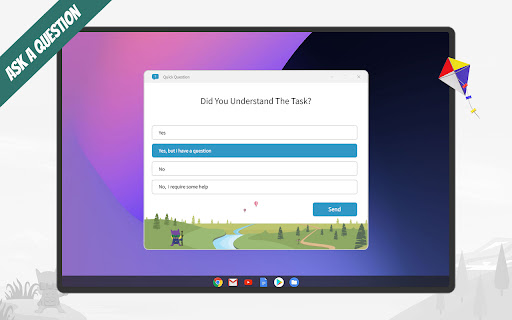
classroom.cloud delivers a set of stress-free, simple yet effective cloud-based teaching, online safety/safeguarding and technician… classroom.cloud delivers a set of stress-free, simple yet effective cloud-based teaching, online safety/safeguarding and technician tools that help deliver engaging and meaningful learning experiences for students in a safe online environment – no matter the location of you and your students! Perfect for schools and districts, the Student extension can be easily deployed by the IT team to the schools' managed Google accounts enabling you to connect instantly and securely to the students' Chrome OS devices from the classroom.cloud Administrator and Teacher portals. If you are yet to create your classroom.cloud account, please visit classroom.cloud\signup to get started. Choice of flexible connection methods - connect to a pre-defined group of student devices or on the fly using a Class Code. Open a watch window to zoom in and take a closer look at activity on a single student device. You can view the open Browser and prompt students to share their full desktop. (The latter can be disabled if you prefer to remain with the browser capture only.) Ask students to register with their names at the start of a class. Present students with the lesson objectives and their expected learning outcomes. Broadcast the teachers screen and audio to connected student devices to help show/talk them through explanations and lesson activities. The teacher can mute the audio playing in the active browser window on student devices. Get a feel for students’ understanding of the topic you’ve just taught them by sending out a quick survey for students to respond to. Chat, send a message, and support your students via prioritised help requests – all without their peers knowing. Acknowledge examples of good work or effort by assigning rewards to students during the lesson. The teacher can randomly select students to answer a question during a Q&A session. Choose the websites they can and can't see or block all website access. See details of the website that students are currently viewing to check they are focused on the task at hand. Save yourself a heap of time and maximize lesson time by launching a website on the student devices. Keyword and phrase monitoring: The Safeguarding/Online Safety tools help you protect students from being exposed to inappropriate online content. It alerts staff when students type or search for any terms that match with those in the classroom.cloud keyword database (multiple languages supported) – providing safeguarding and internet safety indicators for self-harm, bullying, sexual and criminal exploitation, and much more. Staff can also manage the pre-populated list in the classroom.cloud web portal and add any additional ones they feel are appropriate. For focused monitoring of specific year groups or students considered vulnerable, you can create groups of student devices and apply specific settings to them. Dedicated safeguarding/online safety user roles can be assigned to the required staff members and is given to classroom.cloud Administrators by default. Reporting Concerns: Using the Safeguarding/Online Safety button on their device, students can report concerns in confidence to a trusted member of staff via the Report a Concern option. The component also offers students who do feel vulnerable instant access to a list of relevant online resources should they want to seek external help with a particular problem or concern. Please note: The Safeguarding (Online Safety) tools are free to use during your evaluation period and are an optional extra when you purchase classroom.cloud. classroom.cloud also provides school IT teams with a range of tools to deliver pro-active support and to help monitor activity across the network. View Student Desktops The 'Watch' feature is available to classroom.cloud Administrators and Technicians, allowing them to view activity at a selected device. Inventory The Inventory tool lets you retrieve a real-time view of the hardware and software installed on each school device. Audit Log The Audit Log provides a central record of actions taken and system changes made by classroom.cloud users. Activity Monitor The Activity component provides a single chronological view of user login sessions, application usage, and internet usage for all available classroom.cloud devices. Acceptable Use Policy Distribution classroom.cloud Administrators can create custom Acceptable Use Policies and assign them to specific user groups. When the user signs into a Chromebook, any policies requiring their acknowledgement will appear. A dedicated user role for school techs can be assigned to appropriate staff members but access is automatically given to classroom.cloud Administrators. A step-by-step guide to managing and deploying the classroom.cloud Student extension using the Google Admin Console is available on our website. The classroom.cloud Privacy Policy can be viewed at: classroom.cloud/privacy-policy/ Latest updates and fixes in version 3.10.0.0: - Performance and operability enhancements
