
mpkdoimpgkhjcicmhmlmgboelebflpla
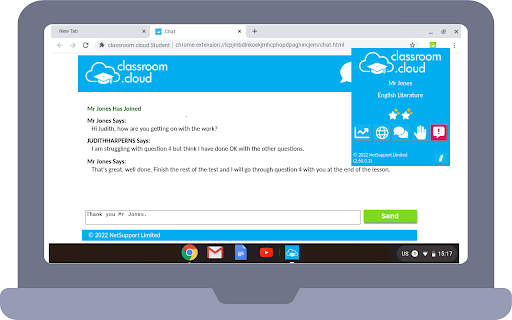


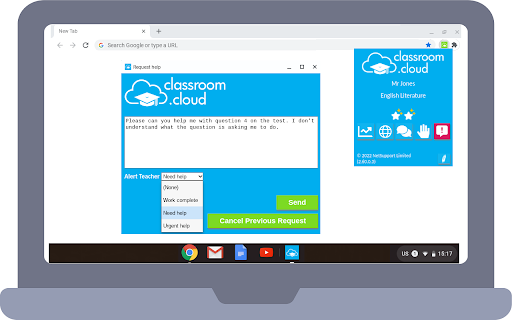
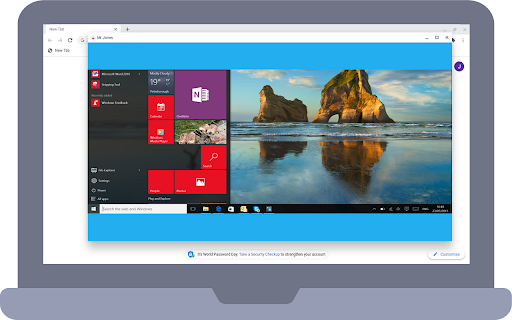
classroom.cloud delivers a set of stress-free, simple yet effective cloud-based teaching, online safety/safeguarding and technician… classroom.cloud delivers a set of stress-free, simple yet effective cloud-based teaching, online safety/safeguarding and technician tools that help deliver engaging and meaningful learning experiences for students in a safe online environment – no matter the location of you and your students! Perfect for schools and districts, the Student extension can be easily deployed by the IT team to the schools' managed Google accounts enabling you to connect instantly and securely to the students' Chrome OS devices from the classroom.cloud Administrator and Teacher portals. If you are yet to create your classroom.cloud account, please visit classroom.cloud\signup to get started. Choice of flexible connection methods - connect to a pre-defined group of student devices or on the fly using a Class Code. Open a watch window to zoom in and take a closer look at activity on a single student device. You can view the open Browser and prompt students to share their full desktop. (The latter can be disabled if you prefer to remain with the browser capture only.) Ask students to register with their names at the start of a class. Present students with the lesson objectives and their expected learning outcomes. Broadcast the teachers screen and audio to connected student devices to help show/talk them through explanations and lesson activities. The teacher can mute the audio playing in the active browser window on student devices. Get a feel for students’ understanding of the topic you’ve just taught them by sending out a quick survey for students to respond to. Chat, send a message, and support your students via prioritised help requests – all without their peers knowing. Acknowledge examples of good work or effort by assigning rewards to students during the lesson. The teacher can randomly select students to answer a question during a Q&A session. Choose the websites they can and can't see or block all website access. See details of the website that students are currently viewing to check they are focused on the task at hand. Save yourself a heap of time and maximize lesson time by launching a website on the student devices. Keyword and phrase monitoring: The Safeguarding/Online Safety tools help you protect students from being exposed to inappropriate online content. It alerts staff when students type or search for any terms that match with those in the classroom.cloud keyword database (multiple languages supported) – providing safeguarding and internet safety indicators for self-harm, bullying, sexual and criminal exploitation, and much more. Staff can also manage the pre-populated list in the classroom.cloud web portal and add any additional ones they feel are appropriate. For focused monitoring of specific year groups or students considered vulnerable, you can create groups of student devices and apply specific settings to them. Dedicated safeguarding/online safety user roles can be assigned to the required staff members and is given to classroom.cloud Administrators by default. Reporting Concerns: Using the Safeguarding/Online Safety button on their device, students can report concerns in confidence to a trusted member of staff via the Report a Concern option. The component also offers students who do feel vulnerable instant access to a list of relevant online resources should they want to seek external help with a particular problem or concern. Please note: The Safeguarding (Online Safety) tools are free to use during your evaluation period and are an optional extra when you purchase classroom.cloud. classroom.cloud also provides school IT teams with a range of tools to deliver pro-active support and to help monitor activity across the network. View Student Desktops The 'Watch' feature is available to classroom.cloud Administrators and Technicians, allowing them to view activity at a selected device. Inventory The Inventory tool lets you retrieve a real-time view of the hardware and software installed on each school device. Audit Log The Audit Log provides a central record of actions taken and system changes made by classroom.cloud users. Activity Monitor The Activity component provides a single chronological view of user login sessions, application usage, and internet usage for all available classroom.cloud devices. Acceptable Use Policy Distribution classroom.cloud Administrators can create custom Acceptable Use Policies and assign them to specific user groups. When the user signs into a Chromebook, any policies requiring their acknowledgement will appear. A dedicated user role for school techs can be assigned to appropriate staff members but access is automatically given to classroom.cloud Administrators. A step-by-step guide to managing and deploying the classroom.cloud Student extension using the Google Admin Console is available on our website. The classroom.cloud Privacy Policy can be viewed at: classroom.cloud/privacy-policy/ Latest updates and fixes in version 3.10.0.0: - Performance and operability enhancements

Impero Backdrop MV3
Real-time monitoring - see device activity in real time Send message - send a direct one way message to the device Launch website - open a web site on the device automatically Lock screen - lock the screen of the app Disable internet - disable internet access inside the app Restrict browsing - enforce allow and block website lists Tab management - view open browser tabs lists and close open tabs Broadcast Screen - Broadcast teacher and student screens to the class Key monitoring - Monitors typed words and sends captures to Backdrop if keywords are found Viewed words - Monitors viewed words in the Impero browser and sends captures to Backdrop if keywords are found This application is for Impero Classroom & Wellbeing, not Impero Education Pro or Impero Edlink.

Net Monitor for Employees
Net Monitor for Employees Extension - You have complete view over what users are doing on their Chromebooks. - This application provides you with a live picture of the user Chromebook screens. - You can block internet on Chromebooks. - You can present your computer screen on Chromebooks. - You can lock Chromebooks. - You can send a message to Chromebooks. - The user Chromebook screens are represented in the table with a customizable number of rows as thumbnails.

ClassroomGo AI Student
1. 教師主控端支援Chrome OS、Mac、以及Windows系統,學生受控端支援已登入之Chromebook。 2. 可載入教師Google Classroom 開課資訊及上課學生清單,並可由教師主控端一覽上線學生受控端之螢幕畫面。 3.… 1. 教師主控端支援Chrome OS、Mac、以及Windows系統,學生受控端支援已登入之Chromebook。 2. 可載入教師Google Classroom 開課資訊及上課學生清單,並可由教師主控端一覽上線學生受控端之螢幕畫面。 3. 允許主控端將畫面投放至受控端之Chromebook,或者指派特定受控端之Chromebook畫面並投放至其餘受控端之畫面。 4. 允許主控端對選定之受控端Chromebook進行畫面封鎖、歸還畫面,以及選擇全屏或分頁推播超連結。 5. 允許主控端檢視受控端Chromebook上線時所開啟之Chrome瀏覽器分頁,並可逕行由主控端封鎖或關閉不適宜之分頁。 6. 允許主控端指定最多四個受控端同步對其他受控端之機器進行畫面廣播。 7. 允許老師加入欲封鎖之網址或白名單以進行考試模式,並於課堂中隨時查閱學生的網站瀏覽歷程。 8. 允許老師與學生一對一使用語音或文字發問問題或討論。 9. 允許老師課程結束後,匯出指定日期該節課的學生出席狀況。 10. 允許藉由幸運輪功能,可讓老師更公平的抽出應答的學生。 11. 允許老師廣播簡訊或以全屏出現之重要訊息傳至學生之Chromebook。 12. 允許老師廣播鏡頭影像至學生螢幕畫面。 13. 允許老師發佈題目及功課至Google 教室並幫學生自動打開教室。 14. 允許老師發佈含照片短影之測驗題(是非、選擇或簡答),另外支援圖片手寫模式繳交答案。學生提交答案會自動回傳並儲存至老師雲端硬碟。 15. 允許老師發佈搶答題並推播至學生載具,另外搶答題有兩種模式:限第一位回答或是全班階可回答。學生提交答案及次序會自動儲存至老師雲端硬碟 16. 教學廣播百寶箱之錄影鏡頭功能,可錄影之外也可自動儲存於老師之雲端硬碟。 17. 教學廣播百寶箱之畫筆功能,可讓老師教學時直接手寫筆記並框選重點給學生。 18. 教學廣播百寶箱之計時器功能,可運用在老師進行時間限制的教學活動。 19. 教學廣播百寶箱之短網址功能也可包含歷史紀錄及點擊率。 20. 教學廣播百寶箱之遠端支援功能,支援端可無需安裝任何外掛,即可遠端查看另一端之畫面並協助排除問題。 21. 教學廣播介面同時支援中、英、日文三種語言。 22. 教學廣播支援跨網段使用。 23. 支援ChatGPT自動產生題庫。

NetSupport DNA Agent
This DNA Agent extension for Chrome OS is for use with NetSupport DNA (version 4.50 and above), a single, low-cost solution delivering IT Asset Management, Classroom Instruction, Internet Safety and more – with dedicated versions available for schools and corporate enterprises. The extension supports NetSupport DNA’s core desktop management capabilities. When launched within a Chrome Browser, it will interrogate the Chrome OS device to gather key system inventory details and monitor online activity. The data collected is dynamically sent to your local NetSupport DNA Server and is then available for reporting within the NetSupport DNA Management Console. Real-time Monitoring - An Admin or Teacher via the Console can view a real-time summary of all Chrome OS devices. Selected devices can be viewed either in a detailed list view or via real-time thumbnails of each device screen. Internet Metering - A summary of Internet activity via the extension is recorded, including start and finish times for each URL visited and the active time spent on a page. Safeguarding Keyword Monitoring (Education version) – This tool helps schools protect students from being exposed to inappropriate online content. It alerts staff when students type or search for any terms that match with those in the DNA keyword database, providing safeguarding and internet safety indicators for self-harm, bullying, radicalisation, Child Sexual exploitation - and much more. Safeguarding Report a Concern (Education version) - Students can report concerns directly and discreetly to nominated school staff. Hardware Inventory - When the Chrome Browser is launched on a device, an inventory is dynamically sent to the NetSupport DNA Server. Activity - Console operators can see a chronological view of device activity for a selected time period, including triggered Safeguarding phrases. For more information on NetSupport DNA (or to download a full evaluation version of the entire solution) please visit our website. Installation of the NetSupport DNA Agent Extension should be centrally managed via the Google Admin Console. This allows the extension to be force-installed on Chrome OS devices and set to connect to the required DNA Server location. NetSupport is a leading producer of educational and corporate software solutions. With our easy-to-use IT management tools, we help our customers increase productivity and security, as well as save time and money. Updates and fixes in version 1.8.0.0 ----------------------------------------------------- Performance and operability enhancements
