
jfmafeadieghgkpdkeibfdpopnemhnpa

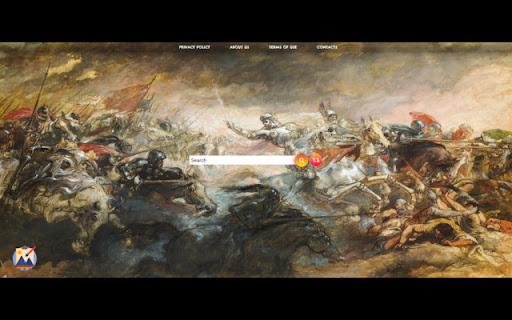
The best art wallpaper images with our extension! Introducing ArtNewTabs, a captivating Chrome extension available on the Web Store. Immerse yourself in a world of artistic beauty every time you open a new tab. With ArtNewTabs, you'll discover a curated collection of stunning art wallpapers that inspire and captivate your imagination. From timeless classics to contemporary masterpieces, each image is carefully selected to transform your browsing experience into an artistic journey. Let ArtNewTabs infuse your day with creativity and aesthetic pleasure as you explore the web. All images are sourced from Unsplash.com with a commercial license By clicking “ADD TO CHROME”, you accept and agree to install the Art New tabs extension and setting Chrome new tab search provider to Microsoft Bing as described by the service in our Terms of use and Privacy policy You may uninstall the extension at any time To remove our extension from Google Chrome: 1) Click on the three vertical dots icon in the upper right-hand corner of your Chrome browser 2) Go to "Settings" 3) In the left menu that appears, click on "Extensions" 4) From the list of installed Extensions, locate the extension you would like to uninstall

Ultimate Basketball Fan Extension
The ultimate basketball themed extension, made by fans - for fans. If you're a true basketball fan, this extension is made for you. The extension adds a scoring table to your home page that's updated in real time with live scores of all recent basketball games that occur in the US. Also, by downloading the extension you'll receive a basketball themed wallpaper (which you can change by pressing the shuffle button on the top right corner of the homepage). On top of that, the extensions adds an active clock and the current date to the bottom of your homepage, which will always tell the current time wherever you are located. By clicking "Add to Chrome" I accept and agree to install the Ultimate Basketball Fan Extension Chrome extension and hereby agree to set the Chrome New Tab to that provided by the service and the Privacy policy and Terms of Use. The search results will be provided by Microsoft Bing. *This Extension is an unofficial extension. It's not connected to or affiliated with any basketball team or league in any way. *We collect search queries to enhance the functionality of the "Ultimate Basketball Fan Extension" and provide users with a more personalized experience. Methods of Data Collection: Data is collected when users interact with the extension, specifically during search activities. Data Usage: Collected search queries are used solely for the purpose of improving search functionality and enhancing user experience within the extension. *You may uninstall the extension at any time. To remove our extension from Google Chrome: 1) Click on the three vertical dots icon in the upper right-hand corner of your Chrome browser. 2) Go to "Settings.” 3) In the left menu that appears, click on "Extensions.” 4) From the list of installed Extensions, locate the extension you would like to uninstall.chrome

Astronomy Calendar for celestial events
Replaces the New Tab background with an interactive calendar with background space images taken by Maroun Habib / Moophz. Astronomy Calendar for celestial events. This replaces the blank New Tab background with an interactive calendar along with descriptive space images taken from across the world by Maroun Habib / @Moophz

Worldwide Clock Extension
An extension that groups together clocks from all the time zones that are relevant to you and conveniently shows The ultimate extension that helps you stay connected with every part of the world. Perfect for people who's relatives or loved ones live overseas, or to those who conduct business internationally in their line of work. By Clicking "add to Chrome", I accept and agree to installing Worldwide Clock Extension and setting Chrome New Tab search provider to Microsoft Bing as described by the services in terms of use https://onlineleonz.com/terms-of-use/ and privacy policy https://onlineleonz.com/privacy-policy/ How it works: Users can choose which clocks they want to showcase every time they open a new window or tab by clicking on the drop down menu and choosing their desired time zones. After a time zone is chosen, users need to click the "+" sign on the right side of the menu to add the clock. Users can remove certain clocks by clicking the "X" button on the top right corner of each clock. The clocks chosen will carry over to new tabs or windows, so no need to choose them again every time a new one is opened. Alongside the worldwide clocks, users will be show a digital clock on the top left corner of the screen which tells the current time in their location, as well as the current date. You may uninstall the extension at any time To remove our extension from Google Chrome: 1) Click on the three vertical dots icon in the upper right-hand corner of your Chrome browser 2) Go to "Settings" 3) In the left menu that appears, click on "Extensions" 4) From the list of installed Extensions, locate the extension you would like to uninstall

Art New Tabs
The best art wallpaper images with our extension! Immerse yourself in a realm of artistic allure every time you open a new tab. With ArtNewTabs, you'll uncover a carefully curated selection of exquisite art wallpapers that spark inspiration and hold your imagination captive. From enduring classics to contemporary marvels, each image is thoughtfully chosen to elevate your browsing journey into an artistic voyage. Allow ArtNewTabs to infuse your day with creativity and aesthetic joy as you traverse the web. All images are sourced from Unsplash.com with a commercial license By clicking “ADD TO CHROME”, you accept and agree to install the Art New tabs extension and setting Chrome new tab search provider to Microsoft Bing as described by the service in our Terms of use and Privacy policy You may uninstall the extension at any time To remove our extension from Google Chrome: 1) Click on the three vertical dots icon in the upper right-hand corner of your Chrome browser 2) Go to "Settings" 3) In the left menu that appears, click on "Extensions" 4) From the list of installed Extensions, locate the extension you would like to uninstall
