
jdidignfmeafmfcenkokiflhkghajlon
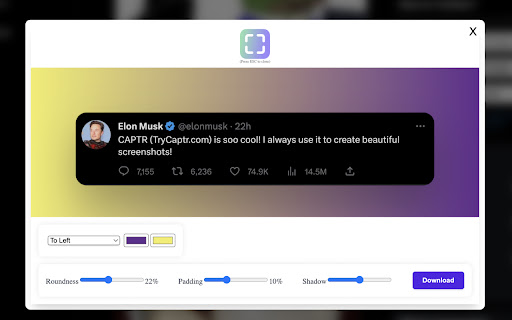


Take and edit beautiful screenshots on the fly Captr is an extension that takes screenshots and let you edit them directly on the browser. With Captr, all it takes is one click to select an area and voila! 💥 You have a stunning screenshot complete with proper padding, gradients, and rounded corners. Share your screenshots on social media and Impress your friends 🤓. Extension contains one time payment to "Remove watermark" and enable paid features. Clarification on Extension Permission -> Read your browsing history - Chrome adds this line as we request tabs permission to take the screenshot.

Personal AI Memory
Silent browser extension that captures web-based AI assistant conversations as private, searchable local memories. Personal AI Memory is your personal knowledge safe. It automatically captures and stores your conversations from various AI platforms directly to your browser's local storage. Key Features: - Support Platform: Claude, ChatGPT, Gemini, Perplexity, Grok - Automatic Archiving: Never lose a brilliant prompt or response again. - Privacy First: All data is stored locally using IndexedDB. Your conversations never leave your device. - Full-Text Search: Instantly find past insights across multiple AI platforms. - Offline Access: Review your AI interactions even without an internet connection.

Inline
Extract and analyze fonts from any webpage, and copy the SVG, CSS or HTML code to use in your own projects. With Inline, you can easily figure out which fonts are used in any website and use them in your own projects. You can copy the font and its styling as an SVG file, allowing you to integrate it into your own design projects. You can also copy the whole CSS code of the font, or copy the font and its styling as an HTML code. And if you're only interested in a particular CSS property, you can copy that too. (Please be sure to restart Chrome the first time you install Inline)

PageOne
Collects and organizes your browsing history into annotable, portable, topic-based tree lists in Markdown If you feel the same during web browsing: - Piling lots of browser tabs and hesitate to close them? - Easily get distracted by irrelevant links on a web page? PageOne automatically collects and organizes your browsing history into tree lists, according to topics you set up. You can then review, annotate and export them into text-based Markdown format. - To help you stay in a single tab -- Your browsing history is organized into a tree list for easy tracking and jumping among links. - To help you get focused -- Reminds you the topic you set up before browsing/searching. - Annotate links on the organized browsing history list -- and export them to free Joplin notebooks as markdown! 1. Find PageOne light bulb icon on browser extension toolbar. 2. Click the icon and in the popup, input your topic or idea. Alternatively, open a new tab to show the same PageOne page. 3. Start searching/browsing under the topic by clicking the Google button. 4. Check back the browsing history tree anytime by clicking the light bulb icon. You can then add notes here or mark some history items as done. Visit our website for tutorial videos: https://sites.google.com/view/hyperfocal/pageone/en 1. Feel no worry browsing within a single page You can easily review your browsing history as a popup page by clicking the extension icon (a lightbulb) on browser. The browsing dependency are traced and well-organized into tree lists. 3. A list for a topic Allows to easily set and switch between topics. Let PageOne the default page to help you set a topic before browsing. (Or turn this off in Options pane). 4. Your search term as the topic Use the Google button to set topic and search at the same time. ☑ Check as done. Consider a browsing list as a TODO list for review. ☆ Star and highlight a URL. ✎ Take whatever note you want. 6. Sync with the free note taking app (Joplin) Freely edit your browsing history as a note in Markdown. One topic, one note. Allows both sync forward and backward! Joplin link: https://joplinapp.org/ 7. Use TabGroup to open multiple topics at the same time. 8. Dock as side-panel Turn on/off side-panel view in options page. ☆ Release notes: v1.1.4: - Search topic through the main topic inputbox. - Directly edit the tree lists in the Markdown view. v1.2: - With the new Chrome feature -- Side panel, PageOne can dock on the web browser. Just select PageOne from the drop-down list of the side panel. - Integrate with Chrome's tab groups -- your topic name is group name. With this you can keep topics in opened tabs and switch among them quickly. v1.3: - Improve tracking for history tree construction. - Add switch between pop-up or side-panel view.

Touclip - A new way to bookmark
🚨 Please make use of the support tab for any suggestions, questions, or problems you may have. Touclip revolutionises your Chrome clipboard experience, allowing you to store, search, and organise text snippets effortlessly. With intuitive search, bookmarking, and direct source website links, Touclip empowers you to reclaim control over your clipboard and supercharge your productivity. Say goodbye to scattered information and hello to seamless snippet management with Touclip. 🔄 Clipboard History: Touclip automatically stores all the text you copy, creating a timeline of snippets for easy reference. 🔍 Search and Filter: Quickly find specific snippets using the search functionality, making information retrieval a breeze. 🔖 Bookmark Snippets: Mark important snippets as bookmarks for quick access to frequently used or critical information. 📄 Export Snippets: Export your snippets and source URLs to a txt file, allowing you to create backups or share them with others. 🔒 Save to Chrome Storage: Securely save your snippets to Chrome local storage. 🗑️ Clear All Snippets: Start fresh by clearing all stored snippets with a single click, providing a clean slate for new content. ☝️ Storage Counter: Track your snippet count with the storage counter, always aware of how many slots you have used. 🪫 Badge Display: Receive a badge notification on the Touclip icon when your storage reaches 100% capacity, prompting you to manage your snippets efficiently. 📋 Copy Snippet to Clipboard: Copy snippets to your clipboard with a simple click, streamlining your workflow. ❌ Delete Single Snippet: Remove individual snippets when they are no longer needed, keeping your collection organised and clutter-free. 🌐 Source Website Button: Each snippet includes a convenient button that takes you directly to the source website. Clicking on the button opens the original webpage, allowing you to revisit the context and gather more information.
