
bkmhabkoocegnikdcapcbfabpkjhghaf


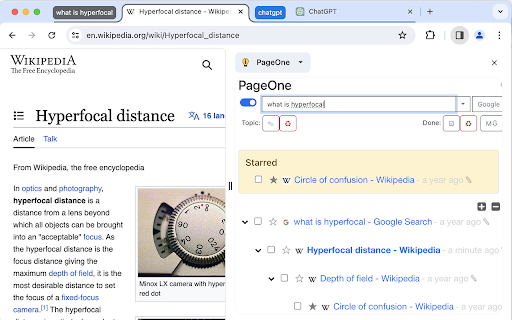
Collects and organizes your browsing history into annotable, portable, topic-based tree lists in Markdown If you feel the same during web browsing: - Piling lots of browser tabs and hesitate to close them? - Easily get distracted by irrelevant links on a web page? PageOne automatically collects and organizes your browsing history into tree lists, according to topics you set up. You can then review, annotate and export them into text-based Markdown format. - To help you stay in a single tab -- Your browsing history is organized into a tree list for easy tracking and jumping among links. - To help you get focused -- Reminds you the topic you set up before browsing/searching. - Annotate links on the organized browsing history list -- and export them to free Joplin notebooks as markdown! 1. Find PageOne light bulb icon on browser extension toolbar. 2. Click the icon and in the popup, input your topic or idea. Alternatively, open a new tab to show the same PageOne page. 3. Start searching/browsing under the topic by clicking the Google button. 4. Check back the browsing history tree anytime by clicking the light bulb icon. You can then add notes here or mark some history items as done. Visit our website for tutorial videos: https://sites.google.com/view/hyperfocal/pageone/en 1. Feel no worry browsing within a single page You can easily review your browsing history as a popup page by clicking the extension icon (a lightbulb) on browser. The browsing dependency are traced and well-organized into tree lists. 3. A list for a topic Allows to easily set and switch between topics. Let PageOne the default page to help you set a topic before browsing. (Or turn this off in Options pane). 4. Your search term as the topic Use the Google button to set topic and search at the same time. ☑ Check as done. Consider a browsing list as a TODO list for review. ☆ Star and highlight a URL. ✎ Take whatever note you want. 6. Sync with the free note taking app (Joplin) Freely edit your browsing history as a note in Markdown. One topic, one note. Allows both sync forward and backward! Joplin link: https://joplinapp.org/ 7. Use TabGroup to open multiple topics at the same time. 8. Dock as side-panel Turn on/off side-panel view in options page. ☆ Release notes: v1.1.4: - Search topic through the main topic inputbox. - Directly edit the tree lists in the Markdown view. v1.2: - With the new Chrome feature -- Side panel, PageOne can dock on the web browser. Just select PageOne from the drop-down list of the side panel. - Integrate with Chrome's tab groups -- your topic name is group name. With this you can keep topics in opened tabs and switch among them quickly. v1.3: - Improve tracking for history tree construction. - Add switch between pop-up or side-panel view.

Dive: AI Summarizer for YouTube, PDF & Web — Interactive & Privacy-First
Consume content 10x faster with an AI summarizer that lets you skim where you want, then deep dive where it matters. 🤓 Interactive summary with sections, line references, adjustable lengths, highlighted key terms & more ✅ For YouTube videos, PDFs, & webpages 💬 Q&A chat — ask anything with line references 🦘 Line/timestamp references — for every summary bullet, chat reply, & more 🌐 Multilingual — 60+ languages supported 🧠 Uses the latest models from OpenAI GPT-5.4 / ChatGPT, Anthropic Claude, & Google Gemini 🔒 Privacy-first — Extension can't access your browser data except when you use it on a webpage Dive can't read your browser data except when it's used. Unlike most extensions, we DON'T request permission to "Read and change your data on all websites." We believe great tools put privacy first. - Blogs - YouTube videos - PDFs - Long articles - Academic papers - Financial/legal documents - and more!

Clipsidian
Clipsidian lets you capture in-browser selected content and send it directly to your Obsidian vault. Copy selected web page content to your Obsidian notes: - In your web browser, select the content you want to add to your Obsidian vault. - Right-click on the highlighted content. - From the context menu, select a clipping action. Obsidian should open (if it isn't already open) and your clipping should be saved! Configure your clipping actions: - Open the Clipsidian extension options in your browser and set up as many clipping actions as you need. Choose where to save each clipping, append them to existing notes or create new ones dynamically with placeholders like {date}. Customizable Web Clipping: - Easily collect clippings and keep them organized. Define your own clipping actions with Clipsidian, precisely choosing the destination for every web clipping within your many vaults. Dynamic Target Note Paths: - With the ability to use placeholders like {title}, {date}, and {time} in your target note paths, Clipsidian allows for seamless organization of your clippings. This dynamic functionality enables you to save clips to specific notes based on the clipped page or time of clipping. Enriched Clipping Templates: - Auto-embed valuable metadata with placeholders like {date}, {time}, page {title} and page {url} with every web clipping. Flexible Date and Time Formatting: - Customize how the {date} and {time} placeholders appear in your clippings. Clipsidian let's you change the format of your dates and times, including setting the locale to match your language. - Example: {date:LLLL dd, yyyy} turns into January 1st, 2000

MemoInjo
Stick memo on any website and sync via Joplin MemoInjo is a Chrome extension that sticks a memo on any website and stores/sync via Joplin. Simply press the icon of MemoInjo at the extension toolbar (top-right corner) in Chrome. It will show a memo editor for the browsing website. You may create a summary or a task list associated with a website easily. MemoInjo is not a web clipper that could capture only once. You could reopen the same memo for the same URL. And thank to the sync feature of Joplin, you may access the memo across different computer. 1. Install the extension 2. Open Joplin 3. Go to Web Clipper Options and follow the instruction. 4. In the toolbar of the browser, press the button of MemoInjo 5. It will ask you to grant permission in Joplin. 6. Switch back to Joplin and grant the permission.

Flow - Tab Manager
A new way to manage chrome tabs and windows easily. Flow is your ultimate solution for managing tabs and windows in Chrome. Whether you’re a power user or just someone who wants to keep things tidy, Flow streamlines your browsing experience. Here’s why you’ll love it: Effortless Tab Management • Create Sessions: Start fresh by initiating a new session. A dedicated Chrome window opens, marking the beginning of your focused browsing journey. • Automatic Saving: Flow takes care of your tabs in the background. Close a window without hesitation; your tabs are securely saved. • Resume Seamlessly: Reopen any session whenever you need to pick up where you left off. • Unsaved Windows: Add any open window to your sessions directly from the ‘Unsaved Windows’ section. Boost Your Workflow with Additional Features • Main Session: Designate a session as your ‘Main Session.’ When you launch Chrome, all other windows close, leaving only your essential workstream active. • Backups: Create local backups of your sessions. Flow auto-generates a backup before deleting any session, ensuring you never lose your work. • Dark Mode: Enjoy a sleek dark mode that’s easy on the eyes during late-night browsing. • Resizable Interface: Customize the extension’s size by simply dragging the bottom right corner to fit your screen and preferences. • Simplicity: Flow keeps things straightforward. • Speed: It’s fast and reliable. • Organization: Say goodbye to tab overload. Give Flow a try and experience a clutter-free browsing environment. Your feedback is invaluable in making Flow even better! What's new? 1.2.8 • Added session badge • Removed the unsaved window popup 1.2.7 • Added sessions details to view tabs and move tabs between sesssoin • Added move tabs to session in chrome context menu • Added permission view to review optional permissions for certain settings 1.2.5 • Now Discarding tabs after title is load to improve search and visibility. • Clicking on the open sessions will bring them to front. • Bug fixes. 1.2.1 • Organizing settings and added a few more settings in additional settings • Bug fixes 1.1.0 • Sessions can be opened in the current window. • Project is open source now. see about us in extension settings for more info. • Pinned tabs will be saved now. • Alert will be shown if a window is not saved as session. • Performance improvements.
