
imbpigcghoambmanjekibelfjemnnool
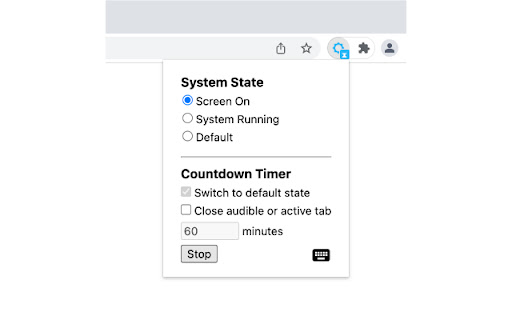
Keep your computer running or screen on, and return to default state by a timer. Similar to other "Keep Awake" extensions, the basic function of this extension is to override current system energy-saving setting, and prevent your computer from sleeping or turning off the screen. In addition, this extension provides a countdown timer that can switch to default state and (optionally) close the active tab. For example you can keep your computer running for a while, then let it go to sleep. It also supports keyboard shortcuts to change the state. Click the extension icon, you can switch between three states: ● Keep screen on: The computer does not go to sleep, and the screen keeps on. For example, when you do a presentation. ● Keep system running: The computer does not go to sleep, but the screen can be turned off. For example, when you upload or download files, the screen can be turned off, but need to keep the system running. ● System default state: Cancel the above two states. Whether to go to sleep or turn off the screen depends on the energy-saving setting of your operating system. This extension provides a countdown timer. You can use it: 1. Switch to default state. For example, when a program is being executed, it may take some time to complete. In this situation, you can set the state to keep system running, and switch to default state an hour later. 2. Set a timer to close the tab that is playing a podcast or video when you go to bed. This may help you fall asleep better. Note: if you turn your computer to sleep manually (e.g. close the laptop lid), or quit the browser completely, this extension can't keep your computer running.

Keep Awake
Chromium/Chrome extension to override system power-saving settings. ------------------------------------------ This extension makes it easy to temporarily disable power management on Chrome OS. It adds an icon in the upper-right corner of the browser that can be clicked to switch between modes where the screen is kept on (sun icon), the system is prevented from sleeping (sunset), or power-saving settings are left unchanged (moon). * Will this extension prevent a Chromebook from suspending when its lid is closed? No, but if an external display is connected, recent versions of Chrome OS will remain awake when the lid is closed. * What's the difference between the "screen is kept on" and "system is prevented from sleeping" modes? When the system is prevented from sleeping (sunset icon), network connections will remain active; this may be useful if using e.g. the Secure Shell app. The screen will still dim and turn off eventually, though. In the "screen is kept on" mode (sun icon), the system will avoid sleeping and the display will additionally remain on. * What do the icons mean? The sun icon means that the screen will be kept on. The moon icon means that the system will behave the same way that it would if the extension were not installed. The sunset icon is a middle ground: the system will avoid sleeping (as described above) but the screen will still turn off. | Release notes for version 1.9.1 (1.9.0 was never published): - It was updated to Manifest Version 3. - Updated the manifest.json file with more values. - Added more icon image sizes. | Release notes for version 1.8 (1.7 was never published): - Removed windows.onCreated hack added to work around http://crbug.com/222473 on Chrome OS.

Keep Awake your System or Display
Keep your system or display from going to sleep with just one click! Keep Awake -- Prevent your system or display from going to sleep with one click Keep Awake adds a one-click toolbar toggle that prevents your computer from sleeping. No settings to configure, no complicated options -- just click the Keep Awake icon to stop your system or display from going to sleep, and click again to turn it off. Your computer goes to sleep at the worst times -- during presentations, downloads, long installations, video calls, or when you step away briefly. Keep Awake gives you instant control. One click on the Keep Awake button and your system stays awake for as long as you need it. ✅ Click the Keep Awake toolbar button to prevent sleep -- click again to allow sleep ✅ Choose between System mode (prevents full system sleep) or Display mode (keeps only the screen on) ✅ Keep Awake shows clear ON/OFF status in the toolbar icon and notifications ✅ Right-click the Keep Awake icon to switch between System and Display mode ✅ Lightweight and fast -- Keep Awake uses minimal resources and works entirely offline ✅ Prevent sleep during presentations, screen sharing, or video calls ✅ Keep your system running during long downloads, uploads, or file transfers ✅ Stop the display from dimming while reading long articles or documentation ✅ Keep your computer awake during software installations or system updates ✅ Prevent screen lock when monitoring dashboards, logs, or live data Keep Awake is designed for anyone who needs reliable control over their computer's sleep behavior. Whether you are a developer, presenter, remote worker, or power user, Keep Awake saves you from constantly adjusting your power settings. ✔️ Free and open source ✔️ No data collection, no tracking, no ads ✔️ Works on Chrome and Microsoft Edge ✔️ Lightweight -- minimal resource usage, works offline ✔️ Manifest V3 compliant for maximum security and performance Install Keep Awake now and never worry about your computer sleeping at the wrong time again.

Circle Reader
An extension that provides immersive reading to make you fall in love with reading on the web The best free reading assistant (reader mode) that enhances the web page reading experience. Ads are too distracting, the colors are too ugly, the fonts are too small to see clearly, the typography is too messy to find the text, does it really need to be so difficult to read the web? With just one click, Circle gives you the purest reading experience, escorting you to better reading. Circle reading assistant can extract the content of the webpage and rearrange the layout into a more suitable interface for reading. Using self-developed analysis engine and typesetting engine, the recognition effect and typesetting ability are smarter, faster and more friendly. If you are looking for a lightweight and intelligent reading aid product, you might as well try Circle Reading Assistant-the best reading aid of its kind! The reading assistant browser extension Circle, which is more powerful than the Safari reading mode, is an extension and improvement of the browser's own reading mode; it is the only magical tool for computers to read web pages, read novels, and watch news; it has shortcut key support, custom styles, Custom fonts, custom themes, automatic scrolling, automatic loading of the next page, reading aloud, article outline (outline), back to the top, reading by column, printing the formatted webpage in reading mode, supporting browser translation, etc. Reading auxiliary functions. The self-developed analysis engine provides faster analysis and smarter analysis capabilities. The self-developed typesetting engine automatically blocks advertisements and noise on html, and says goodbye to the format escape. The Circle reading assistant browser extension developed by pure js has been launched on Google Chrome browser, Firefox browser, Edge browser, 360 browser, Opera browser, etc. ★ Several distinctive functions of Circle Reading Assistant: ➤ Self-developed recognition engine: With the help of self-developed recognition engine, Circle's recognition effect is smarter and the recognition speed is faster. ➤ Self-developed typesetting engine: With the help of self-developed typesetting engine, Circle's typesetting effect is more friendly and the typesetting speed is faster. ➤ Letter paper effect: a reading experience like reading a letter. ➤ Multi-page analysis: On a page with a link to the next page, the content of the next page is automatically parsed and displayed on the current page. ➤ Reading by column: Originally read the webpage by column, the welfare of large-screen users, without wasting every inch of screen space. ➤ Read aloud: Tired of reading? Why not try the content! Free your hands to do other things. With the help of "multi-page analysis", what kind of bicycle is needed for listening to novels? ➤ Preset 5 colorful themes: simple white, eye-protecting green, elegant dark gray, and deep dark. Circle has always been what you like. ➤ Custom gradient background or picture background: The preset theme is not on your aesthetic point? It's ok! Customize themes as you splash ink. ➤ Customize various styles: Just reading is not possible, I have the final say on the style of the web page! The font size is bigger, the font is thicker, and the line spacing is higher. Circle does everything for you to read. ➤ Follow the system to switch themes: only support custom themes? nonexistent. How about switching different themes at different times? . ➤ Custom css: You don't have the effect I want, you are awesome ugly! Customize css to help you, understand that css Circle is your person. ★ Keep abreast of the trends of Circle's reading assistant ➤ Subscription account 👉🏻 Senior Ranhe ★ Description of required permissions ➤ contextMenus: Use this permission to implement the right-click menu module, you can quickly access the function of Circle in the right-click menu ➤ : This permission allows Circle to access webpages, thereby realizing the recognition and layout of webpage content, as well as access to screenshots and exporting as pictures and other functions ★ Contact and discussion ➤ Contact me by email 👉🏻 wenguang.fe@gmail.com If you approve of my work, please have a cup of coffee to show encouragement and support 👉🏻 https://circlereader.com/donate The source code is hosted on github 👉🏻 https://github.com/hewenguang/circle Installing Circle means you accept our user agreement (https://circlereader.com/docs/agreement.html) and privacy policy (https://circlereader.com/docs/privacy.html)

System Monitor for CPU / Memory
A tool that display system CPU or Memory usage on the extension icon. This extension displays system's cpu or memory usage on the extension icon. Mouse over on it to show more details. You can set options in the popup page: • Display Type: CPU or Memory • Display Format: Number or Graph • Update Frequency • Enable or Disable Note: 1. Memory Usage: because system cache is also counted as used memory, high memory usage does not necessarily mean insufficient memory. 2. CPU Temperature: it is displayed in the tooltip of the extension icon when you select "Display Type: CPU", and it is only available on Chrome OS.
