
iipcnebeanlkejnmbedeaeicaplfmibf
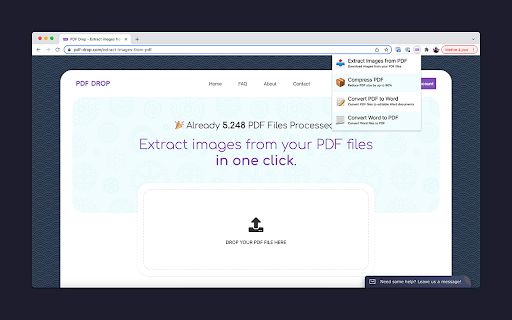

All the PDF Tools you Need in One Place. Manage your PDF files from your browser and boost your online productivity in just one click! - Compress PDF (reduce their size by up to 90%) - Convert PDF to Word documents (by keeping content formatting) - Convert Word documents to PDF - Extract Images from your PDF files Sell your PDF files (ebooks or any other PDF) on EDP at https://easy-digital-products.com.

Just-One-Page-PDF: An awesome web page to PDF tool
Use Just-One-Page-PDF in just a few clicks. Easily capture entire webpage or selection area as high-quality PDF. Just One Page PDF(JOPP), save any web page, any area as high-quality PDF, like a screenshot tool, but save as PDF format. 1. one-page PDF for entire webpage 2. multiple-page PDF for entire webpage 3. support custom paper size, eg. window size, A4, A3, Letter and so on. 4. screenshot, but PDF format. 5. export PDF with multiple tabs at one time 6. Support exporting PDF of your selected region 7. Support for sending PDFs by email ## compare with the browser's build-in printing function 1. no print preview dialog, direct download 2. customize any page size as you want 3. multiple tabs to export PDF at one time 4. disable or enable print media as required 5. customize style before export PDF 6. supports printing by selecting nodes or selecting areas While surfing on the internet, you will always come across beautiful articles or web pages, which you will unconsciously want to collect. To collect these articles, you need some tools. Here I would like to share some of the extensions I have used before, the problems I encountered, in order to solve these problems, I developed a new extension suitable for article collection. I used to collect articles through some web clipper tools (such as evernote/onenote web clipper), but these tools have a big disadvantage, that is, they will rearrange the articles, and simple articles may not matter , but for some articles with rich expressiveness and complex typesetting, especially articles that use different web fonts to make the article more comfortable to read, it is difficult to maintain the reading experience of the original article by using these clipping tools. In order to solve this problem, I have tried some tools to save the article as a complete html, such as single page, save page we, etc. Although these tools are very powerful, I always feel that something is missing. There is no way to annotations, it is not very convenient to share with friends, and it is not ideal to print. At the same time, these articles saved as html are not good to be combined with some knowledge management tools. The more direct solution is to use the screenshot extension to take screenshots of the articles you want to collect. The advantage of the screenshot method is that it is easy to operate, easy to collect, and easy to share. However, when zooming in and zooming out the article that generates the image, the image will be distorted and blurred, and there is no better way to search for the text in the image. If the article is particularly long , the saved picture's filesize may also become very big. Finally, another solution that can be thought of is to save the article in PDF format. Articles saved as PDF can be a good solution for text editing and searching, and sharing has become very convenient. There are already a lot of PDF reading software on the market, and browsers themselves also provide PDF reading functions; at the same time, some advanced PDF reading software also provides PDF annotations, signatures, modifications, and other functions. Most of the knowledge management software is also more or less adapted to PDF reading. While saving to PDF is the best solution I can think of at the moment, the extensions that offer saving to PDF are very rudimentary in their functionality, and some of the tools require networking to the server to operate, which is even more difficult to achieve for some login authentication pages. The built-in PDF printing in the browser (ctrl+p), this is the most direct way to generate PDF, but the PDF generated by this function requires the author of the article to adapt the PDF style, so that the printed PDF will be more accurate and nice. Unfortunately, most of the current websites do not provide PDF print-friendly style adaptation, and the effect of the generated PDF may be very different from the effect of the browsed web page. At the same time, the browser's built-in PDF printing cannot maintain the original layout of the web page like a screenshot. The main reason is the size limit of the built-in PDF printing. ### third-party PDF extension Another option for saving PDFs is to use third-party extensions. The simpler PDF extension directly call the browser's built-in printing function to generate PDF files directly, without subsequent optimization processing, and the effect is basically the same as that of users directly using ctrl+p. The advanced PDF extensions will transmit the visited webpage address to a third-party server, and then, through the webpage address, operate on the server and save it as a PDF. But in this way, there is no way to save some web pages or articles that require login authentication. At the same time, because the fonts on the user's own computer may be different from the fonts on the third-party server, the generated PDF effect is still somewhat inconsistent. ### Myself PDF extension In order to meet the needs of collecting articles through PDF, I developed such a extension Just One Page PDF (JOPP). Support similar screenshot operations, select a specified area to save as a PDF, the most important thing is that this operation is performed on the client without any third-party services. JOPP generated PDF comes with an outline function, that is, JOPP supports the recognition of the title (H1, H2, H3, etc.) structure of the page, automatically converted into PDF bookmarks. JOPP also supports batch saving to PDF, so you no longer need to click print page by page. With one click, you can print all selected pages to PDF. For article collection, you can also use JOPP's sending email function to send the generated PDF articles to your own mailbox. For knowledge management tools that support email collection of articles, such as evernote/onenote, etc., you can directly send the PDF to the target mailbox.

PDF Combiner
A powerful and easy PDF combiner to merge documents in one click. Your go-to tool for PDF files. 🚀 Need a simple solution to join multiple PDF files? Combine them instantly with our lightning-fast PDF merger. No uploads. No limits. Just results. ✨ Why PDF Combiner is Your Ultimate Solution Transform scattered documents into one organized file. Built for speed, designed for simplicity, crafted for you. 1. Add Your Files - Drag and drop PDFs or click to upload. Even right-click PDFs from any website to add them instantly! 2. Arrange Your Order - Reorder files with simple drag-and-drop. Perfect sequence every time. 3. Merge & Done - Click "Combine" and your merged PDF downloads automatically. That's it! 🚀 Lightning Speed - Merge unlimited PDFs in under 10 seconds 🔒 100% Secure - All processing happens locally on YOUR computer. Zero server uploads. Your files never leave your device. 📶 Works Offline - No internet required. Perfect for sensitive documents. 🎯 Smart Right-Click - Save PDFs from any website directly into the combiner ✨ Intuitive Interface - Clean design. Zero learning curve. 💻 Universal Compatibility - Works on Windows, Mac, and Linux 📄 Unlimited Files - Combine 2 files or 200 files. We handle it all. 🎯 Perfect For Every Professional 👨💼 Office Managers - Organize reports and invoices seamlessly 💼 Corporate Teams - Maintain compliance documents for audits 📚 Teachers - Create comprehensive course materials 👨🎓 Students - Merge assignments and research papers effortlessly ✍️ Writers - Combine chapters into complete manuscripts 🔬 Researchers - Compile journals into single reference documents 💡 Key Benefits You'll Love ✅ No Registration Required - Install and start merging immediately ✅ Privacy First - Your data stays on your device. ✅ No File Size Limits - Handle large documents without breaking a sweat ✅ Instant Results - Process files faster than any online tool ✅ Professional Quality - Crystal-clear output every time ✅ Flexible Workflow - Upload first, arrange later Your privacy is sacred. Since everything runs locally, your files never touch our servers. No data collection. No storage. No tracking. Just pure, secure PDF combining. Most PDF tools force you to upload files to their servers. Not us. We built PDF Combiner to work entirely on YOUR machine. Faster processing. Better security. Total peace of mind. – Support for additional file formats – Split PDFs into separate files – Advanced editing capabilities – Custom page selection Install PDF Combiner in 2 clicks and experience the fastest, most secure way to merge PDFs. No learning curve. No complications. Just effortless document management. Your ultimate PDF combining solution is one click away!

Merge PDF
Merge your PDF files fast and free! Free PDF File Merger - Merge PDF Files for free. •This software supports merging of PDF files •Merge 2 or more PDF files •Unlimited number of PDF mergers for free How to use this extension: - Click on the software icon - Choose PDF file you would like to merge, Disclaimer: Please note this extension is NOT made by Google and is made by an independent development team. All copyrights belong to their respective owners. Google doesn’t endorse or sponsor this Chrome extension. PDF Merge for Google Chrome™ is not owned by,it is not licensed by and is not a subsidiary of Google Inc.

PDF24 Tools
Free and easy-to-use PDF tools that make you more productive. This app brings the PDF24 tools to your Chrome browser and makes you more productive. Around 30 easy-to-use PDF tools are available for free. - Merge and split - Compress, edit, convert, sign, redact, annotate - Protect and unlock with password - Rotate, delete, extract, move pages - Convert images, Word, Excel and other formats to a PDF and vice versa - Text recognition via OCR - Insert watermarks and page numbers - Overlay and compare documents This extension adds PDF24 widgets to specific search engine results pages. For example, if you search for “merge PDF” in Google, PDF24’s merge widget will be loaded and embedded in the search results. User can use this widget to merge files without leaving the search results page. ★ New page context menu item to convert a website The extension adds a page context menu item to convert the current page to a PDF file. ★ Extension of Chrome's internal PDF viewer with useful functions The extension adds a PDF24 icon to Chrome's internal PDF viewer. The user can then use the functions of this icon to do something with the displayed file, e.g. compress, sign, edit, convert, etc.
