
igfcoofpmcdpcocfofdobneaileiogmo

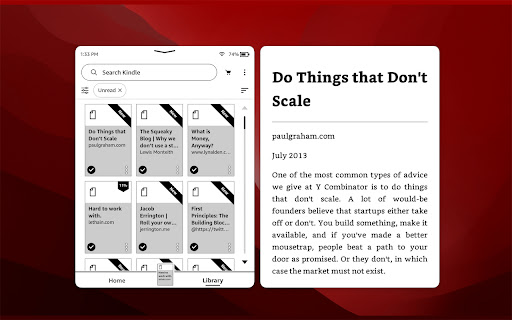
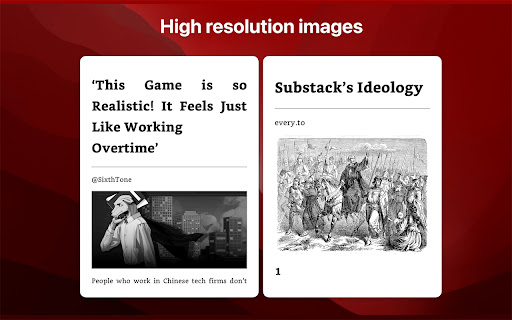


Send web articles, Twitter threads, RSS and newsletters to Kindle 👉 Send news articles and newsletters to Kindle 👉 Reduce screen time. Improve productivity. You spend too much time on computer screens. It damages our eyesight and hurts our comprehension. KTool helps you read everything on Kindle instead. 1. Installing this extension will add a KTool button to your Chrome browser 2. Sign up for an account 3. Click the Send to Kindle menu item on an article that you'd like to read on your Kindle. Send long web articles to your Kindle to read later. Read anywhere: on your Kindle e-reader or the Kindle app on your iPhone, iPad, or Android device. Articles are available for offline reading once delivered to the Kindle. ✨ New: Added support for comic sites ✨ New: ADHD Reader Mode — helps you read faster by highlighting the beginning of every word of the article ✨ New: Send RSS feeds to Kindle automatically (premium feature) ✨ New: Forward email newsletters to Kindle automatically (premium feature) ✅ Send PDF, Markdown & DOCX documents to Kindle (premium feature) ✅ Send Hacker News discussions to Kindle ✅ On-demand article conversion using Kindle's built-in web browser ✅ Automatically import devices from Amazon.com ✅ Dark Mode ✅ Send ebooks on Standard Ebooks to Kindle ✅ Send Wikipedia articles to Kindle ✅ Preview the article before sending ✅ Browse and search send history ✅ Speedy delivery to your Kindle ✅ Image support ✅ Emoji support ✅ Keyboard short-cut support ✅ Send Twitter thread to Kindle ✅ Send email newsletters to Kindle KTool can send to the following devices: Please check https://ktool.io/pricing for details This extension does not do anything unless you click the Send to Kindle button. We do not monitor or inject any scripts into your pages while you browse. When you click the Kindle icon, this extension sends the contents of the page and its URL to the KTool service. The KTool service then packages the contents into a reader-ready format and delivers it to your Kindle. Content which you process with the KTool service will be cached on the server for a short period. More information on our privacy page: https://ktool.io/privacy. Feel free to contact us if you have any questions.

Readwise Highlighter
Save a page to Readwise Reader This is the official Reader browser extension made by and maintained by the Readwise team. You use the Reader Highlighter extension to: • Save articles to Reader – the first ever read-it-later app built for power readers. If you’ve ever used Instapaper or Pocket, Reader is like those, except it’s built for the modern era and brings all your reading into one place including: web articles, email newsletters, RSS feeds, Twitter threads, PDFs, EPUBs and more. You can get started with Reader here. • Highlight and annotate the open web. All highlights that you make using this extension will be synced with the Readwise ecosystem and, optionally, to your note-taking app of choice such as Obsidian, Notion, Roam Research, Evernote, Logseq, and more. Note: You must have an existing Readwise account to use this extension. If you are not already a subscriber, you can get a free 30-day trial with no credit card upfront. At the end of the trial, you will not be charged unless you choose to subscribe.

EpubPressX - Read the web offline
Create custom ebooks from your favorite blogs and websites. Fork from EpubPress, and make some updates: - Faster and more stable: e-books are created locally, not dependent on the server - Fixed EPUB format issues - Fixed image positioning issues - Can set the cover - Can choose whether to include images Web version for mobile: https://kiki-read.com Project: https://github.com/sunxen/EpubPressX

dotEPUB
dotEPUB allows you to convert any webpage into an EPUB or Kindle e-book. Save now and immersively read later (even offline) those long and deep articles you didn't have time to read while browsing. Build a personal library of your favorite blog posts, news articles, etc. Warning: This extension can only be run once on the same webpage unless you reload that page.

Export Kindle Highlights to Notion V2 (2023)
Export Kindle Highlights and clippings to Notion easily. We are back in 2023 with a solid new upgrade. A 1 click way to export your kindle highlights to notion without any signups/installation/setup etc **Initial Setup** 1. Install the extension 2. Login to Notion account(You will be redirected to a new tab where you can login to you Notion account) 3. Provide Notion Page Edit Access 4. Use the template provided by the developer **Update/Upload clippings** 1. Connect Kindle Via USB 2. Open the extension 4. Click Upload New Clippings Files button 5. Select clippings file in Kindle → Documents → My Clippings.txt 6. Submit 7. Click refresh button in status box to keep checking status 8. You can close the browser and extension after starting the sync as all the processing is happening remotely. Feel free to contact us if the issue persists. For Support: kindletonotion@gmail.com
