
hpimpiejkldpjhijfpglflpplnhdffcf
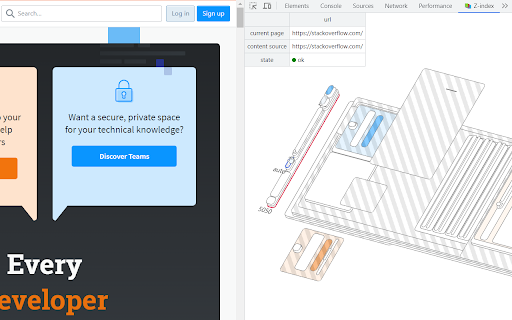
A tool that visualizes (2.5D) the stacking contexts of web pages. Due to the stacking context concept of CSS, in certain situations, no matter how high the z-index value is, the desired result may not be achieved. By visualizing the stacking context (2.5D), the tool helps you quickly identify which elements the current stacking context is dependent on. Github: https://github.com/junghyunbak/chrome-extension-z-index-visualizer

z-context
A Chrome DevTools Extension that displays stacking contexts and z-index values in the elements panel Why use it? Browsers support a hierarchy of stacking contexts, rather than a single global one. This means that z-index values are often used incorrectly, and arbitrarily high values get set. By Using Z-Context, you'll know: - If the current element creates a stacking context, and why - What its parent stacking context is - The z-index value -------- v3.0.0 - Update to manifest v3 and update stacking context rules https://github.com/gwwar/z-context/pull/29 v2.1.0 - Includes http protocol to facilitate development use cases https://github.com/gwwar/z-context/pull/23 v2.0.0 - Adds support for inspecting iframes https://github.com/gwwar/z-context/pull/21 https://github.com/gwwar/z-context/pull/22 v1.1.0 - Adds z-index stacking context rules as of 2021. Adds fixes for position sticky and shadow dom, props to roperzh and edenilan! See pulls 10, 17 and 18 at https://github.com/gwwar/z-context. v1.0.4 - fixes will-change case. a stacking context is created for opacity/transform but not other values https://github.com/gwwar/z-context/pull/9 v1.0.3 - fixes display reason for flex-items https://github.com/gwwar/z-context/pull/4 v1.0.2 - adds new z-index rules, fixes a bug when inspecting a shadow dom elements. https://github.com/gwwar/z-context/pull/3 v1.0.1 - fix reason message for non-static positions, props to giuseppeg. https://github.com/gwwar/z-context/pull/1

Measuremate — Pixel Ruler for Web Design
Measure distances, inspect the box model, drop guides on any live page. A pixel ruler for the web — no DevTools. Measure distances between any elements on any website. Pixel ruler, CSS inspector, and alignment guides — everything you need for pixel-perfect design handoff, right in your browser. Measuremate is a measuring tool built for frontend developers, web designers, and QA engineers who need precise pixel measurements without leaving the browser. Lightweight, private, and fast. 🔍 INSPECTOR MODE — Click any element to inspect it. See dimensions, distances to neighboring elements, and full CSS details. Hover to preview before selecting. 📐 GUIDES MODE — Place vertical and horizontal ruler guides anywhere on the page. Snap to element edges, measure between guides, and verify alignment like in Figma. Switch between modes with a single keystroke. ━━━━━━━━━━━━━━━━━━━━━━━━ WHAT YOU CAN DO ━━━━━━━━━━━━━━━━━━━━━━━━ 📏 MEASURE DISTANCES between any two elements — spacing, gaps, padding, margins. On-page dimension lines show exact pixel values. 🎯 INSPECT THE CSS BOX MODEL with visual breakdown of content, padding, border, and margin (including negative margins). 🔬 VIEW DETAILED CSS by category — Layout (display, position, flex, grid, z-index), Text (font, color, line-height, letter-spacing), and Attributes. 🌳 NAVIGATE THE DOM TREE — browse from root to any element, hover to preview, click to inspect. 📐 DROP VERTICAL OR HORIZONTAL GUIDES on any page with a single keystroke. Use arrow keys for 1px precision, Shift+arrows for 10px jumps. 🧲 SNAP TO ELEMENTS — guides and cursor automatically snap to element edges and centers. Cmd+Shift+M (Mac) / Ctrl+Shift+M (Win) — Toggle Measuremate on/off 1 — Switch to Inspector mode 2 — Switch to Guides mode M — Show/hide the control panel V — Drop a vertical guide at cursor H — Drop a horizontal guide at cursor S — Toggle snap-to-alignment Q — Clear all guides Arrow keys — Move cursor/guides 1px (Shift for 10px) Esc — Clear selection ━━━━━━━━━━━━━━━━━━━━━━━━ WHO IT'S FOR ━━━━━━━━━━━━━━━━━━━━━━━━ • Frontend developers verifying pixel-perfect implementation against designs • Web designers checking spacing, alignment, and typography on live sites • QA engineers validating responsive layouts across breakpoints • Teams doing design handoff from Figma, Sketch, or other design tools • Anyone who needs a fast, clean ruler for the web ✓ Clean UI — does nothing until you activate it. No interference with the pages you browse. ✓ Lightweight — under 500 KiB, no bloat, no telemetry. ✓ Privacy-first — zero tracking, zero data collection. ✓ Works on any website, including SPAs and iframes. ✓ Figma-like distance measurements you already know how to read. ✓ Keyboard-first workflow for power users. 1. Click the Measuremate icon in your toolbar (or press Cmd/Ctrl+Shift+M) to activate 2. Hover over any element to preview its dimensions 3. Click to select — see distances to nearby elements appear on the page 4. Open the Main Panel with M to see full CSS, box model, and DOM tree 5. Press 2 to switch to Guides mode and drop alignment rulers ━━━━━━━━━━━━━━━━━━━━━━━━ FREE AND PRO ━━━━━━━━━━━━━━━━━━━━━━━━ We ship updates regularly. Feature requests and bug reports are always welcome.

ARIA DevTools
Easily spot missing ARIA labels, misused ARIA roles, and incomplete keyboard support in your web applications. Creating accessible web applications is difficult. It gets even harder if you don't understand how people with disabilities use computers. With ARIA DevTools you see your website the way screen readers present it to the blind users. All page elements are presented according to their explicit or implied ARIA roles. This includes headings, images, tables and form items beyond others. It's now easy to spot missing ARIA labels, misused ARIA roles, and incomplete keyboard support. This makes testing and development of accessible websites easier.

Accessibility Insights for Web
Accessibility Insights for Web helps developers quickly find and fix accessibility issues. The default keyboard shortcut to launch Accessibility Insights for Web is [Ctrl+Shift+K]. If that doesn't work, follow these instructions: 1. Select Shift+Alt+T to move focus to the Chrome address bar 2. Select the Left arrow key to move focus to the Accessibility Insights for Web extension. 3. Select the Space key to open the extension.
