
gmbmikajjgmnabiglmofipeabaddhgne
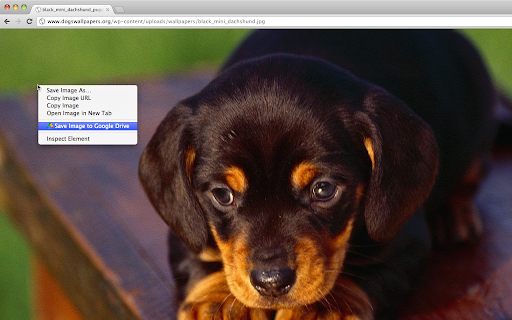
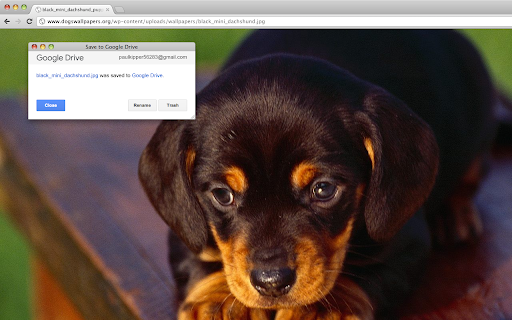


Save web content or screen capture directly to Google Drive. The Save to Google Drive Chrome extension helps you save web content or browser screenshots to your Google Drive. * Adds a browser action to save the current page. * Adds a right-click context menu to save hyperlinks and media. * Configurable through an options page. * Save a PDF of the current page via the Chrome Print menu This extension allows you to save web content directly to Google Drive through a browser action or context menu. You can save documents, images, and HTML5 audio and video all by right clicking and selecting 'Save to Google Drive'. You can save the currently viewed page using the 'Save to Google Drive' browser action or as a PDF from the Chrome Print menu.. The directory location and format of saved HTML pages can be controlled with the extension's options page (Choice of Entire image (default), Visible image, Raw HTML, MHTML, or Google Doc). You can automatically convert Microsoft Office files or comma separated files to Google Docs format. After your content is saved, the progress dialog allows you to open the file, rename, or view the file in the Google Drive document list. From the document list, you can organize and share your new document. To save a file:// URLs, or to enable in incognito mode, go to chrome://extensions/ and enable the associated checkbox. Due to security restrictions, this extension cannot capture chrome:// pages or Chrome Web Store pages. New in Version 2.3.2: * Fixes a bug where certain PDF files would save without an extension name. New in Version 2.3.1: * Bug fixes. * Allows for the printing of the current page from Google Chrome to Google Drive, as a PDF. Note: Currently Google Chrome provides this feature natively, but this native feature will soon be replaced fully by this Chrome Extension's similar feature. New in Version 2.1: Authorization now requires you to be signed into Chrome. In order to save to a different Google Drive account, you must change Chrome profiles. New in Version 2.0.1: Bug fix for Authentication page redirecting to about:blank after clicking Accept. New in Version 2: * Uses OAuth2 authentication flow, so you will need to re-authenticate on first use * Ability to choose destination folder (configured in Options page) * Support for high devicePixelRatio (Chrome Pixel & Retina displays) * Clicking saved folder name displays the newly uploaded file in the destination directory * Options are stored in shared storage, so are synchronized across browsers if Chrome Sync is enabled. By installing this item, you agree to the Google Terms of Service and Privacy Policy at https://www.google.com/intl/en/policies/.

Category Tabs for Google Keep™
Better organise your Google Keep notes Tired of wasting time looking look through and re-sorting all of your notes on Google Keep? With Category Tabs for Google Keep™, you can now sort your new and existing notes by category. Each category represents one color. Adding a note to a category is very easy, just change the color of the note. When you want to view the notes you have sorted by color, simply click on the note color you wish to view. If you would like to view your you entire collection of notes/checklists, there is an “All” option next to the color options (this option is set by default). Category Tabs for Google Keep™ seamlessly integrates into the page and the options to look at your notes/checklists in list view or gird view is still available. The ability to post a quick note/list/picture is still available as well and is still placed in the same spot as it usually is. This application supports all the colors offered by Google Keep. You can access the settings by opening the menu in google keep, and hit "Customize Categories"

Backup and Sync Google Drive to other clouds
Export Google Docs and Sheets to other clouds with one click With this browser extension you can save your Google Docs or Google Sheets directly to other cloud account. Just click on on "Save to" button in upper right corner of your Google Docs or Google Spreadsheet documents and you will promoted to select destination cloud service. And after save, you can setup you can setup real-time sync, backup or migration of your Google Drive™ folder with some other cloud services: with no complicated downloads. You can also synchronize any folder in your Google Drive with other cloud storage solutions such as Amazon S3, Dropbox, Egnyte, SharePoint, etc. To do this, open the folder in your Google Drive and click on "Sync this folder" to initiate the synchronization wizard. You can learn more about cloudHQ solutions here: cloudHQ website: https://www.cloudhq.net/ Pricing: https://www.cloudhq.net/pricing Support page: https://support.cloudhq.net/ Blog: https://blog.cloudhq.net Gmail, Google Shared Drive, Google Drive, and Google Workspace are trademarks of Google LLC. Use of these trademarks is subject to Google Permissions.

Checker Plus for Google Drive™
Quickly browse your Google Drive files without opening a webpage and get notifications of modifications to your shared documents • Browse, open, search or delete your files and documents right from a browser button (without waiting for Google Drive's page to open) • Get desktop notifications when any of your files/documents are modified or updated by a shared user Click "Website" or visit jasonsavard.com for more info.

Google Mail Checker
Displays the number of unread messages in your Google Mail inbox. You can also click the button to open your inbox. Displays the number of unread messages in your Google Mail inbox. You can also click the button to open your inbox.
