
pppfmbnpgflleackdcojndfgpiboghga
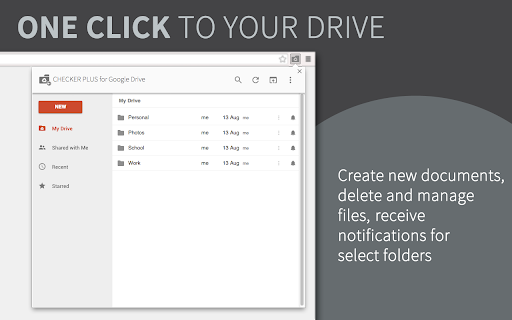


Quickly browse your Google Drive files without opening a webpage and get notifications of modifications to your shared documents • Browse, open, search or delete your files and documents right from a browser button (without waiting for Google Drive's page to open) • Get desktop notifications when any of your files/documents are modified or updated by a shared user Click "Website" or visit jasonsavard.com for more info.

Category Tabs for Google Keep™
Better organise your Google Keep notes Tired of wasting time looking look through and re-sorting all of your notes on Google Keep? With Category Tabs for Google Keep™, you can now sort your new and existing notes by category. Each category represents one color. Adding a note to a category is very easy, just change the color of the note. When you want to view the notes you have sorted by color, simply click on the note color you wish to view. If you would like to view your you entire collection of notes/checklists, there is an “All” option next to the color options (this option is set by default). Category Tabs for Google Keep™ seamlessly integrates into the page and the options to look at your notes/checklists in list view or gird view is still available. The ability to post a quick note/list/picture is still available as well and is still placed in the same spot as it usually is. This application supports all the colors offered by Google Keep. You can access the settings by opening the menu in google keep, and hit "Customize Categories"

Backup and Sync Google Drive to other clouds
Export Google Docs and Sheets to other clouds with one click With this browser extension you can save your Google Docs or Google Sheets directly to other cloud account. Just click on on "Save to" button in upper right corner of your Google Docs or Google Spreadsheet documents and you will promoted to select destination cloud service. And after save, you can setup you can setup real-time sync, backup or migration of your Google Drive™ folder with some other cloud services: with no complicated downloads. You can also synchronize any folder in your Google Drive with other cloud storage solutions such as Amazon S3, Dropbox, Egnyte, SharePoint, etc. To do this, open the folder in your Google Drive and click on "Sync this folder" to initiate the synchronization wizard. You can learn more about cloudHQ solutions here: cloudHQ website: https://www.cloudhq.net/ Pricing: https://www.cloudhq.net/pricing Support page: https://support.cloudhq.net/ Blog: https://blog.cloudhq.net Gmail, Google Shared Drive, Google Drive, and Google Workspace are trademarks of Google LLC. Use of these trademarks is subject to Google Permissions.

Checker Plus for Gmail™
Get notifications, read, listen to or delete emails without opening Gmail and easily manage multiple accounts. 🛠️ Trusted developer with a suite of highly rated extensions 🚀 Lightning-fast email previews, alerts, and smart tools 🔔 Push notifications and background alerts 🧠 Voice notifications — hear your emails read aloud (perfect for multitasking or accessibility) 🧩 Works with multiple Gmail & Google Workspace accounts 🔄 Real-time sync across inboxes, labels, and custom filters 🆕 Tons of options, features, and regular updates ✨ Option to quickly reply & compose emails with AI using prompts in any language 🆘 Access to an extensive FAQ and fast, personal tech support 🧱 Now supports the Chrome side panel 🧑🍳 Your suggestions help shape new features 🎁 Extra features unlocked with any contribution 📥 Read, archive, mark as read, or delete — right from the popup 🔇 Add your own notification sounds or voices

Black Menu for Wikipedia
Easy access to the Wikipedia universe Black Menu for Wikipedia lets you access the best of the Wikipedia Universe, in a simple, easy, and convenient way. This extension has a comprehensive menu of Wikimedia Foundation projects. You can access them by browsing through the black menu entries. By clicking the menu entry of your choice, you'll go to the corresponding Wikimedia Foundation project in a new tab. Wikipedia – The primary page, containing a search box which lets you access the vast collection of Wikipedia articles right inside Black Menu for Wikipedia. This page also features today's featured Wikipedia article and recent news reported by Wikipedia. Wiktionary – Search for thousands of words featured in the Wiktionary dictionary and thesaurus. This page also features Wiktionary the word of the day. Wikiquote – Browse Wikiquote's broad collection of quotes using the search bar or search for quotes by categories. This page also features the Wikiquote quote of the day. Wikibooks – The Wikibooks page includes an overview of the Wikibooks project and a search bar to search and access an array of 2,600+ books. Wikisource – Browse through the ample library of Wikisource texts using the search bar at the top of the page. The Wikisource page also include the featured text of the month, new texts, and Wikisource highlights. You can also browse through texts by categories and author. Wikispecies – Search through Wikispecies' collection of organisms using the search bar at the top of the page. A featured author and the species of the week are also displayed on this page. Wikinews – Check up on the news as reported by Wikipedia. If you want to look through the news archives, just use the search bar at the top of the Wikinews page. Wikiversity – This page includes a introduction to Wikiversity and the search bar at the top of this page lets you search through Wikiversity's extensive assortment of educational resources. Wikivoyage – Explore the world using the free worldwide travel guide that anyone can edit. Search for travel guides by continent or use the search bar at the top of the page. Also look for itineraries, phrasebooks, travel topics and other topics. The Wikivoyage page also features the destination of the month, a destination off the beaten path and the featured travel topic. Commons – Search for and view all the media files Wikipedia Commons has to offer using the search bar. Also browse through media files by topic, location, type, author, license and source. This page also features the Commons' picture of the day. Meta-Wiki – This page includes an introduction to Meta-Wiki, the global community site for Wikimedia projects and the Wikimedia movement. Use the search bar to browse through various projects and pages.
