
dlahcjmefibiedeecoegjilekaebchhl


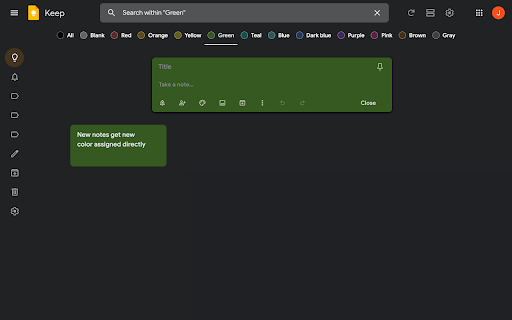
Better organise your Google Keep notes Tired of wasting time looking look through and re-sorting all of your notes on Google Keep? With Category Tabs for Google Keep™, you can now sort your new and existing notes by category. Each category represents one color. Adding a note to a category is very easy, just change the color of the note. When you want to view the notes you have sorted by color, simply click on the note color you wish to view. If you would like to view your you entire collection of notes/checklists, there is an “All” option next to the color options (this option is set by default). Category Tabs for Google Keep™ seamlessly integrates into the page and the options to look at your notes/checklists in list view or gird view is still available. The ability to post a quick note/list/picture is still available as well and is still placed in the same spot as it usually is. This application supports all the colors offered by Google Keep. You can access the settings by opening the menu in google keep, and hit "Customize Categories"

Ink for Google™
Get your favourite Google sites a new coat of paint. Update their look with Material Design Ink for Google improves the look of well-known Google websites like Search, Gmail and Calendar. It unifies them under the guidelines defined by the Material Design team at Google. Ink takes inspiration from the visual style of Android apps and their newest websites to create a better and consistent experience across all of these services. Ink currently works on most Google websites, even websites which already have material design. On those websites, it improves the design to better match the guidelines. This extension requires the permission to read and change your data on google.com sites to make the visual changes. See something that you think needs a visual tweak? Click the Ink icon to send us some feedback or to report a bug.

Black Menu for Google™
The easiest access to the Google universe with Gemini AI and sidebar support The easiest access to the Google universe with Gemini AI and Sidebar support. Black Menu for Google gives you quick access to your favorite Google services with a convenient drop-down menu that lets you use Search, Google+, Translate, and many others without leaving the page you’re on. Click on menu items to get a small windowed preview or click on the open in new button on the right to open them in a new tab. Customize the menu by pointing at ‘Add’ and dragging/clicking the services you want from a comprehensive list of services. To remove services, drag them to the right to remove them. Access these and more with Black Menu for Google: Search page. Quickly search the web or switch tabs to search for images, books, news, etc.—all within the mini window. Translate page. Type or paste text into the box to get a quick translation for that comment you received in a foreign language. View your translate history and save your favorite ones. Maps page. Find the next restaurant to try out by using the mini map that has search, Street View, and layers for satellite, traffic, public transport and cycling. YouTube page. Watch popular videos or those recommended to you. Do a search and filter the results to find that one video you wanted to share. Sign in to find useful shortcuts at the bottom. News page. Read top news from your locale or any country you choose. Also browse sections like World, Business, Sci/Tech and Entertainment. Use search to find news about any topic. Gmail. Get a full-featured Gmail inbox to check or send mail from. Reply to colleagues, edit labels, forward emails, or archive them—do almost everything Gmail can do right from the menu. Drive page. Browse folders or search for files in a nice familiar layout. View your documents as a list or see images in a grid view. Click the add button to upload files or make new ones. Calendar page. See your upcoming events summarized in a list. Toggle which calendars you’d like to see from the side drawer or just search for specific events. Keep page. Create lists, reminders, or paste snippets from the web. All your notes are here, including archived ones. Organize and rearrange them as you want. Apps page. Access shortcuts to common (and obscure) Google websites like Contacts, Groups, Art Project, Follow Your World and 1250+ more! Right click the Black Menu icon to send me feedback, suggestions, or to report a problem.

G App Launcher (Shortcuts for Google™)
The best access to Google™ Services and Websites G App Launcher helps optimize your workflow by letting you open your most commonly-used websites from the browser toolbar. It opens shortcuts in a new tab so you can stay productive your own way. Easy to access Open the launcher extension from any page with just a click or through a keyboard shortcut. Packed with more than 1,000 shortcuts Add any Google website to the launcher or create your own shortcut to sites that you visit often. Over 1,000 shortcuts are available, including really obscure websites and action-based shortcuts. You can also add apps from Google Workspace. Customizable Personalize the launcher with shortcuts of your choice, with many options for layout and appearance. Dark theme is supported. Integrated Launch shortcuts with the same account as the page you’re currently on. Replace the default Google app launcher with this extension to bring your shortcuts with you on Google websites. Synced and secure Carry your personalized launcher across devices with support for browser-based extension sync. This means only you have access to your shortcuts; these are never sent to our system. Thoughtfully designed Feel at home with the familiar design based on the original app launcher. Your shortcuts are accessible through keyboard navigation. Note on permissions We value your privacy and security. G App Launcher requires additional permissions which the browser will inform about this on installation or first use. G App Launcher only uses these permissions for: - automatically getting the icon for websites you add manually, - making sure the shortcuts launched for Google websites are for the same account that you’re currently signed in on, and - correctly triggering action shortcuts related to the website you’re on (such as ‘Gmail send this’ or ‘Bookmark this’). - the permissions for google websites is needed for replacing the default app launcher on Google websites with G App Launcher.

Black Menu for Wikipedia
Easy access to the Wikipedia universe Black Menu for Wikipedia lets you access the best of the Wikipedia Universe, in a simple, easy, and convenient way. This extension has a comprehensive menu of Wikimedia Foundation projects. You can access them by browsing through the black menu entries. By clicking the menu entry of your choice, you'll go to the corresponding Wikimedia Foundation project in a new tab. Wikipedia – The primary page, containing a search box which lets you access the vast collection of Wikipedia articles right inside Black Menu for Wikipedia. This page also features today's featured Wikipedia article and recent news reported by Wikipedia. Wiktionary – Search for thousands of words featured in the Wiktionary dictionary and thesaurus. This page also features Wiktionary the word of the day. Wikiquote – Browse Wikiquote's broad collection of quotes using the search bar or search for quotes by categories. This page also features the Wikiquote quote of the day. Wikibooks – The Wikibooks page includes an overview of the Wikibooks project and a search bar to search and access an array of 2,600+ books. Wikisource – Browse through the ample library of Wikisource texts using the search bar at the top of the page. The Wikisource page also include the featured text of the month, new texts, and Wikisource highlights. You can also browse through texts by categories and author. Wikispecies – Search through Wikispecies' collection of organisms using the search bar at the top of the page. A featured author and the species of the week are also displayed on this page. Wikinews – Check up on the news as reported by Wikipedia. If you want to look through the news archives, just use the search bar at the top of the Wikinews page. Wikiversity – This page includes a introduction to Wikiversity and the search bar at the top of this page lets you search through Wikiversity's extensive assortment of educational resources. Wikivoyage – Explore the world using the free worldwide travel guide that anyone can edit. Search for travel guides by continent or use the search bar at the top of the page. Also look for itineraries, phrasebooks, travel topics and other topics. The Wikivoyage page also features the destination of the month, a destination off the beaten path and the featured travel topic. Commons – Search for and view all the media files Wikipedia Commons has to offer using the search bar. Also browse through media files by topic, location, type, author, license and source. This page also features the Commons' picture of the day. Meta-Wiki – This page includes an introduction to Meta-Wiki, the global community site for Wikimedia projects and the Wikimedia movement. Use the search bar to browse through various projects and pages.
