
gjhnbhjegnfhehpjhkajgfbkcbpmomoh
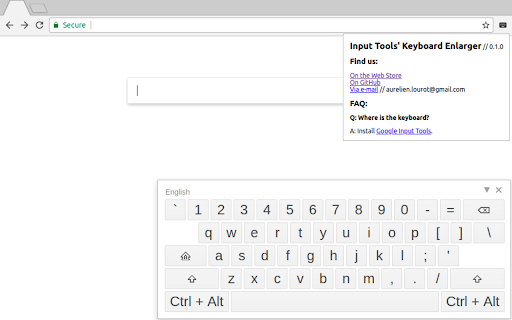
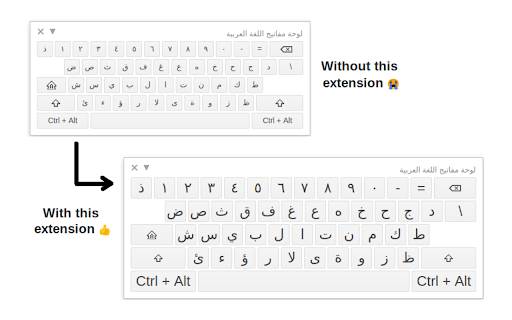
This extension makes Input Tools' keyboard larger. Nothing more, nothing less. This extension makes "Input Tools"'s keyboard larger. Nothing more, nothing less. Google Input Tools' virtual/on-screen keyboard is often too small. Install this extension to make it readable. This is especially useful for the Arabic virtual keyboard layout. Make sure you have also installed Google Input Tools: https://chrome.google.com/webstore/detail/google-input-tools/mclkkofklkfljcocdinagocijmpgbhab

Google Input Tools
Input Tools lets you type in the language of your choice. By installing this extension, you agree to the Terms of Service at http://www.google.com/intl/en/policies/terms/. Switch to typing in a different language with the click of the mouse, and switch back just as easily. The Google Input Tools extension provides virtual keyboards for over 90 languages, full IMEs or direct transliteration for over 30 different scripts, and handwriting input for over 40 languages. ✓ Malayalam now prioritize Arabic numerals as the default output when typing numbers. This change makes it easier to input numbers, as Malayalam numerals are not commonly used. When you first install the extension, click on the extension icon, then select "Extension Options" in the pop-up menu. A new tab will appear where you can select your preferred languages or input methods. The keyboards, IMEs or handwriting input you add to 'Selected input tools' can be enabled at any time from the extension itself. You can always return to this options page to add, remove, or change the order of your input tools. input tool, simply click on the extension icon, select the desired language tool in the pop-up menu, then click on any text box on the web page. To turn off an input tool, click on the extension icon and select the "Turn Off" option. To use transliteration, type languages phonetically in English letters, and they'll appear in their correct alphabet. Keep in mind that transliteration is different from translation; the sound of the words is converted from one alphabet to the other, not the meaning. For example, to get in नमस्ते with Hindi transliteration, type in n-a-m-a-s-t-e. You will get a list of Hindi words sound like namaste. Then, press SPACE to select the first suggestion नमस्ते. Latin IMEs are to help people type in Latin-script languages using the US keyboard. Features include automatic diacritics, spell correction, and prefix completion. To use Latin IMEs, type unaccented letters, and they will be corrected to a desired word. For example, type "franca" in French IME, "français" appears, and it can be committed by pressing TAB. If continuously typing "francais", "français" will be committed by pressing SPACE. To get all the candidates for "francais", press BACKSPACE. To use handwriting input, select the handwriting input of your desired language. Press trackpad or left click of mouse to hand draw a character on the pop-up handwriting panel. Select the character from the suggestion list, or simply press ENTER or SPACE key to select the first suggestion. Need help? Find a problem? Point your browser here for support: https://chrome.google.com/webstore/support/mclkkofklkfljcocdinagocijmpgbhab ✓ ALT+SHIFT+N - Switch to next input tool in the list (if the extension is off, turn it on; if the current input tool is the last tool in the list, turn the extension off) ✓ ALT+SHIFT+R - Revert to the last input tool used (if none, turn off the extension) ✓ ALT+SHIFT+T Toggle the current input tool. ✓ SHIFT - Toggle between En/Cn state (Chinese input tools only) ✓ SHIFT+SPACE - Toggle the SBC/DBC mode (Chinese input tools only) ✓ CTRL+PERIOD - Toggle Chinese / European language punctuation (Chinese input tools only) Due to security features of Google Chrome, the Google Input Tools extension will not assist with input in the address bar (omnibox), on the Chrome Web Store, or inside of other Chrome extensions. It does not currently assist with input inside of Flash applications. By installing this extension, you agree to the Terms of Service at https://chrome.google.com/extensions/intl/en /gallery_tos.html

Arabic and English Keyboard
Arabic and English on screen Keyboard . You can type on any input on a website you visit using Arabic or English from your screen. Easy to install and easy to use.

Hot Virtual Keyboard Extension
Brings up the virtual keyboard when entering text input fields. Hot Virtual Keyboard software has to be installed and running. This extension brings up the virtual keyboard when entering text input fields. Hot Virtual Keyboard has to be installed and running: https://hotvirtualkeyboard.com/ The first time you try the extension, reload any previously open pages before you try out the new functionality on them. System requirements: Microsoft Windows 7, Windows 8, Windows 10 and Windows 11.

Japanese Dictionary JP
Look up vocabulary and Kanji, translate Japanese into multiple languages using JP Dictionary (JP Jisho/JP 辞書/JP じしょ) Click on the extension icon to toggle the functions on or off. 1) Look up when selected Select Japanese text to look it up. (Click on the extension icon to select your language.) 2) Quick translation by hovering Hover over the text to translate. 3) Look up with right-click Select text → Right-click → Click "Search on JP Dictionary" to look up, analyze, and translate the text. 4) Look up on the search bar In the browser's search bar, type "jp" + space → Enter the word or sentence you want to look up. - Turn off the checkbox when not in use. - Click on vocabulary or Kanji in the popup to see detailed content and comments. - Double-click to highlight a word, and triple-click to highlight a sentence. - Hold down Alt to highlight links. - If you use Edge, you can use the shortcut Ctrl + Shift + X to copy buttons or blocked parts, then look them up in the search bar (type "jp" + space → paste the copied content) for a quick lookup. - JP Dictionary can recognize handwritten characters and perform image recognition. Visit jpdictionary.com to use this feature.
