
mclkkofklkfljcocdinagocijmpgbhab
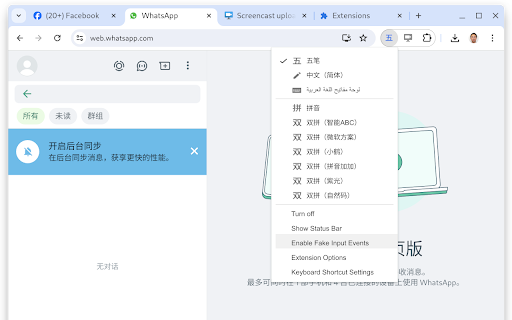


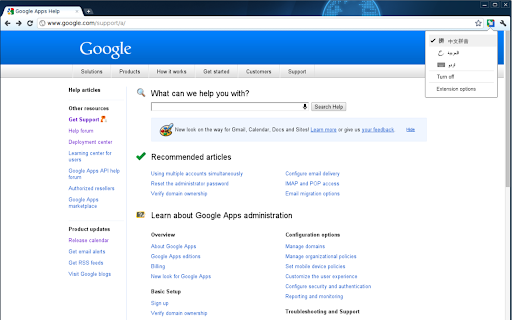

Input Tools lets you type in the language of your choice. By installing this extension, you agree to the Terms of Service at http://www.google.com/intl/en/policies/terms/. Switch to typing in a different language with the click of the mouse, and switch back just as easily. The Google Input Tools extension provides virtual keyboards for over 90 languages, full IMEs or direct transliteration for over 30 different scripts, and handwriting input for over 40 languages. ✓ Malayalam now prioritize Arabic numerals as the default output when typing numbers. This change makes it easier to input numbers, as Malayalam numerals are not commonly used. When you first install the extension, click on the extension icon, then select "Extension Options" in the pop-up menu. A new tab will appear where you can select your preferred languages or input methods. The keyboards, IMEs or handwriting input you add to 'Selected input tools' can be enabled at any time from the extension itself. You can always return to this options page to add, remove, or change the order of your input tools. input tool, simply click on the extension icon, select the desired language tool in the pop-up menu, then click on any text box on the web page. To turn off an input tool, click on the extension icon and select the "Turn Off" option. To use transliteration, type languages phonetically in English letters, and they'll appear in their correct alphabet. Keep in mind that transliteration is different from translation; the sound of the words is converted from one alphabet to the other, not the meaning. For example, to get in नमस्ते with Hindi transliteration, type in n-a-m-a-s-t-e. You will get a list of Hindi words sound like namaste. Then, press SPACE to select the first suggestion नमस्ते. Latin IMEs are to help people type in Latin-script languages using the US keyboard. Features include automatic diacritics, spell correction, and prefix completion. To use Latin IMEs, type unaccented letters, and they will be corrected to a desired word. For example, type "franca" in French IME, "français" appears, and it can be committed by pressing TAB. If continuously typing "francais", "français" will be committed by pressing SPACE. To get all the candidates for "francais", press BACKSPACE. To use handwriting input, select the handwriting input of your desired language. Press trackpad or left click of mouse to hand draw a character on the pop-up handwriting panel. Select the character from the suggestion list, or simply press ENTER or SPACE key to select the first suggestion. Need help? Find a problem? Point your browser here for support: https://chrome.google.com/webstore/support/mclkkofklkfljcocdinagocijmpgbhab ✓ ALT+SHIFT+N - Switch to next input tool in the list (if the extension is off, turn it on; if the current input tool is the last tool in the list, turn the extension off) ✓ ALT+SHIFT+R - Revert to the last input tool used (if none, turn off the extension) ✓ ALT+SHIFT+T Toggle the current input tool. ✓ SHIFT - Toggle between En/Cn state (Chinese input tools only) ✓ SHIFT+SPACE - Toggle the SBC/DBC mode (Chinese input tools only) ✓ CTRL+PERIOD - Toggle Chinese / European language punctuation (Chinese input tools only) Due to security features of Google Chrome, the Google Input Tools extension will not assist with input in the address bar (omnibox), on the Chrome Web Store, or inside of other Chrome extensions. It does not currently assist with input inside of Flash applications. By installing this extension, you agree to the Terms of Service at https://chrome.google.com/extensions/intl/en /gallery_tos.html

One-Click Translate Selection
Simply select some text and translate from context menu Easy for using, with all the features of Google™ Translation. After installation of the extension, you will see the Options window to make the tuning.

JsCIN: JavaScript Common INput
An input method editor supporting customizable table based input methods (XCIN/GCIN compatible) for Google ChromeOS™ This is an Input Method Editor (IME) designed for Chromebooks (running ChromeOS). It supports loading customized tables that are compatible with XCIN or GCIN table files (*.xcin and *.gtab). - You can even use the official Boshiamy gtab file. To install and activate the IME on a Chromebook: - Install the extension - Click the status in right-bottom corner (showing the system time) to popup the system config menu, select "Keyboard", then the gear icon in the right-top corner of the "Input Methods" menu to enter the "Inputs" setting page. (Alternatively, you can also get there by Settings, Device, Keyboards and Inputs, Input settings), and then click "Add input methods". - Type to search for "JSCIN Chinese Input Methods", select and Add - Switch your keyboard to "[ZH] JsCIN Chinese Input Methods" to start typing. - You can use the extension options page to load your favorite input method table. See https://github.com/google/jscin/blob/main/docs/USER_GUIDE.md if you need help. What's new: v3.1.4: - Fixed: Simplex can't move to the next page of candidates by SPACE v3.1.3: - Fixed: GCIN %flag_disp_partial_match should only work in auto compose mode - Revised the description and list of options v3.1.2: - Revised the space options (description and function). - Stop showing the CrossQuery window before typing new characters. - Support CIN2 %nullcandidate and GCIN %flag_disp_partial_match v3.1.1: (a major update) - The fresh new designed "Input Method Details" dialog with all per-table configurable options, replacing the 'Types' selection. - The candidates window will now report page numbers if there are more than one page of candidates. For input methods using SPACE to select the first candidate (e.g, Boshiamy & Dayi), navigate the candidates using arrow keys, PageUp/Dn, ''. - Supports horizontal candidate window (issue #40) - Last selected input method will be now be sticky when you switch on/off. - Revised SPACE behavior when there are multiple pages of candidates. - Fixed "Failed parsing phrase based GTAB (issue #39)" - Fixed "CrossQuery may go wrong in options" - Fixed "Candidates remained even after we deleted the whole composition" - Fixed "Adding a table in the options will see duplicated items" - Fixed "CrossQuery failed to work with built-in tables" - Fixed "Press the selection key AFTER last candidate will clear the composition" - Fixed "Composition & related text were not cleared when switching IMEs on/off". - Supports XCIN command %AUTO_UPCHAR and %END_KEY - Deprecates JsCIN command %PHRASE_CHARDEF v3.0.2: - Default to allow SPACE to reset after error (issue #37) - Supports reading Array quick keys from GCIN GTAB (issue #39) - Fixed GCIN tables using %flag_unique_auto_send - Better error handling (max keystrokes, visible error, ...) - Fixed broken GenInp v3.0.1: - New built-in Array30 table from github/gontera - New feature issue #36: single-press shift to toggle raw-input mode - Fixed issue #38 that Esc on error composition does not work

Japanese Dictionary JP
Look up vocabulary and Kanji, translate Japanese into multiple languages using JP Dictionary (JP Jisho/JP 辞書/JP じしょ) Click on the extension icon to toggle the functions on or off. 1) Look up when selected Select Japanese text to look it up. (Click on the extension icon to select your language.) 2) Quick translation by hovering Hover over the text to translate. 3) Look up with right-click Select text → Right-click → Click "Search on JP Dictionary" to look up, analyze, and translate the text. 4) Look up on the search bar In the browser's search bar, type "jp" + space → Enter the word or sentence you want to look up. - Turn off the checkbox when not in use. - Click on vocabulary or Kanji in the popup to see detailed content and comments. - Double-click to highlight a word, and triple-click to highlight a sentence. - Hold down Alt to highlight links. - If you use Edge, you can use the shortcut Ctrl + Shift + X to copy buttons or blocked parts, then look them up in the search bar (type "jp" + space → paste the copied content) for a quick lookup. - JP Dictionary can recognize handwritten characters and perform image recognition. Visit jpdictionary.com to use this feature.

Avro (অভ্র) for Chrome
Avro extension for chrome. Write Bangla instantly. Avro (অভ্র) for Chrome . Write Bangla instantly. Avro (অভ্র) extension for chrome works with any chromium based browser that supports installing extensions from chrome web store. v2.0.0 -------------------------- Cleanup unused codes. v2.0.0 -------------------------- - You can now pin avro to your sidebar. ⚠️⚠️ Just to be safe, please make a backup of your drafts before updating the extension. I am not responsible for any data loss that may occur after the update.⚠️⚠️ v1.2.8 -------------------------- People were wondering if I was still active and if the project was still alive. Yes, here are two major updates for you to enjoy. Along with a ton of changes / fixes. - You can now add unlimited drafts. - You can now copy your text directly. - Migrated to manifest v3 - Visual refresh - "Removed unnecessary blank lines and reformatted README.md for better readability. Fixed Chrome Web Store Link" - Remove "Bangla Font Fixer", no one really use it anymore. Create a git issue if you need it in future release. - Removed deprecated permission. v1.2.7 -------------------------- - switched to activeTab permission to better comply with chrome security policy. v1.2.4: -------------------------- Introducing iconic "Avro Font Fixer". Now you can apply default Bangla font and fix Bangla font problem in Chrome. Features: -------------------------- - It works offline. - It’s fast and instant, there is no round-trip delay for processing every word you type. - Save "Unlimited 5 Draft Items" for later use. - It respects privacy. Whatever you write or save in drafts doesn't leave your browser unless you want it to. - Drafts are only saved locally on your device and aren't sent anywhere. - It doesn't collect any personal information, including your IP address. No analytics code has been explicitly added to the code. - It's open source. As a developer, you are free to integrate Avro (অভ্র) for Chrome in your application under the terms of MPL 2.0. We hate vendor locking as much as you do. License -------------------------- Avro (অভ্র) for Chrome is licensed under Mozilla Public License 2.0 (“MPL”), an open source/free software license. Submit Issues -------------------------- Create Issues at https://github.com/saif71/avro-for-chromium/issues Github Repo -------------------------- https://github.com/saif71/avro-for-chromium/
