
ejdbkikfbnnhmachnnomjfgjbgkcnjkb
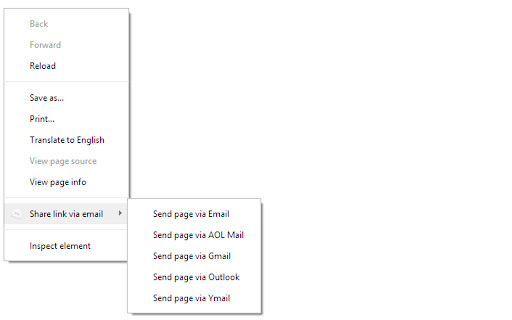


Adds a button and context menu item to send the page URL or a link URL via email Create a new email with the current address, selected link or selected text. The email will include the page title. You can set text to be added before and after the page URL in the email. Email Clients to choose from: Default mail application, Gmail, AOL mail, Outlook/Office 365 and Yahoo Mail.

AddToAny: Share Anywhere
Share to Facebook, Mastodon, email, and any other sharing or saving service quickly and easily with one share button. The AddToAny share button makes it easy and fast to share and save links using any service. - Share to Threads https://www.addtoany.com/blog/threads-share-button/ - Share to Bluesky - Share to Microsoft Teams - One-click sharing option if you enable just one service - Choose whether to open Email in a new tab - AddToAny's Universal Share Button - Sharing to Gmail, WhatsApp, LinkedIn, Threads, and more social media networks - AddToAny "More" button lets you instantly access any other service anytime - Right-click to share from the context menu (optional) - Share to multiple services quickly while keeping the share popup open: - Just Ctrl+click or ⌘+click on a service, or - Click the middle mouse button - Large buttons with vector icons - Perfectly crisp on high PPI screens such as Retina displays or the Chromebook family - Automatic dark mode based on system preference - Reassignable keyboard shortcut - Customize the services that appear in the sharing menu - Drag & drop to rearrange the order of services in the sharing menu - Enable one-click sharing if you select just one service - Toggle AddToAny in your context menu - Add a custom service to share to - Optimized to load instantly without slowing down Google Chrome - Directs to the HTTPS version of sites for privacy - Zero permissions needed

Mailto: for Gmail™
This extension will make mailto: links open in a Gmail compose window. Nothing more, nothing less. It supports to, cc, subject, and body (and optionally bcc) fields, and is made to be compatible with RFC2368, the mailto: scheme standard. It doesn't modify the mailto:address itself, so you can still see the link in the status bar when you hover over it, which allows you to easily read the target at a glance. Please note, this extension doesn't need or provide any access to your mail account. It just makes links open in a Gmail account that you are already signed into. This extension can't help with mailto links outside of chrome. More info: RFC2368 - The mailto URL scheme: http://www.faqs.org/rfcs/rfc2368.html mailto links test page: https://www.ilikesleeping.co.uk/mailto-test-links/ Recent changes: * No longer need to refresh tabs on install, or after updating settings. * Updated code to avoid deprecation warnings, and warnings in console. Privacy policy: In short, this extension does not store or transmit any personal information. Read the privacy policy here: https://www.ilikesleeping.co.uk/mailto-privacy-policy/

Share emails via secure URL link by cloudHQ
This is how to create a secure URL link for your email conversation. Have you ever received an email that you were just dying to share with someone in a chat application? We all have, and now you can in just 1 click! With Share emails via secure URL link by cloudHQ, you can create a shareable link for one of your emails. You can then paste it in any chat application. All you need to do is install the Chrome extension, click on the link icon 🔗 at the top of your email, copy the link to your clipboard, and paste it anywhere you want! 1. Install the extension. 2. Go to your Gmail™ 3. Select a message (or multiple messages). 4. Click on the click on the link icon 🔗 and we will create a secure link you can share For example, imagine you're part of a project team using Slack for communication and coordination. One day, you receive a critical project update via Gmail™, which you urgently need to share with your team members. Instead of forwarding the email individually or struggling with screenshots, you use the Share emails via secure URL link by cloudHQ. With a single click, you create a secure, shareable URL for the email and post it in your group chat, allowing your team to instantly access the important information. Or envision yourself working on a project and communicating with a partner via Slack. Suddenly, you receive an email in your Gmail inbox containing key project information that needs to be shared promptly with your partner. In an earlier time, you may have had to forward the email or go through the tedious process of capturing and sending screenshots. But now, with the Share emails via secure URL link by cloudHQ, you've got a much more efficient tool at your fingertips. With just a single click, the email can be turned into a secure, sharable link. You then paste this link directly into your Slack conversation with your partner. In no time, they have access to the vital information contained in the email. This extension not only streamlines your communication process but also ensures that your collaborations are as effective and productive as possible. For mobile access please check our Google Workspace Add-on: https://workspace.google.com/marketplace/app/share_emails_via_url_link_by_cloudhq/842929301805 cloudHQ. Helping your productivity, 1 click at a time. cloudHQ website: https://www.cloudhq.net/ App website: https://www.email-links.com Pricing: https://www.email-links.com/pricing Support page: https://support.cloudhq.net/category/browser-extensions/gmail-email-links/ Blog: https://blog.cloudhq.net

Send Page
Allows you to easily send the url of a page, link, image or video per mail. This extension adds a new context menu entry called "Send this page.." when right clicking a image, video, link or page. By clicking on "Send this page.." your default (local or web) mail client will create a new mail with the page title as subject and the link as message body. It provides a fast way to quickly send a link to the current website per e-mail to somebody. It works with local Mail clients and WebMail accounts like GMail, Hotmail, etc. Note that if you use a local mail client a default Mail client must be registered on the computer. For sources, latest changes and troubleshoot infos go to: https://github.com/stadler/SendPage
