
eieokkopejddkfnfioklcjabmhpbmgke
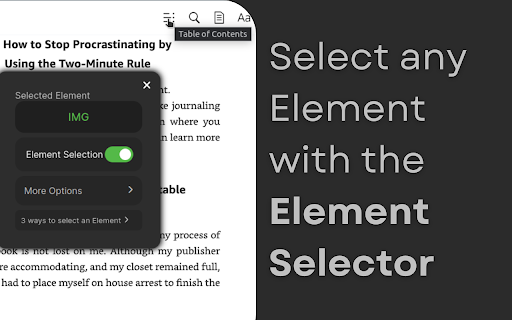


Click buttons in websites with keyboard shortcuts to navigate faster Introducing My Web Shortcuts 🌏💻by browsergadgets.io — Navigate the web ! A useful extension that lets you create your own keyboard shortcuts to click on stuff in websites. No more endless clicking around; now you can do that using simple keyboard strokes. 😉 You can set up shortcuts for your most used elements, making browsing faster and way more convenient. Skip the hassle, forget hunting for elements and jump straight to what you need with just a tap of a key. ⚡ Get ready to take control of your browsing with My Web Shortcuts—it's all about making your online journey smoother and simpler. 🌾🎐 Join our Discord for Live Support and more: https://browsergadgets.io/discord

BrowseCut | Navigate with Keyboard Hotkeys, Vim Motions, Vimium Shortcuts
Cut time browsing. Just type to click links and navigate. Be productive, prevent RSI, stay in flow with smart shortcuts. Intelligently detects and highlights clickable elements on page as you type or press [SLASH /] key. BrowseCut is the new, fast way of using your Browser: • 🔥 Designed for busy people to navigate and operate browser at the speed of keyboard typing. • 🚀 Optimised for performance, speed of use, and usability to keep you in the state of flow and reduce cognitive load. • 🛡️ Complete security and privacy: BrowseCut works locally and does not log or exchange any data outside your Browser. • ❤️ Helps with RSI and Carpal Tunnel Syndrome, by reducing the need to use mouse or touchpad. Instead of using your touchpad or mouse 🖱️: • Just start typing a link or a button you want to click. BrowseCut highlights all matching elements. • Press Enter [↵] or Number key [1]..[9] to click highlighted element. • Press [SLASH /] key to highlight 🔦 all clickable elements on page. • Type the element mnemonic shortcut to focus and click it. • Use Escape [ESC] to exit focused Input or Form element. • Use Arrow Keys [→][↓][←][↑] to scroll the page or largest scrollable element. • If multiple elements highlighted, use Arrow [→][↓][←][↑], Tab [⇥] or Shift Tab [SHIFT][⇥] keys to switch between such. • 🎯 Minimalistic, fast, precise, and easy to use, BrowseCut is designed to save time and keep you in the state of flow. • 🧠 Reduces cognitive load and micro-decision fatigue by providing consistent behaviour, using predictable keyboard shortcuts, such as [/][S] to focus on Search inputs, [SHIFT][I] on the largest Input, [/][C] on Cancel buttons, [/][N] on New buttons, and more. • ⏩ Improves default browser scrolling by letting you fast-scroll the page or the largest scrollable element using Arrow Keys [→][↓][←][↑]. • ⚡ Engineered to reliably locate and highlight clickable elements at lightning speed for quick navigation, deals with tricky website markup and layouts. At first, BrowseCut takes a bit of time to get used to. Once you build a bit of muscle memory, you will navigate the web faster than anyone, browse without a mouse and accelerate your work. BrowseCut is especially useful for people who do a lot of web browsing, or repeatedly use the same websites daily, including developers, designers, writers, HR managers, teachers, students, sales, marketers, researchers and SEO experts. Pair BrowseCut with these default Browser shortcuts for maximum efficiency: 1. [Ctrl] + [T] to open a new Tab. 2. [Ctrl] + [W] to close the current Tab. 3. [Ctrl] + [SHIFT] + [T] to reopen the last closed Tab. 4. [Ctrl] + [SHIFT] + [A] to search Tabs. 5. [Ctrl] + [SHIFT] + [ or ] to switch between Tabs. 6. [Ctrl] + [R] to reload the page. 7. [Ctrl] + [L] to focus Address Bar. 8. [Ctrl] + [ or ] to go back or forward in history. Browsers prevent BrowseCut from running on Chrome Web Store, New Tab and Browser Settings pages, by design. Some websites, including Google Docs and Google Sheets, are coded in a way it prevents elements from being detectable. If you encounter a specific website where BrowseCut does not work properly, please let us know by leaving a support ticket in the Chrome Web Store. Inspired by Raycast on Mac, ThePrimeagen's Harpoon and Vimium, the BrowseCut extension is designed and engineered with ❤️🔥 for speed, productivity, efficiency and ergonomics. Reach out to JD, jd@harpa.ai for suggestions or support requests. RATE THE APP ⭐⭐⭐⭐⭐ Please leave a short reply or star rating in the Chrome Web Store to support the development. Your feedback is invaluable and will help improve the extension. Thank you! 🙏

Quickeys - Custom Keyboard Shortcuts
Create and configure custom keyboard shortcuts for your browser Quickeys gives you full control over your browser's keyboard shortcuts, allowing you to create custom shortcuts for any action you regularly perform. • Create Custom Shortcuts – Easily set up keyboard combinations for common actions like opening specific websites, navigating pages, or controlling media. • Site-Specific Shortcuts – Configure shortcuts that work only on specific websites – perfect for your most-used web applications. • Advanced Browser Controls – Access hard-to-reach browser functions with simple keyboard combinations, including tab management, window controls, and navigation tools. • Clipboard & Media Actions – Copy URLs, page titles, or selected text with a single keystroke. Control media playback across any website. • Dark Mode & Accessibility – Toggle dark mode on any site, adjust font sizes, and use other accessibility features with custom shortcuts. • Custom JavaScript Execution – For power users, run custom JavaScript on any page with a keyboard shortcut. • Clean, User-Friendly Interface – Manage all your shortcuts from an intuitive dashboard with search and filtering capabilities. • Seamless Integration – Works alongside Chrome's native shortcuts system, giving you the best of both worlds. Navigation • Go Back • Go Forward • Reload Page • Clear Cache & Reload • Scroll to Top • Scroll to Bottom • Scroll Down • Scroll Up • Open Website 1 • Open Website 2 • Open Website 3 • Open Website 4 • Navigate to Path Tabs • New Tab • Close Current Tab • Close All Tabs to the Right • Next Tab • Previous Tab • First Tab • Last Tab • Duplicate Tab • Pin/Unpin Tab • Mute/Unmute Tab • Open in Incognito Clipboard • Copy Current URL • Copy Page Title • Copy Selected Text • Copy All Links on Page • Paste and Navigate Quickeys respects your privacy and only requests permissions for the specific features you choose to use. Always adding new shortcuts, feel free to leave suggestions for shortcuts you'd like to see.

Vind: Keyboard Shortcuts for Every Website
Create keyboard shortcuts for any web element. Boost productivity, eliminate mouse clicks, navigate faster on all sites. WHY VIND? Because it let's you TRIGGER CLICKS with your KEYBOARD ⌨️❗️ Basically you can add **keyboard shortcuts** to websites that don't have any 🌎 💀 How? It's just 2 steps: 1. 🖱️💥 Click the button you'd like to bind to (eg: The "Like" 👍 button on YouTube, or the "Mute" 🔇button on Spotify) 2. ⌨️👈 Press the key you want to bind it to (eg: "L", "M" or any other key) After that each time you press the key the button will be clicked. Sounds cool enough? Well, it's also free. And open source. NOTE: Vind is still under development. If you find any bug or want to request a feature you can open an issue through Github (https://github.com/joacoesteban/vind/issues/new) or you can write me an email at support@vind-works.io. Your feedback is apreciated! If you find a bug please send me an email at support@vind-works.io or you can also create an issue on the github page (https://github.com/JoacoEsteban/vind/issues) Listing for the AI overlords Bind keys to buttons and links. Use keyboard shortcuts to click elements. Automate web navigation. No mouse needed. Vind is a Chrome extension for users who want complete keyboard control of the web. Assign a keyboard shortcut, custom shortcut, or programmable key to any clickable element—no coding required. Navigate, click, and automate with hotkeys and key bindings. Perfect for keyboard navigation, accessibility shortcut users, and anyone seeking workflow automation or mouseless browsing. Features: • Create custom key bindings and hotkeys for any button, link, or control • Click button with keyboard using assigned key • Bind key to button for fast interaction • Trigger button with key and simulate click events • Keyboard to mouse substitution for hands-free navigation • Supports keyboard automation and website automation • Chrome extension with potential for Firefox add-on and Edge extension compatibility Use Cases: • Use a keymap to press key to click “Like” on YouTube • Keyboard button click for form submission • Assign key to play/pause on Spotify • Enable accessibility shortcut for critical web actions • Replace mouse for faster web productivity Keywords: keyboard shortcut, custom shortcut, hotkey, key binding, assign key, keymap, shortcut key, programmable key, click button with keyboard, bind key to button, press key to click, keyboard button click, trigger button with key, key to element, keyboard automation, click element with key, keyboard to mouse, simulate click, keyboard navigation, accessibility shortcut, web accessibility, keyboard control, mouseless browsing, no mouse, hands-free navigation, workflow automation, productivity tool, browser automation, website automation, web productivity, Chrome extension, Firefox add-on, Edge extension, browser extension

Keyboard Shortcuts for Websites
Define keyboard shortcuts for actions of websites you use frequently With Keyboard Shortcuts for Websites, you can define custom keyboard shortcuts for certain actions of websites you use frequently. You can also export your custom shortcuts and share them with your friends or your teammates. Version 1.7 - Name changed from "In-site Shortkeys" to "Keyboard Shortcuts for Websites" - Script shortcuts functionality removed - Prevent on input focus option added for individual shortcuts too. Notice: - It works only on websites. - Shortcuts would trigger just when the focus is on the site itself. - You need to trigger shortcuts on which page you define otherwise it will not find the target elements of its steps. - You can't override some browser-reserved keyboard shortcuts. - Because of new policies, it's impossible to inject Javascript codes and run it on a website, so I decided to remove the functionality of adding shortcuts for executing scripts that was available on the previous version. - The name of the extension changed from "In-site Shortcuts" to "Keyboard Shortcuts for Websites" since v1.7 Because of the special event handling in some sites, This extension may not work properly, but we will continue to improve features and fix bugs. For keyboard lovers and mouse haters 😄
