
eckmpaeoafniidiogbohemjkcaejcjha

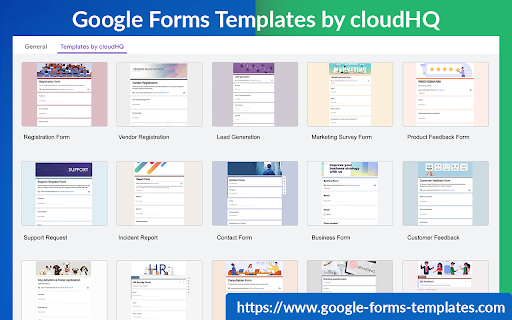

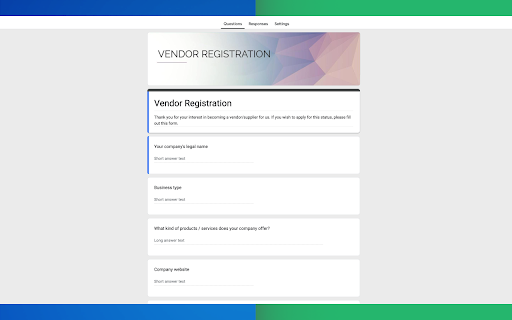
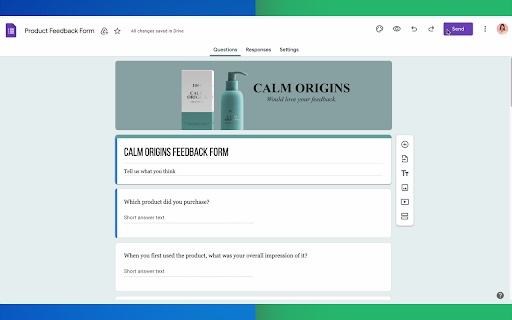
Beautiful Templates for Google Forms™ Templates for Google Forms™ by cloudHQ is the go-to Chrome extension for anyone seeking to create stunning, professionally designed Google Forms. With our collection of premium templates, you'll save time, reduce stress, and create forms that stand out. Install Google Forms Templates by cloudHQ today and experience the difference a well-designed form can make. ✅ Education forms ✅ Sign-up forms ✅ Registration forms ✅ Report forms ✅ Request forms ✅ Marketing survey forms ✅ Invitation forms ✅ Feedback forms ✅ Human Resources forms ✅ Business Forms ✅ And more Save time, eliminate the stress of starting from scratch, and create impressive forms with just a few clicks. Templates for Google Forms™ by cloudHQ offers an extensive library of templates catering to various industries and use cases, as demonstrated by our glowing user reviews. Whether you're a coach seeking feedback, a realtor gathering open house insights, or an HR professional ensuring employee satisfaction, Templates for Google Forms™ by cloudHQ has you covered. ✅ Comprehensive collection of premium Google Form templates ✅ Professionally designed, modern, and visually appealing templates ✅ Easy to customize to fit your unique needs and branding ✅ Seamless integration with Google Sheets for data organization and analysis ~~~~~ How to use Google Forms Templates™ by cloudHQ: 1. Install the Templates for Google Forms by cloudHQ Chrome extension. 2. Access the templates in Google Drive by clicking "New" --> Google Forms --> Templates by cloudHQ. 3. Make a copy of the Google Form template and customize it as desired. cloudHQ. Helping your productivity, 1 click at a time. cloudHQ website: https://www.cloudhq.net/ App website: https://www.google-forms-templates.com/ Pricing: https://www.google-forms-templates.com/pricing Support page: https://support.cloudhq.net/category/browser-extensions/google-forms-templates/ Blog: https://blog.cloudhq.net

Email Sender Icons by cloudHQ
Identify Companies in Your Inbox. It's no secret that companies have more purchasing power than individuals, so identifying them in your inbox can be helpful when you need to triage who you reply back to first. Email Sender Icons by cloudHQ does just that. It visually associates an official company logo (favicon) to someone who sends you an email, without having to open the email itself. It's like "caller id" for your email. Now you can prioritize triaging your email response time to large companies first, instead of individuals with a free email account on platforms like Gmail™, Yahoo, Hotmail, etc. Easily Identify: - Companies in your inbox - Invoices to pay (Paypal, Venmo, etc) - Inter-office emails - Purchase Orders The icon (aka favicon) is determined by the sender's email domain address, and appears on the same line as your email preview. For example, if you receive an email from elon@tesla.com, this Gmail™ extension will add the Tesla logo next to your message preview so that you can immediately identify that Elon is probably very important and you should return his message before others in your inbox. A note on privacy and security: All logo (favicon) processing is done locally within your browser, and no Gmail™ data is ever uploaded or shared anywhere. cloudHQ. Helping your productivity, 1 click at a time. cloudHQ Website: https://www.cloudhq.net/ App Website: https://www.email-sender-icons.com Pricing: FREE Support page: https://support.cloudhq.net Blog: https://support.cloudhq.net/category/browser-extensions/email-sender-icons/

Highlight Emails in Gmail by cloudHQ
✅ Select from a choice of calming or bright colors. ✅ Adjust background color based on email status, such as read/unread or selected. ✅ Customize the background color highlight depending on the sender’s email domain. ✅ Focus mode minimizes distractions, specifically designed to assist individuals with neurodevelopmental disorders to more easily navigate, read, and concentrate. In short, with this extension you can inbox customization through color-coding, allowing users to visually categorize emails. For example, assigning the color red to emails from security domains like security@google.com enhances the ability to quickly spot and prioritize critical alerts or notifications, streamlining inbox management and efficiency. Imagine having all your emails from clients, vendors, or internal company emails neatly color-highlighted. It's like having a personalized filing system right in your inbox. You'll easily spot emails that need your attention, while also decluttering your digital workspace. This is a game changer for anyone dealing with heaps of emails daily. This app isn't just about managing your inbox; it's about managing your time and focus too. There's even a unique "Focus Mode" that works when you hover over an email. That email stands out while everything else recedes into the background. All other emails gray out, removing distractions and letting you zero in on that single email. It's the visual equivalent of noise-canceling headphones for your inbox. This way, you can devote your full attention to each email in turn, without missing any important details. Perfect for anyone who needs a little help focusing amidst the constant barrage of incoming emails. Focus Mode is more than a feature, it's a way to reclaim control over your digital environment. ~~~~ Instructions for Use ~~~~ 1. Install the extension. 2. You can get started now by clicking on: - The cloudHQ log on the top of your Gmail inbox - Click on "Highlight Emails" - Click on "Highlight Rows (ON/OFF)" to toggle the feature on and off 3. To activate the "Focus Mode," just toggle "Reading Focus (ON/OFF)" to enable distraction-free reading. 4. To disable, toggle the feature off. cloudHQ website: https://www.cloudhq.net/ App website: https://www.highlight-emails.com Pricing: https://www.highlight-emails.com/pricing Support page: https://support.cloudhq.net/category/browser-extensions/highlight-emails/ FAQ page: https://support.cloudhq.net/highlight-emails-faq-frequently-asked-questions/ Blog: https://blog.cloudhq.net Gmail, Google Calendar, and Google Workspace are trademarks of Google LLC. Use of these trademarks is subject to Google Permissions.

ChatGPT for Gmail by cloudHQ
Automatically write emails using ChatGPT for Gmail 🚀 Supercharge Your Email Game with ChatGPT for Gmail! 🚀 Introducing the ultimate Chrome extension for Gmail that revolutionizes the way you write emails! Unleash the power of cutting-edge AI technology to elevate your communication skills and make every email count. 🌟 What's in store for you? 🌟 🔥 AI-Powered Email Composer: Generate entire emails and messages using the groundbreaking OpenAI AI, meticulously crafted to work seamlessly with Gmail. 🎯 Key Functions Tailored for You: ✅ Instant Grammar Guru: Say goodbye to embarrassing typos! ChatGPT intelligently checks and edits your grammar on the fly. ✅ Context-Smart Replies: Create contextually appropriate responses for any email you receive, boosting your efficiency and professionalism. ✅ Effortless Outreach: Generate persuasive and engaging outreach emails from scratch, making connections easier than ever. 🌠 Exclusive Features: ✅ Privacy-First AI: ChatGPT for Gmail respects your privacy, ensuring your data stays safe and secure. ✅ Unparalleled Quality: Experience the finest responses, outshining all other natural language processing AIs in the market. ✅ Gmail-Optimized: Enjoy a seamless integration with Gmail, designed for your convenience. ✅ Multilingual Magic: Break language barriers with support for all languages, empowering global communication. 🎉 Download ChatGPT for Gmail now and experience email mastery like never before! 🎉 ~~~How to use it~~~ 1. Go to https://chat.openai.com/chat and create an account. 2. Install this extension. 3. Open Gmail and compose a new email. 4. Click on the "ChatGPT for Gmail" icon and enter your ChatGPT prompt to complete your email message. You can also type @chatgpt 5. If you are satisfied with the message, simply click on send. Text Enhancement: Simply select any text in your email, right-click to access the context menu, and choose options like "Fix Grammar" or "Summarize" for instant improvements. Smart Reply Assistance: Click on our extension's icon adjacent to the 'Reply' button to access a variety of response prompts. For instance, select "Answer to the Best of Your Knowledge" for AI-assisted responses tailored to the email's content. Custom Prompts: Personalize your experience by adding your own prompts. To do this, click on our extension icon located in the top-right corner of your browser. ~~~FAQ~~~ Q: What is ChatGPT for Gmail? A: It's an extension that integrates OpenAI with Gmail to assist in drafting and replying on emails. Q: What are the requirements to use it? A: A valid OpenAI account is necessary. Go to https://chat.openai.com/chat and create an account. Q: What functions does it offer? A: Creating or replying to emails, correcting grammar and spelling, enhancing or rewriting text, and sending instructions to ChatGPT directly. It also includes prompt library. Q: How does it help draft emails? A: Through writing suggestions, automated responses, and grammar and spell checking. Q: Can I use my own API key with it? A: Yes, you can use your own OpenAI API key. Q: Can I use my own fine-tuned model? A: Yes, you can use your fine-tuned model. Please contact us to help you setup a system to create a fine-tuned model. Q: How can I create a library of prompts? A: Yes. You can use Gmail Snippets by cloudHQ extension to create shortcuts for prompts. You can also customize context prompts and auto-reply prompts. cloudHQ website: https://www.cloudhq.net/ App website: https://www.chatgpt-for-gmail.com/ Pricing: https://www.chatgpt-for-gmail.com/pricing Support page: https://support.cloudhq.net/category/browser-extensions/chatgpt-for-gmail/ FAQ page: https://support.cloudhq.net/google-chatgpt-faq-frequently-asked-questions/ Blog: https://blog.cloudhq.net Gmail, Google Calendar, and Google Workspace are trademarks of Google LLC. Use of these trademarks is subject to Google Permissions.

Email Tracker by cloudHQ
Know when your emails are opened in real-time Now you can find out when your emails are read! This email tracker software is extremely easy to use, and gives you all of the following features where you'll have: ✔️ An email tracking dashboard ✔️ Mobile text, desktop, and email notifications when your email is read ✔️ Reminders if your email goes unopened after 48 hours ✔️ Link tracking ✔️ Email tracking removal options for personal emails you don't want tracked You'll also get a Gmail label to show you: - Tracked emails that you sent, and were opened - Tracked emails that you sent, and were opened, with links that were clicked on (how many times, and which links were clicked on) - A list of all opened but unanswered emails where people need to respond back to you - A list all opened, but unanswered emails where you need to respond back - A list all unopened emails where people need to respond back to you - A list all unopened emails that are awaiting your reply ✔️ As an upgrade: You can export all of your tracked emails to Google Sheets for an up-to-date report on open rates, link clicks and more. This is ideal for salespeople, customer service reps, head hunters, and more! cloudHQ. Helping your productivity, 1 click at a time. NOTE: For easy access to your settings and other cloudHQ apps, look for the cloudHQ icon in the top right corner of your Gmail inbox. Click on it to get started! cloudHQ website: https://www.cloudhq.net/ cloudHQ app list: https://www.cloudhq.net/apps App website: https://www.mail-tracker.com/ Pricing: https://www.mail-tracker.com/pricing Support page: https://support.cloudhq.net/category/browser-extensions/email-tracker/ Blog: https://blog.cloudhq.net
