
ebfkcjpfhipceldaglgmaihlacpcomgj
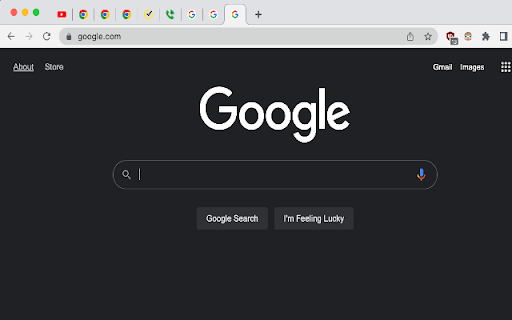
Smaller tabs increase productivity Makes all tabs small! Reduces tab anxiety by making all tabs as small as possible!

Tab Manager for Chrome™
Quick access to all opened tabs. Manage browser tabs to easily navigate and switch between them. Tab Manager for Chrome is a must-have extension for anyone looking to streamline their browsing experience. Designed to give you quick and easy access to all your open tabs, this tool allows you to navigate between them with just a click. No more getting lost in a sea of open tabs—Tab Manager for Chrome provides a clear and organized overview, so you can instantly find and switch to the tab you need. Tab Manager for Chrome also lets you create custom tab groups, helping you keep related tabs organized and accessible. Whether you’re working on a project, researching multiple topics, or simply trying to keep your personal and work tabs separate, you can group your tabs and open them only when you need them. This not only declutters your browser but also improves your productivity by letting you focus on the task at hand. With a user-friendly interface and powerful features, Tab Manager for Chrome is the perfect solution for anyone who wants to take control of their browsing and enhance their efficiency. Say goodbye to tab overload and hello to a more organized, stress-free browsing experience. Organize browser tabs to a fully manageable list for quick search through opened tabs and easy access to any website you want. There can be created groups of opened tabs by theme, so you will be able to work exactly with needed websites and then collapse tabs altogether that will be saved for further until you want to edit or delete them. Navigation between opened tabs became so simple with 20 Tabs. There is an opportunity to use hotkeys to find saved domain names and open tabs. Every group of tabs is editable thus you can add or remove any tab from the list. As well there is an option to rename each group for more convenience. How you can use 20 Tabs: - Open a clear list of opened tabs with one click - Navigate between tabs using a search bar - Remove tab from the list in one click as well as add needed website - Create groups of browser tabs - Save to bookmark in a single click Take control of your tabs is the every - day assistant in working with browser tabs. Press the hotkey combination to open a search bar with a list of opened tabs. The search bar appears as well to simplify navigation between websites you visit. You are welcome with any suggestions about improvements. Visit our options page to contact us or rate.

Hide Tab Info
Hides favicons and tab titles 🚀 Hide Tab Info – A Cleaner, More Private Browsing Experience. Hide Tab Info protects your privacy by hiding tab names and favicons, ensuring no one can peek at your browsing activity. Whether you're working in a shared space, presenting your screen, or simply want a cleaner look, this extension has you covered. 🎯 Who is Hide Tab Info for? This extension is perfect for: ✅ Privacy-conscious users – Keep your browsing activity hidden from people around you. ✅ Minimalists – Remove visual noise and keep your browser sleek and clean. ✅ Remote workers & professionals – Maintain a polished, professional browser during screen sharing. ✅ Students & researchers – Organize multiple tabs without overwhelming text. ✅ Streamers & presenters – Prevent viewers from seeing sensitive or personal tab titles. ✨ Key Features 🔹 Hide Tab Names – Remove tab titles while keeping them fully functional. 🔹 Hide Favicons – Get rid of distracting tab icons for a cleaner look. 🔹 Quick Toggle – Enable or disable settings in one click. 🔹 Lightweight & Fast – No impact on browser performance. 🔒 Your Privacy Matters Hide Tab Info does not collect, store, or share any data. Everything happens locally, ensuring your browsing habits remain completely private. 🎨 Minimal & Modern Design Designed with simplicity in mind, Hide Tab Info integrates smoothly into your workflow with an intuitive interface and a distraction-free experience. 🚀 Download Hide Tab Info today and take control of your tabs!

Vertically Listed Tabs
Manage your tabs vertically and browse quicker! ================ BEFORE YOU BEGIN Browser check: Vertically Listed Tabs is built for Chrome, Brave, and Edge. Beyond that, I cannot guarantee it will work. Please do not review the extension unless you are using Chrome or Brave. Other browsers can be added if you submit a GitHub issue or email support@onlyhumn.org. About reviews: If something is preventing you from using the extension, please contact me before leaving less than a 5-star review. Email, GitHub issue, or Chrome Web Store support all work. I will fix the problem so you can leave a 5-star review. Thanks. ============ THE PROBLEM Lots of horizontal tabs at the top of the browser pile up and become tiny. When they share the same favicon, or even similar titles, finding the right tab becomes slow and frustrating. If you multitask with many tabs open, this wastes time every day. Vertically Listed Tabs opens a panel window ("VLT") and attaches it to the left or right of your normal browser window. It is not inside the tab strip or existing window. It is its own window, docked beside your browser. This allows you to even move it to a different window if needed. Inside VLT, tabs and groups are listed vertically. You can see many tabs at once while keeping full tab titles readable. Scan the list, click the tab you want, and it becomes active in the main window. 1. Install the extension. 2. Click the puzzle piece in the top-right to open the extensions menu. 3. Pin Vertically Listed Tabs so its icon appears next to the puzzle piece. 4. Click the VLT icon. If your window is maximized or fullscreen, VLT will resize the window so the panel can attach on the side. 5. In the list, hover over a tab's favicon (the small image on the left) to show the toolbar for close, group, pin, pause, and more. • Side panel: VLT opens on the left or right (set in Options) and adjusts when you resize the window. Windows and macOS may look slightly different due to window borders. • Options: Right-click the extension icon and open Options to change background color, default width, and more. • Click to focus: Click a tab in VLT to switch to it in the main window. • Drag to reorder: Click, hold for about one second, then drag tabs to reorganize. • Hover toolbar: Hover the tab favicon to close, group, pin, or pause a tab. • Rename groups: Edit group titles directly in the VLT window. • Detach and move: Detach VLT from the main window and move it to another monitor. • Snap and tile: Works with Windows Snap and macOS tiling so VLT can sit beside a full-screen window. Example: https://i.imgur.com/Nwg2h6z.png • Linked focus: When you switch away and click either VLT or the main browser window, both windows come to the front together. 1.0.4 - fixed group movement 1.0.3 - fix for focusing on main window 1.0.2 - fixed detatch and attach button in top menu 1.0.1 - Fixes for windows 1.0.0 - Bunch of minor fixes. 0.12.0 - All remaining bugs fixed. Hovering over a tab shows an animation indicating how long until the full title appears.

Smallify
This extension enables you to open current tab in a small popup window. This extension opens current tab in a small popup window without toolbar, address bar, status bar, and tabs, improving your experience of glancing through the web-content.
