
inaclhjkfbdmfbdnpgnglcpdiddmacbh

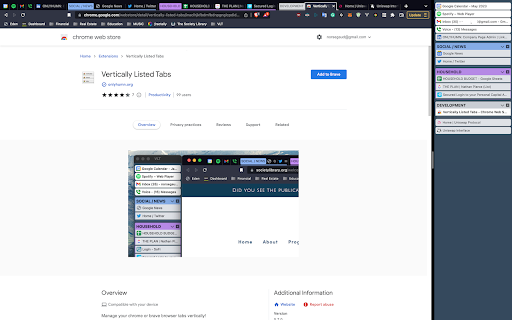
Manage your tabs vertically and browse quicker! ================ BEFORE YOU BEGIN Browser check: Vertically Listed Tabs is built for Chrome, Brave, and Edge. Beyond that, I cannot guarantee it will work. Please do not review the extension unless you are using Chrome or Brave. Other browsers can be added if you submit a GitHub issue or email support@onlyhumn.org. About reviews: If something is preventing you from using the extension, please contact me before leaving less than a 5-star review. Email, GitHub issue, or Chrome Web Store support all work. I will fix the problem so you can leave a 5-star review. Thanks. ============ THE PROBLEM Lots of horizontal tabs at the top of the browser pile up and become tiny. When they share the same favicon, or even similar titles, finding the right tab becomes slow and frustrating. If you multitask with many tabs open, this wastes time every day. Vertically Listed Tabs opens a panel window ("VLT") and attaches it to the left or right of your normal browser window. It is not inside the tab strip or existing window. It is its own window, docked beside your browser. This allows you to even move it to a different window if needed. Inside VLT, tabs and groups are listed vertically. You can see many tabs at once while keeping full tab titles readable. Scan the list, click the tab you want, and it becomes active in the main window. 1. Install the extension. 2. Click the puzzle piece in the top-right to open the extensions menu. 3. Pin Vertically Listed Tabs so its icon appears next to the puzzle piece. 4. Click the VLT icon. If your window is maximized or fullscreen, VLT will resize the window so the panel can attach on the side. 5. In the list, hover over a tab's favicon (the small image on the left) to show the toolbar for close, group, pin, pause, and more. • Side panel: VLT opens on the left or right (set in Options) and adjusts when you resize the window. Windows and macOS may look slightly different due to window borders. • Options: Right-click the extension icon and open Options to change background color, default width, and more. • Click to focus: Click a tab in VLT to switch to it in the main window. • Drag to reorder: Click, hold for about one second, then drag tabs to reorganize. • Hover toolbar: Hover the tab favicon to close, group, pin, or pause a tab. • Rename groups: Edit group titles directly in the VLT window. • Detach and move: Detach VLT from the main window and move it to another monitor. • Snap and tile: Works with Windows Snap and macOS tiling so VLT can sit beside a full-screen window. Example: https://i.imgur.com/Nwg2h6z.png • Linked focus: When you switch away and click either VLT or the main browser window, both windows come to the front together. 1.0.3 - fix for focusing on main window 1.0.2 - fixed detatch and attach button in top menu 1.0.1 - Fixes for windows 1.0.0 - Bunch of minor fixes. 0.12.0 - All remaining bugs fixed. Hovering over a tab shows an animation indicating how long until the full title appears.

Vertical Tabs & Bookmarks
Vertical grouping of tabs, quick search in favorites and in the history of page views Convenient navigation through tabs, search for open tabs, search in favorites. + Add tags for quick search. Easy interface, and fast speed version 1.14.* - stable version Added history. Increased speed and improved styles. 1.14.3 Improved response speed. 1.14.4 Fix bugs. 1.14.5 Styles and functional. 1.14.6 Fixed search in bookmarks. 1.14.7-8 Added sorting tabs, removing duplicate bookmarks and customizing the interface. 1.14.9 fix bugs 1.14.10 Number of open tabs added to the icon Button added to tabs, add remove tab in bookmarks Second click disables tag 1.14.11 1) increased window height 2) added tabs animation 3) scroll saved in tabs

Polychrome: Vertical Tab Groups & Search
Groupable side tabs, window management, search and more — in a svelte and speedy package. Polychrome adds a sidebar with tabs and groups to the left of your browser window. Now that Chrome is able to unload background tabs on its own, having many, many tabs becomes worthwhile — and the tab strip is woefully unprepared. Polychrome lets you more carefully curate, group, and archive your tabs, building a familiar structure and giving you quick access to the things you need.

tabVertikal - vertical tabs
📢 Lightweight vertical tabs in side panel with tabGroups,auto tab grouping. 📌 Why you should consider this: ✪ Switch workspaces ✪ Tab suspender ✪ Auto tab suspension ✪ Native chrome tabgroups support ✪ Auto tab grouping based on your custom rules not just domain ✪ Import / export tab in html,json,markdown,csv format ✪ Set window's title and edit tab's title. ✪ Remove duplicate & sort tabs ✪ Dark mode and dozens of themes. ✪ Multi windows ✪ Fuzzy search ✪ Lightweight 52KB ✪ Pure & clean code that powers fastest performance. ✪ Negligible memory consumption ~2MB (consume 400% less memory than new tab). ✪ No third-party library used. ✪ No tracking & no Ads. 🎯 Manage tab vertically: Remove duplicates,sort tabs and suspend tabs ✅ Switch workspace in one click switch workspaces according to your workflow. Unlimited number of workspaces. opened tabs are saved in current workspace and selected workspace's tabs will open. ✅ Auto tab grouping based on your custom rules not just domain Create custom rule to auto group tabs. Match: ✅ Auto tab suspension Auto suspend tab when not using more than x minutes Enable tab suspension on extension's options page ✅ window's title Give name to your window to organize your workflow. Emoji picker provided. ✅ Import⬇️ and export⬆️ tabs Import / export tab in html,json,markdown,csv format 🔄 Sort and filter tabs Drag and drop tabs with ease, effortlessly rearranging them to match your workflow and priorities. 🌘 Dark Mode: Dark Mode intelligently aligns with your system theme, ensuring a comfortable browsing experience without any manual adjustments. Two Ways to Open the Extension Sidebar: 1. Click the Extension icon. You need to "Pin" the extension to the browser toolbar. 2. Use shortcut keys. Please set it at "chrome://extensions/shortcuts" by yourself, the default is Alt+V . Set the position of the sidebar: left or right: Browser Settings → Appearance → Side panel You can mail us: 🚀Version 0.2.2 ⇒ zommbie scrollbar removed ⇒ ADDED: Auto group all ungroup tabs feature added in more menu ⇒ ADDED: ungroup all tabs right click popup menu (on extension's action) added ⇒🐛FIXED: auto tab group stop working after some time fixed ⇒🐛 FIXED: workspace bugs fixed

Vertical Tabs Side Panel
★ Simplicity defines us - NOW WITH TREE VIEW and AUTOMATIC GROUPING! ★ Open shortcut, CTRL + i (windows), COMMAND + e (macOS) and… ★ Simplicity defines us - NOW WITH TREE VIEW and AUTOMATIC GROUPING! ★ Open shortcut, CTRL + i (windows), COMMAND + e (macOS) and CTRL + q (linux) Vertical Tabs View allow you to easily access and search your tabs, using a vertically stacked UI. It also allows you to open, sort and close individual or a group of tabs. This extension is very useful for those who end up with many tabs open without knowing the last time you even interacted with them, allowing one to easily get rid of old tabs. It also makes it easy to spot duplicated tabs and to navigate to recently opened ones. See https://www.youtube.com/watch?v=8ow6f5zWRLI for details on how to use it. Note: Chrome shows a scary popup regarding Vertical Tabs View accessing your browser history. We do react to new tabs as a way to store LOCALLY the last time you interacted with them. However, nothing is ever sent to a server, nothing ever leaves your computer, this extension is completely private. Feel free to check the code at the website link. ★ White and dark mode ★ Search bar that allows to search for title or url. ★ Sort tabs by url and staleness. ★ See the number of open and duplicated tabs. ★ Delete duplicated tabs with one click. ★ Open shortcut, CTRL + i (windows), COMMAND + e (macOS) and CTRL + q (linux) ★ Navigate your tabs using the arrow or TAB (on your keyboard) ★ Open a tab via Enter key. ★ Easily close a specific or multiple tabs. ★ Click on the sort icon to sort by either, url, title or staleness. ★ If you have duplicated tabs, click on the menu to highlight them or get rid of them.
