
pcdogalliibjgamnojnpbmbabghfijak
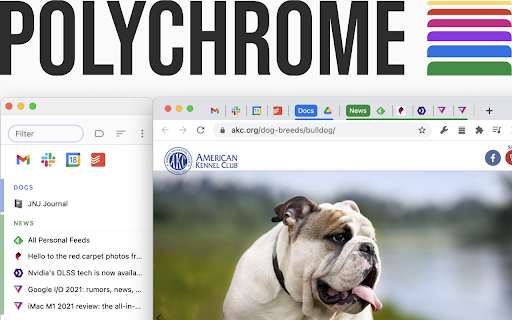
Groupable side tabs, window management, search and more — in a svelte and speedy package. Polychrome adds a sidebar with tabs and groups to the left of your browser window. Now that Chrome is able to unload background tabs on its own, having many, many tabs becomes worthwhile — and the tab strip is woefully unprepared. Polychrome lets you more carefully curate, group, and archive your tabs, building a familiar structure and giving you quick access to the things you need.

TabTree
The tabs you open can be displayed in a vertical row for quick search. 可以竖排显示您所打开的标签, 方便您快速查找. TabTree s a tab vertical display extension that allows you to display tabs vertically on the side, making it easier and faster to browse multiple tabs. When you open multiple tabs, the usual way is to use the scroll bar to view and switch tabs, which can easily cause confusion and frustration. TabTree solves this problem by arranging all open tabs in a vertical format, allowing you to see all tabs at a glance and quickly switch to any tab. In conclusion, TabTree is a very practical Chrome extension that allows you to browse multiple tabs more efficiently and improve your browsing experience.

Tab Manager in Side Panel
Compatible with built-in and adds more easy-to-use features, lives in side panel This extension provides some easy and intuitive ways to manage all your tabs across all your windows in side panel. In particular, a simplified tree style tab feature can facilitate the management and deletion of many temporarily opened tabs. ✨ Help you easier to find the target tab ✨ 1. Support searching opened tabs and history. 2. Support show 7 most recent tabs. ✨ Help you easier to create and close tabs ✨ 1. Create a new adjacent child tab for any tab with one click. 2. Support tabGroup and display non-tabGroup tabs with auto group(one level tree), and you can close all tabs belong same tree by "Alt + click" close icon of the parent tab. ✨ Help you easier to navigate through tabs ✨ 1. Navigate to any tab across all your windows with one click, even when tab group which tab belongs to has been collapsed. 2. Collapse or expand all tab groups in same window with one click. 3. Collapse or expand any tab group with one click. 4. Press "Tab" and "Shift+Tab" to navigate and "Enter" to switch. ✨ Help you easier to organize tab and tab group ✨ 1. Drag some tab or tab group and drop into a new postion ✨✨ Bonus tips: 1. You can go to chrome://extensions/shortcuts and set your shortcut for any chrome extension. 2. You can go to chrome://settings/appearance and adjust side panel's some appearance, such as left or right postion, font size and page zoom. Tab Manager In Side Panel is designed to help you save time, reduce clutter, and improve your productivity when working with multiple tabs across multiple windows, such as easily managing and deleting many temporary opened tabs. It is lightweight, fast, easy to use and compatible with built-in features. If you are looking for a simple tab manager in side panel, give this extension a try! Here is recent change log: v1.4.5 Feature: improve search function v1.4.4: Feature: add simple view transition animation v1.4.3: Feature: support close tab in recent tabs v1.4.0: Feature: support drag and drop to organize tab and tab group v1.3.13: Feature: stick tab group name when scrolling tabs v1.3.9: Feature: support show 7 most recent tabs v1.3.5: Feature: indent tab by one click v1.3.2: Feature: simple dark mode v1.2.4: Feature: create a new adjacent tab from one tab with one click

Link Map
Link Map is a browser tab sidebar that is designed for heavy information consumers. With Link Map, even if you have a large number of tabs and windows, you can manage and classify them in a logical and clear way using the tree view structure, forming your own link collection. Have you used Tabs Outliner before? Now you can import your data to Link Map and start a new journey. **What can Link Map do?** 🌲 Tree-shaped vertical tab sidebar, but with more levels: you can use drag-and-drop to quickly complete more tab operations 💾 Close and save for later reading: clear your workspace and focus on current work, they will remain in the list 🔒 Backup/restore: backup and restore your data in a universal format (JSON) 🔧 Tabs Outliner import: supports importing data from Tabs Outliner We do need to operate more tabs and windows, but at the same time, we can also keep them organized. Install Link Map and start building your tag collection to make your information consumption more efficient.

Vertical Tabs Side Panel
★ Simplicity defines us - NOW WITH TREE VIEW and AUTOMATIC GROUPING! ★ Open shortcut, CTRL + i (windows), COMMAND + e (macOS) and… ★ Simplicity defines us - NOW WITH TREE VIEW and AUTOMATIC GROUPING! ★ Open shortcut, CTRL + i (windows), COMMAND + e (macOS) and CTRL + q (linux) Vertical Tabs View allow you to easily access and search your tabs, using a vertically stacked UI. It also allows you to open, sort and close individual or a group of tabs. This extension is very useful for those who end up with many tabs open without knowing the last time you even interacted with them, allowing one to easily get rid of old tabs. It also makes it easy to spot duplicated tabs and to navigate to recently opened ones. See https://www.youtube.com/watch?v=8ow6f5zWRLI for details on how to use it. Note: Chrome shows a scary popup regarding Vertical Tabs View accessing your browser history. We do react to new tabs as a way to store LOCALLY the last time you interacted with them. However, nothing is ever sent to a server, nothing ever leaves your computer, this extension is completely private. Feel free to check the code at the website link. ★ White and dark mode ★ Search bar that allows to search for title or url. ★ Sort tabs by url and staleness. ★ See the number of open and duplicated tabs. ★ Delete duplicated tabs with one click. ★ Open shortcut, CTRL + i (windows), COMMAND + e (macOS) and CTRL + q (linux) ★ Navigate your tabs using the arrow or TAB (on your keyboard) ★ Open a tab via Enter key. ★ Easily close a specific or multiple tabs. ★ Click on the sort icon to sort by either, url, title or staleness. ★ If you have duplicated tabs, click on the menu to highlight them or get rid of them.
