
dehajjkfchegiinhcmoclkfbnmpgcahj
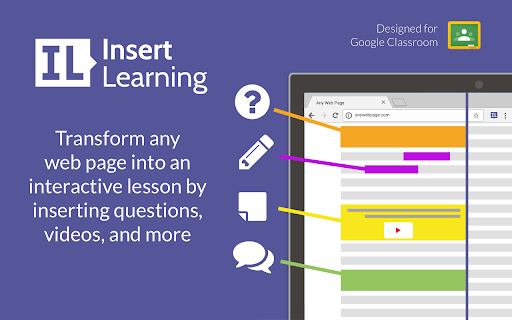

Insert instructional content on any web page InsertLearning saves teachers and students time while keeping students engaged. Teachers can insert questions, discussions, and insight directly into any website. When students go to that website, they can respond to those questions and discussions, see that insight, and take their own notes. - Click on our extension button to make our toolbar appear. This button has our logo and is located at the top right of your window. - To insert a question, click on the question icon on our toolbar and then click on a paragraph. Inserting a question within an article is a good way to assess what your students are learning as they read. - To insert a video, the first step is to insert a sticky note. To do so, click on the sticky note icon on our toolbar and then click on a paragraph. After inserting a sticky note, either paste in a YouTube link or an embed code from another video provider. Inserting a video is a good way to address different learning styles in your classroom. - As the previous tip suggests, you can also insert other interactive items with sticky notes by pasting in an embed code. Again, interactive items are a good way to address different learning styles. - To insert a discussion, click on the discussion icon on our toolbar (looks like two speech bubbles) and then click on a paragraph. Inserting a discussion is a good way to have students learn from each other. - To highlight text, click on the highlight icon on our toolbar (some people think it looks like a pencil) and then select the text you want to highlight. You can add a comment to a highlight by clicking on the plus that appears when you first make a highlight or whenever you click on the highlight. Similarly, you can change the color of a highlight by clicking on the paint brush that appears when you first make a highlight or whenever you click on the highlight. - Students can also highlight text and insert sticky notes. Having them annotate like this can be a good way to assess what they are learning. If there are student annotations available to view, a button will appear at the top left of your screen with an icon that looks like a group of people. Click on this button and then select a student to view their annotations. When you have a student selected, you'll even see what they annotate in real time. - To assign your lesson to a class, click on a our logo on our toolbar and then click on the class you want your lesson assigned to. Once your lesson is assigned to a class, every student enrolled in that class will be able to see the things your inserted into the article. - During the assigning process, you can choose to share your lesson to Google Classroom. Below the list of your classes, is a button that says "Share to Google Classroom." Click on that button, select the classes from Google Classroom you wish to share to, and then click the button that says "Share to these classes." After doing this, a link to your lesson will appear in Google Classroom. Also, if you haven't already imported your class, this process will import your roster from Google Classroom into InsertLearning.

Meet Attendance
Meet Attendance requires logging in and Syncing your Chrome browser. When in Meet select the participants view. Accept the permissions. Close and reopen the people to capture attendance. Click the Attendance icon to open the Attendance Spreadsheet. Mouse over for further options, Add a sheet in the Spreadsheet, Create a new Spreadsheet, Turn Attendance collection off, Auto Scroll through participants, Snapshot attendance. Attendance duration will be tracked. Premium: Compare your classroom roster to the participants in the meet. Know who is absent from your Meet. Set the frequency for auto capturing attendance. Leaving the Participants view open attendance will be captured at the set frequency. Subscribe to premium for $2.50 monthly. Subscription management at claycodes.web.app

Nearpod for Classroom
Access your Nearpod Library and assign Live and Student-Paced lessons directly to Google Classroom. Nearpod’s Google Chrome extension for Google Classroom allows teachers to create Nearpod Assignments within Classroom. Teachers will have the ability to access their Nearpod Library and assign Live and Student-Paced lessons directly to Google Classroom. This extension is free, easy-to-use, and available to users of any subscription type.

BookWidgets Google Classroom Integration
This extension integrates BookWidgets into Google Classroom. Create fun and interactive exercises for Chromebooks, iPads, tablets and PC. Right inside of Google Classroom! Interactive graphs, dynamic worksheets, and completely automatically graded exercises and tests. With BookWidgets, you can make over 40 different types of exercises, right inside of the familiar Google Classroom environment. Whether it's small exercises to supplement a textbook, complete lessons or elaborate web quests, with BookWidgets you finally have the tools you need to provide a tailored learning experience. Combine sources, text, video, quizzes and interactive widgets to let students learn and practice at their own pace. Track the work and evolution of your students over time. All student work is automatically graded, but you can of course override where needed, for instance to account for dyslexic students. When you're done, you return the graded work, including your feedback with a click. The grades automatically make their way into the gradebook. BookWidgets is completely free for students. Only teachers that use BookWidgets need a paid license. For pricing info, please see https://www.bookwidgets.com/pricing

Sir Links-a-Lot
This extension will modify Google Apps URL. Do you like to manipulate Google app URL's to meet the needs of your students? Well, you are in luck because Sir Links-a-Lot extension has your Back with big round buttons in your face to do all the work for you! Templates ~ Force a copy ~ Preview ~ PDF ~ Templets ~ Demo Mode with just a click check this out! Update 1.5.7 ~ Bug fixes ~ Repetitive Splash Page Fix & few other annoying Bugs ~ NEW Additions ~ Demo action & Tabs Support ~ In the works ~ Custom short link Special thanks for always being an inspiration: Dee Lanier @deelanier & Special thanks for help with the great name: Marcus Painter @marcusep1
