
gcoekeoenehjmndhkdnoomdjeaclkhbe


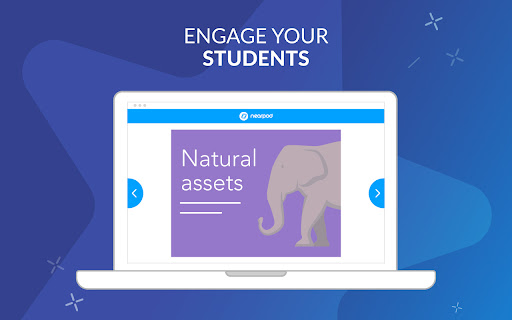
Access your Nearpod Library and assign Live and Student-Paced lessons directly to Google Classroom. Nearpod’s Google Chrome extension for Google Classroom allows teachers to create Nearpod Assignments within Classroom. Teachers will have the ability to access their Nearpod Library and assign Live and Student-Paced lessons directly to Google Classroom. This extension is free, easy-to-use, and available to users of any subscription type.

GIPHY for Chrome
All the GIFs and Stickers from GIPHY.com in a compact extension. Just search, then drag and drop! GIPHY's search engine at your fingertips. Search for the coolest GIFs and Stickers, and then drag and drop to your target. * Drag and drop support depends on the website you are dropping on, they may correctly display the GIF, or they may insert a link. * If dragging outside the browser, first "click" on a GIF to see the large view and then drag the high res image. In the browser, dragging the small images is okay, it will still insert the large image, but outside the browser you'll need to drag the large image as what is dropped is beyond our control. Using Gmail? We have an extension for that as well! Search for "GIPHY for Gmail". Please contact our support if you have any issues: support@giphy.com

Google Meet Breakout by Robert Hudek
Only the teacher needs to install. Completely Free and your Data is Private. Google Classroom integration, Slider Control. Welcome to Google Meet Breakout Rooms Extension ***** Only the teacher needs to install this extension. ***** ***** Please do not ask your students to install it, as they will not use it **** NEW Feature: Practice using the Extension on your own computer by simulating students, perfect for teachers to rehearse before going live.https://youtu.be/QMurrSyCPmY The Google Meet Breakout Rooms Extension has 5 key features: 1) See All Students: The teacher can always see ALL of the students in ALL of the breakout rooms. 2)Free: The extension is completely free to use. I am a software engineer and created this for my personal use as a teacher and then improved it for all teachers to use. I make no money off of this extension, there are no ads, and no data is shared with me or any third parties. 3) Private: Your breakout rooms data is privately stored in your personal computer's chrome browser. Your breakout rooms data is NOT shared with anyone and it is NOT stored on a server. Even the creator of this extension has no knowledge of any of your data. 4) Hassle-free: Only the teacher needs to install this extension. Please do not ask your students to install it, as they won’t need to use it. The extension is only for the teacher, and it will not affect the students in any way. Students will continue to use Google Meet as they normally do. 5) Online Help: The online help menu is completely updated and now has screen shots of every step of the way for setup and operation. This software is created by Robert Hudek and all rights are reserved. No part of this extension may be copied without the express written consent of Robert Hudek at Hudek Tech LLc. This extension is not affiliated with Google, Inc. 1) Breakout rooms may be viewed in either tab or tiled mode 2) A slider may be used to quickly move between rooms 3) Breakout assignments may be created at any time or in advance if desired 4) Teachers may broadcast their video and audio to all the breakout rooms 5) Customize themes! 6) Can use Google Meet Nicknames (if your Google subscription supports nicknames) 7) Basic reporting 8) Mute and Remove Students buttons 9) Import, Export functions 10) Google classroom integration *** Slovak: A big thank you to Lenka Zustiaková from SOŠ GaHS, Farského 9 in Petržalka (www.farskeho.sk) for the translation into Slovak. *** Ukrainian: A big thank you to Igor Kozachuk (email: disk.igor@gmail.com) for the translation into Ukrainian *** If you want a translation of this extension to your language, please send me an email and I will be happy to work with you to get this done. My email is robert@hudektech.com. I would like to add Spanish, Portuguese, German, Japanese, and Korean but any language is fine with me. *** This extension is owned and developed by Robert Hudek. This extension is independent from Google and is not owned by or part of Google or Google Meet. This extension is designed to enhance and extend the functionality of Google Meet. *** If you find a problem please inform me at robert@hudektech.com and I will try my best to reply as soon as I can. Data Privacy: I have a detailed data privacy section on my web page, but the short version is that I do not copy, transmit or share any of your data with anyone including myself. I also do not use cookies, nor do I drop third party cookies on you. Warranty and Guarantee: There is no warranty and there is no guarantee for this extension. I have a detailed warranty (none) and guarantee (none) description on my web page but the short version is this: By using this Extension, you understand and agree that the Extension is provided "as is" and "as available". The developer Robert Hudek EXPRESSLY DISCLAIMS ALL WARRANTIES AND CONDITIONS OF ANY KIND, WHETHER EXPRESS OR IMPLIED, INCLUDING, BUT NOT LIMITED TO THE IMPLIED WARRANTIES AND CONDITIONS OF MERCHANTABILITY, FITNESS FOR A PARTICULAR PURPOSE AND NON-INFRINGEMENT.

Dualless
Dualless - For those who don't have dual monitor. Dualless is a poor man's dual monitor solution. It splits your browser windows into two by just 2 clicks. The ratio can be adjusted according to your needs.You may have a browser window showing on the right that occupy 30% of your screen. Then the rest of space leave to Google+. The extension simulates the environment of dual monitor. Utilize the space for 16:9 monitor * Split current browser window into a pair. And resize their position and size according to the ratio specified by user. (3:7,4:6,5:5,6:4,7:3) * Merge splitted browser windows back to a single window , or make it occupy the full screen area. * MacOS X like windows management. When one of the splitted windows got focused, the other in pair will be shown together. They always occupy the whole screen. * Press middle key on split window button will duplicate the current page on other window. * Bookmark management. Relaunch your favior site in a new tab and windows will be splitted in the recorded ratio. The software is released under open source license of GPL 2.0 * Bug Fix - crash browser during split / merge * Bug Fix - splitted window size is invalid * Changes: Migrated to Extension V3 API Release 0.4 * Added auto maximize mode * After splitted, if one of the window close, the remaining one will be maximized to occupy all the space * Added bookmark support Release 0.3 * Now works with maximized window! * Press middle key on split window button will duplicate the current page on other window. * Vertical split is supported. * Options page is added. User may enable/disable pairing mode(MacOS simulation) * Ubuntu with Unity works better now

InsertLearning
Insert instructional content on any web page InsertLearning saves teachers and students time while keeping students engaged. Teachers can insert questions, discussions, and insight directly into any website. When students go to that website, they can respond to those questions and discussions, see that insight, and take their own notes. - Click on our extension button to make our toolbar appear. This button has our logo and is located at the top right of your window. - To insert a question, click on the question icon on our toolbar and then click on a paragraph. Inserting a question within an article is a good way to assess what your students are learning as they read. - To insert a video, the first step is to insert a sticky note. To do so, click on the sticky note icon on our toolbar and then click on a paragraph. After inserting a sticky note, either paste in a YouTube link or an embed code from another video provider. Inserting a video is a good way to address different learning styles in your classroom. - As the previous tip suggests, you can also insert other interactive items with sticky notes by pasting in an embed code. Again, interactive items are a good way to address different learning styles. - To insert a discussion, click on the discussion icon on our toolbar (looks like two speech bubbles) and then click on a paragraph. Inserting a discussion is a good way to have students learn from each other. - To highlight text, click on the highlight icon on our toolbar (some people think it looks like a pencil) and then select the text you want to highlight. You can add a comment to a highlight by clicking on the plus that appears when you first make a highlight or whenever you click on the highlight. Similarly, you can change the color of a highlight by clicking on the paint brush that appears when you first make a highlight or whenever you click on the highlight. - Students can also highlight text and insert sticky notes. Having them annotate like this can be a good way to assess what they are learning. If there are student annotations available to view, a button will appear at the top left of your screen with an icon that looks like a group of people. Click on this button and then select a student to view their annotations. When you have a student selected, you'll even see what they annotate in real time. - To assign your lesson to a class, click on a our logo on our toolbar and then click on the class you want your lesson assigned to. Once your lesson is assigned to a class, every student enrolled in that class will be able to see the things your inserted into the article. - During the assigning process, you can choose to share your lesson to Google Classroom. Below the list of your classes, is a button that says "Share to Google Classroom." Click on that button, select the classes from Google Classroom you wish to share to, and then click the button that says "Share to these classes." After doing this, a link to your lesson will appear in Google Classroom. Also, if you haven't already imported your class, this process will import your roster from Google Classroom into InsertLearning.
