
ckddkgihaaljdkiilleepllgfhelliph

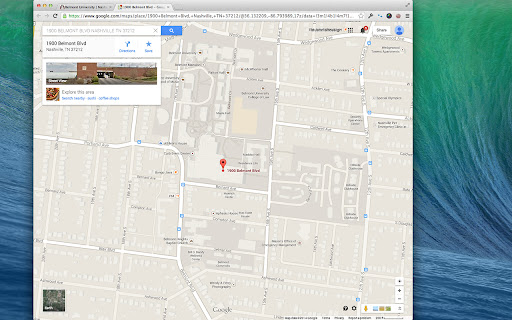
Quickly open a map by selecting some text or address, right-click, and select MapIt! Quickly open a map using one of several popular mapping services such as Google Maps™, Mapquest™, Zillow™, or even Apple Maps (macOS only). Highlight an address, right-click to open a context menu, then select 'MapIt!'. Chrome will open a new tab and display the location using your preferred mapping service. The default is Google Maps.

Webmapper
Constructs a map of the web using the user's browser history. Webmapper uses your browsing history to construct an interactive, personalized "map of the web as you see it". Every webpage you visit is placed on the map and sized by how often you visit it. Similar pages are grouped into clusters. **Interactive -- click on text to visit pages, or zoom in on domain names** **Zoomable -- use mousewheel / scrolling to zoom in and out on clusters** **Searchable** **Site-Specific -- click on polygons to construct a map specific to a site, e.g. a map of all your Google searches, or Wikipedia entries** **6 quality color palettes** **Map sites visited in the last 10, 20, 30, 50, or 100 days** Developers: Ryan Hamerly, Scott Chung, Sheta Chatterjee, and Milinda Lakkam

ScrollMaps
Allow you to use two finger scroll on your Mac trackpad in online maps. Allow you to use two finger scroll on your Mac trackpad in Google Maps. Install ScrollMaps and you can use two-finger scroll in various online maps. It's designed for Mac trackpads but because of the simple mechanism, it should work on all trackpads, or even a Magic Mouse. To zoom in the maps, simply use the pinch gesture. Inertial Scrolling works on the Mac, as well as on other operating systems that supports it natively. There are additional options in the options page, together with a small embedded map to try out different configurations. Supported maps providers: - Google Maps - MapBox - Esri ArcGIS - Apple MapKit JS - OpenStreetMap - and a few others When ScrollMaps is installed, it asks for permission to access different Google Maps domains so it can activate automatically. Those permissions can be turned off in Chrome's extension settings page, in which case ScrollMaps will only activate if you click on the extension icon on the top right. For other mapping sites, like MapBox, ArcGIS, Apple MapKit JS, and sites using Google Maps API or iframe, ScrollMaps does not activate by default, and requires clicking on ScrollMaps' extension icon. If you click on the browser icon again after activating, a dialog will pop up allowing you to enable ScrollMaps automatically on that domain or on all sites. If there is a bug or anything you want to fix in this extension / in Google Maps, please create an issue at https://github.com/mauricelam/ScrollMaps To activate ScrollMaps on a site outside of the google.com domain, click on the ScrollMaps extension icon to the right of the URL bar. Auto-activate ScrollMaps on all sites you visit, you can click on the icon again and select "Auto-activate on all sites". What's new in 4.0.0: - All permissions are now optional; permission revocations are now fully supported. In the Manage Extensions page in your browser you can now remove ScrollMaps permission to access google.com/maps and maps.google.com. If they are revoked, then you'll need to click on the extension "browser action" icon to grant permission before ScrollMaps can execute. - Updated to Manifest v3

Quick Map Search
Right click some selected text and use that for a secure search using Google Maps. After installing this extension there'll be a new entry in your context menu (right-click menu) when some selected (highlighted) text was right-clicked. Selecting this menu option will start a Google Maps search. - v4.0 (2025-12-22): Open the results tab directly next to the active tab

Map Overlays
Provides an easy way to change the satellite images displayed in Google My Map and Waze Map Editor. There's several international maps available and some country specific (Romania, Poland, Check Republic, France). After installing the extension, you'll need to pin it to your Chrome toolbar. This will make its icon appear at the top of your browser window. Once pinned, you can use the icon to interact with the layer selection menu and other extension features. There is a shortcut, default Alt+L, to switch between the default layer and selected layer. You can change the keybinding in the chrome settings chrome://extensions/shortcuts Do not use layers for editing the maps unless you comply with the terms of use specific to each layer provider.
