
jifommjndpnefcfplgnbhabocomgdjjg
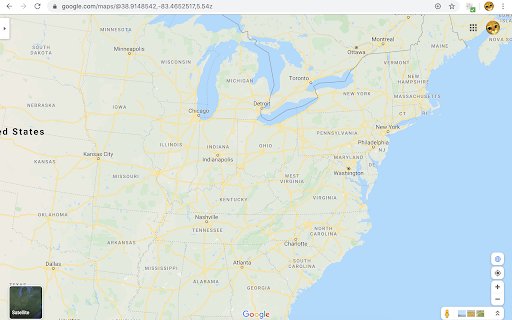
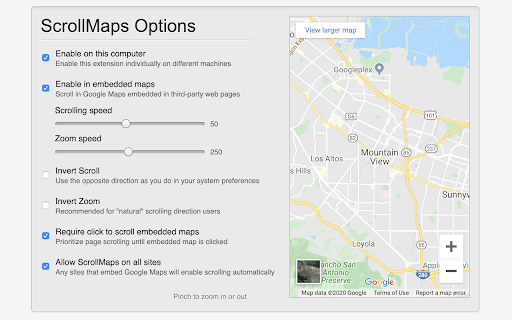
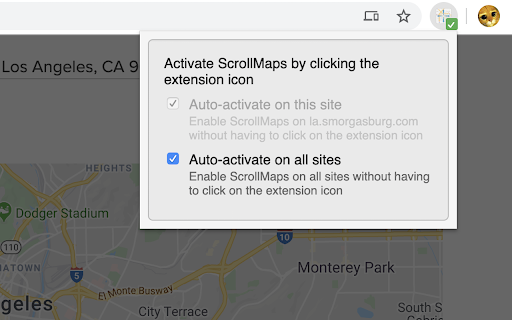
Allow you to use two finger scroll on your Mac trackpad in online maps. Allow you to use two finger scroll on your Mac trackpad in Google Maps. Install ScrollMaps and you can use two-finger scroll in various online maps. It's designed for Mac trackpads but because of the simple mechanism, it should work on all trackpads, or even a Magic Mouse. To zoom in the maps, simply use the pinch gesture. Inertial Scrolling works on the Mac, as well as on other operating systems that supports it natively. There are additional options in the options page, together with a small embedded map to try out different configurations. Supported maps providers: - Google Maps - MapBox - Esri ArcGIS - Apple MapKit JS - OpenStreetMap - and a few others When ScrollMaps is installed, it asks for permission to access different Google Maps domains so it can activate automatically. Those permissions can be turned off in Chrome's extension settings page, in which case ScrollMaps will only activate if you click on the extension icon on the top right. For other mapping sites, like MapBox, ArcGIS, Apple MapKit JS, and sites using Google Maps API or iframe, ScrollMaps does not activate by default, and requires clicking on ScrollMaps' extension icon. If you click on the browser icon again after activating, a dialog will pop up allowing you to enable ScrollMaps automatically on that domain or on all sites. If there is a bug or anything you want to fix in this extension / in Google Maps, please create an issue at https://github.com/mauricelam/ScrollMaps To activate ScrollMaps on a site outside of the google.com domain, click on the ScrollMaps extension icon to the right of the URL bar. Auto-activate ScrollMaps on all sites you visit, you can click on the icon again and select "Auto-activate on all sites". What's new in 4.0.0: - All permissions are now optional; permission revocations are now fully supported. In the Manage Extensions page in your browser you can now remove ScrollMaps permission to access google.com/maps and maps.google.com. If they are revoked, then you'll need to click on the extension "browser action" icon to grant permission before ScrollMaps can execute. - Updated to Manifest v3

Open in Google Maps
Real Estate plugin for Chrome. Users can open selected addresses in Google Maps directly from the same page. This extension let you open addresses in Google Maps without having to go to google maps in a separate tab. Helps a lot if you are looking at real estates websites and want to quickly lookup addresses. How to use - 1 - Install the plugin 2 - Highlight or select the address 3 - Click on the red map pin in the right top corner

Keyboard Shortcuts to Reorder Tabs
Reorder shortcuts using ctrl-shift pgup/pgdn on Windows/Mac just like you can already do in Linux. Chrome on most operating systems lets you re-order your tabs using the keyboard shortcuts ctrl-shift-pgup and ctrl-shift-pgdn. However, if you use ChromeOS these shortcuts are not available to you. This tiny, unobtrusive extension fixes that. v2.01 - Fixed for Mac Q: It's not working on this page! A: Please note that NO Chrome extensions with a content script (such as this) are allowed to run in the Google Chrome Webstore (i.e. this page!) Q: It's not working on other pages! A: Tabs you had open prior to installing this extensions need to be reloaded before this will work. Otherwise check your org's policy on Chrome extension as it may be restricted by your administrator. Q: I sync my extensions across different Operating Systems. Will this break things on e.g. Windows? A: No. The extension does nothing on Linux to avoid ctrl-shift-pgup/down moving the tab twice. Q: Still having problems? A: Let me know and I will fix it. Don't make me ask for obvious details though. I would need browser version and operating system. Did you try it with no other extensions installed?

Hand Tool
Use your Mouse or Stylus to grab and pan web pages User Guide: - Refresh tab after installing to activate the extension. - Default For Windows: Press and drag Right Mouse to pan. - Default For Ubuntu: Press and drag Middle Mouse to pan. - Default For Mac: Press and Hold Ctrl and move pointer to pan. - For Stylus users, it's recommended to setup one of the buttons on your stylus to be Ctrl Key and use that button to activate panning. - See Options page for more details. (After installation, Right Click on this extension's icon, then click Options). - To quickly turn extension On/Off, pin the extension icon, then clicking on the icon will switch it on/off. - This extension works best with mouses, stylus drawing tablets, laptop touchpad (only in case it doesn't provide convenient panning by gesture). 1.5.0 - 18/04/2021 - Update option UI. - Update default behaviour for different operating systems. - Remove unnecessary permission request and republished. 1.4.0 - 18/10/2017 - Fix issue with Chrome 61+. - Fix extension's auto reload mechanism when extension update. *Since emitting custom Wheel Event no longer has any effect on scrolling, the extension now falls back to update element.scrollTop & scrollLeft directly, which might cause layout issues with certain websites while scrolling. *As you might have noticed, this extension also no longer works with chrome's pdf reader. After an update some time ago, Chrome's pdf readers has started to run within a hidden internal extension window and there seems to be no way for other extension to manipulate scroll position of that window. Features - Natural Sliding and Frictions. - Option page to change and preview settings. - Settings syncs across tabs. - Turn On and Off easily by clicking on Extension Icon. Hand Tool for Google Chrome makes scrolling any webpage similar to: - Pdf Readers - Photoshop Hand Tool - Google Map Panning Hand - Scrolling a smart phone... - Grab-and-Drag extension on Firefox

Map Overlays
Provides an easy way to change the satellite images displayed in Google My Map and Waze Map Editor. There's several international maps available and some country specific (Romania, Poland, Check Republic, France). After installing the extension, you'll need to pin it to your Chrome toolbar. This will make its icon appear at the top of your browser window. Once pinned, you can use the icon to interact with the layer selection menu and other extension features. There is a shortcut, default Alt+L, to switch between the default layer and selected layer. You can change the keybinding in the chrome settings chrome://extensions/shortcuts Do not use layers for editing the maps unless you comply with the terms of use specific to each layer provider.
