
ccnagafbnapafjidkhbgligfoccmjddb

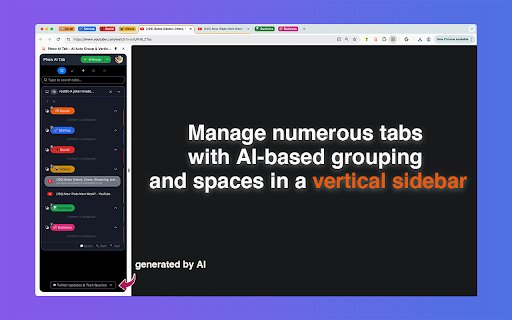
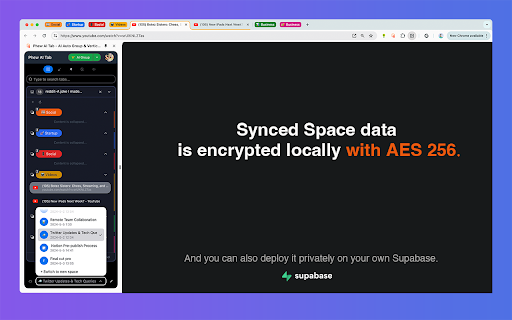
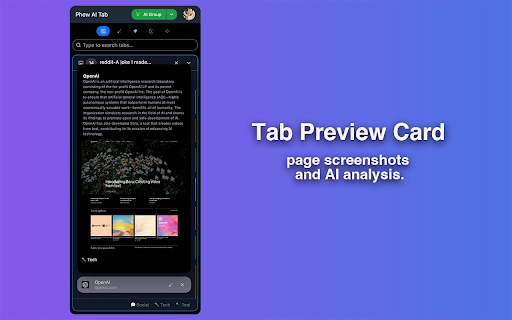
Phew AI Tab uses AI to manage multiple tabs in the sidebar. It automatically groups and organizes your tabs, making it easier for you to navigate and find what you need. Additionally, it utilizes AI technology to extract information from your tabs. The tabs you manage in Space will be automatically encrypted and synchronized across all devices. To ensure your privacy, all synced Space data is encrypted with AES 256. You also have the option to deploy the sync data on your own Supabase, giving you complete control over sensitive information. Unlike some browser-native AI grouping, Phew AI Tab automatically groups new tabs as they are opened. With the Option + E shortcut, you can quickly switch and focus on different groups. You can also enable the feature to auto collapse groups that are not in focus. Phew AI Tab auto analyzes each tab page using AI and saves the results locally. With global search, you can find the tabs you need based on relevant knowledge. The sidebar windows are also auto categorized based on these analyses, helping you quickly determine the purpose of the current window. Space redefines your browsing experience by organizing numerous browser windows into customizable themed environments. Immerse yourself in a personalized Entertainment Space that aggregates everything you love, or dive into a Work Space that keeps you centered on your professional goals. Managing Spaces is effortless. Phew AI Tab auto names each new Space based on your browsing content after you open five pages, all powered by AI. Your Space will remain synchronized across all devices. Your Space data is encrypted locally with AES 256, a level of encryption widely used in government and military institutions. Without the Private key, no one can access your data. LTD users can sync and deploy their Space in their own Supabase, completely eliminating privacy concerns. Your privacy is protected like never before.

Tabaroo: AI Tab Manager
Tabaroo uses AI to effortlessly organize your tabs. Welcome to Tabaroo - the smart Chrome extension powered by OpenAI's ChatGPT and advanced language models. Say goodbye to tab chaos and hello to effortless organization! Why Tabaroo? 1. AI-Powered Organization: Tabaroo's intelligent auto-grouping feature neatly arranges your tabs into user-defined or AI-suggested categories. 2. Flexible and User-Friendly: Easily revert any changes with an "Undo" button. Not satisfied? "Ungroup All" to start fresh. 3. Enhanced Privacy: We value your privacy. Learn about our minimal data collection in our privacy policy. Hop into organized browsing with Tabaroo – where every tab finds its pouch! 1. Quick Setup: Sign in with your Google account. 2. Access Tabaroo: Find it in your extensions menu (Tip: Pin it for faster access!). 3. Customize Your Groups: a. For personalized categories, enter your chosen categories when prompted, then select “AI Group”. b. To let AI determine the best categorization, simply click on “AI Group”. c. For URL-based organization, use the “URL Group” button. 4. Stay in Control: Modify groupings anytime with “Undo” and “Ungroup All” options. 5. Note: Groups are only created when more than one tab fits a category. We’d love to hear your feedback and suggestions! Reach out to us at tabaroo.manager@gmail.com. Transparency in the data we collect: We only store basic Google profile information and extension usage. We utilize OpenAI to help organize your tabs. To learn more, check out our privacy policy at tabaroo.xyz.

Vertically Listed Tabs
Manage your tabs vertically and browse quicker! ================ BEFORE YOU BEGIN Browser check: Vertically Listed Tabs is built for Chrome, Brave, and Edge. Beyond that, I cannot guarantee it will work. Please do not review the extension unless you are using Chrome or Brave. Other browsers can be added if you submit a GitHub issue or email support@onlyhumn.org. About reviews: If something is preventing you from using the extension, please contact me before leaving less than a 5-star review. Email, GitHub issue, or Chrome Web Store support all work. I will fix the problem so you can leave a 5-star review. Thanks. ============ THE PROBLEM Lots of horizontal tabs at the top of the browser pile up and become tiny. When they share the same favicon, or even similar titles, finding the right tab becomes slow and frustrating. If you multitask with many tabs open, this wastes time every day. Vertically Listed Tabs opens a panel window ("VLT") and attaches it to the left or right of your normal browser window. It is not inside the tab strip or existing window. It is its own window, docked beside your browser. This allows you to even move it to a different window if needed. Inside VLT, tabs and groups are listed vertically. You can see many tabs at once while keeping full tab titles readable. Scan the list, click the tab you want, and it becomes active in the main window. 1. Install the extension. 2. Click the puzzle piece in the top-right to open the extensions menu. 3. Pin Vertically Listed Tabs so its icon appears next to the puzzle piece. 4. Click the VLT icon. If your window is maximized or fullscreen, VLT will resize the window so the panel can attach on the side. 5. In the list, hover over a tab's favicon (the small image on the left) to show the toolbar for close, group, pin, pause, and more. • Side panel: VLT opens on the left or right (set in Options) and adjusts when you resize the window. Windows and macOS may look slightly different due to window borders. • Options: Right-click the extension icon and open Options to change background color, default width, and more. • Click to focus: Click a tab in VLT to switch to it in the main window. • Drag to reorder: Click, hold for about one second, then drag tabs to reorganize. • Hover toolbar: Hover the tab favicon to close, group, pin, or pause a tab. • Rename groups: Edit group titles directly in the VLT window. • Detach and move: Detach VLT from the main window and move it to another monitor. • Snap and tile: Works with Windows Snap and macOS tiling so VLT can sit beside a full-screen window. Example: https://i.imgur.com/Nwg2h6z.png • Linked focus: When you switch away and click either VLT or the main browser window, both windows come to the front together. 1.0.3 - fix for focusing on main window 1.0.2 - fixed detatch and attach button in top menu 1.0.1 - Fixes for windows 1.0.0 - Bunch of minor fixes. 0.12.0 - All remaining bugs fixed. Hovering over a tab shows an animation indicating how long until the full title appears.

Side Copilot - AI Agent: Research, Organize & Automate | Claude Assistant
AI Agent takes action for you: manage tabs & windows, automate tasks, summarize & research. Arc-style vertical tabs sidebar. Side Copilot – Vertical Tabs, Spaces & AI Agent for Chrome Alternative to Arc Sidebar, Dia's Sidebar, Edge Vertical Tabs, Brave vertical tabs, Vivaldi Window Panel, and Zen Browser sidebar. Side Copilot is an Arc-style vertical tabs sidebar for Chrome with an AI agent that helps you organize tabs, manage windows, summarize content, and automate browsing workflows. If Chrome’s default tab bar feels messy, Side Copilot gives you a cleaner way to work. Move tabs into a sidebar, organize them into Spaces, sync them across browsers, and use AI to take action on your browsing context. Research, summarize, organize, and take action, browse less, more action. Side Copilot works inside your browser side panel to help you manage tabs and windows, group related pages, search browsing history, summarize open tabs, chat with files, and automate repetitive browser workflows. Chrome still lacks a native vertical tabs experience that feels complete. Side Copilot fills that gap with a fast, focused sidebar designed for people who live with dozens of tabs open. Whether you are a student, marketer, developer, creator, designer, or researcher, Side Copilot helps you reduce tab clutter and stay in control of your workspace. • 🧭 Vertical Tabs Sidebar for Chrome View and manage your tabs in a clean vertical layout that is easier to scan than the default horizontal tab bar. • 🗂️ Spaces for Tab Organization Create separate Spaces for work, study, research, shopping, reading, or side projects. Keep different contexts organized without losing your place. • 💾 Save, Restore, and Reorder Tabs Save sessions, restore tabs and tab groups, and reorder everything with drag and drop. • ☁️ Sync Across Browsers and Devices Sign in once to sync your Spaces across Chrome and compatible browsers, so your tabs stay available wherever you work. • 🔎 Fuzzy Search for Tabs and Spaces Find the tab, group, or Space you need in seconds, even when you have a large number of tabs open. • 🧹 Suspend Tabs to Save Memory Reduce browser memory usage by suspending inactive tabs when you need a lighter workspace. • 📚 Tab Group Management Manage tab groups more efficiently from the sidebar, including grouping, moving, restoring, and organizing related tabs. • 🔗 Group Guard and Auto Grouping Automatically group tabs based on URL rules, domain patterns, or custom categories. • 💬 AI Copilot Chat Mode Chat with your current page or open tabs. Ask Side Copilot to summarize, explain, compare, or organize what you are browsing. • 🤖 AI Copilot Agent Mode Go beyond chat. Ask AI to take action for you, such as managing tabs, grouping windows, searching browser history, and helping with browsing workflows. • 📄 Chat with Files Talk with PDFs, documents, images, and other files directly from your browser workflow. • 📺 Chat with YouTube Summarize videos, extract key points, and understand content faster without switching tools. • 🌙 Dark Mode Use Side Copilot comfortably day or night with dark mode support. • 📦 Backup Options Export your session data as JSON and keep a reliable backup of your Spaces. 🗂️ Built for Heavy Tab Users Side Copilot is especially useful if you: - want vertical tabs in Chrome - miss Arc’s sidebar on Chrome - need a better tab manager for research and multitasking - want to organize tabs into Spaces - need browser sync across devices - want AI to help summarize, research, and automate browsing tasks Default Chrome tabs get crowded fast. Titles shrink, groups become hard to scan, and switching context becomes frustrating. Side Copilot gives you: - better tab visibility - easier tab switching - cleaner session management - stronger focus with Spaces - faster research workflows with AI - a more modern sidebar browsing experience If you like the idea of Arc Browser’s sidebar, Edge vertical tabs, Brave vertical tabs, Vivaldi’s Window Panel, or Zen Browser’s sidebar, Side Copilot brings that experience to Chrome, with added AI tools for browsing, research, and organization. 💅 Made for modern browsing So you can do more than store tabs. You can actually work with them. Try Side Copilot if you want a better Chrome sidebar for vertical tabs, smarter tab management, and an AI agent that helps you browse with less chaos and more control.

Vertical Tabs Side Panel
★ Simplicity defines us - NOW WITH TREE VIEW and AUTOMATIC GROUPING! ★ Open shortcut, CTRL + i (windows), COMMAND + e (macOS) and… ★ Simplicity defines us - NOW WITH TREE VIEW and AUTOMATIC GROUPING! ★ Open shortcut, CTRL + i (windows), COMMAND + e (macOS) and CTRL + q (linux) Vertical Tabs View allow you to easily access and search your tabs, using a vertically stacked UI. It also allows you to open, sort and close individual or a group of tabs. This extension is very useful for those who end up with many tabs open without knowing the last time you even interacted with them, allowing one to easily get rid of old tabs. It also makes it easy to spot duplicated tabs and to navigate to recently opened ones. See https://www.youtube.com/watch?v=8ow6f5zWRLI for details on how to use it. Note: Chrome shows a scary popup regarding Vertical Tabs View accessing your browser history. We do react to new tabs as a way to store LOCALLY the last time you interacted with them. However, nothing is ever sent to a server, nothing ever leaves your computer, this extension is completely private. Feel free to check the code at the website link. ★ White and dark mode ★ Search bar that allows to search for title or url. ★ Sort tabs by url and staleness. ★ See the number of open and duplicated tabs. ★ Delete duplicated tabs with one click. ★ Open shortcut, CTRL + i (windows), COMMAND + e (macOS) and CTRL + q (linux) ★ Navigate your tabs using the arrow or TAB (on your keyboard) ★ Open a tab via Enter key. ★ Easily close a specific or multiple tabs. ★ Click on the sort icon to sort by either, url, title or staleness. ★ If you have duplicated tabs, click on the menu to highlight them or get rid of them.
