
cakcfocedphbadddjpalejbkhflfbhmf
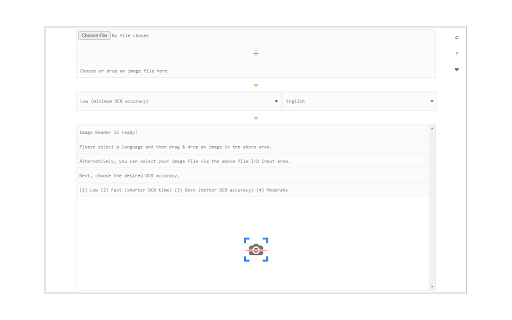

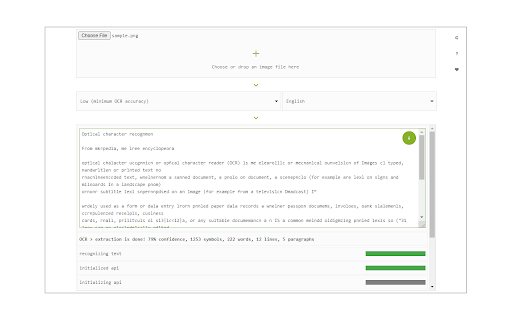
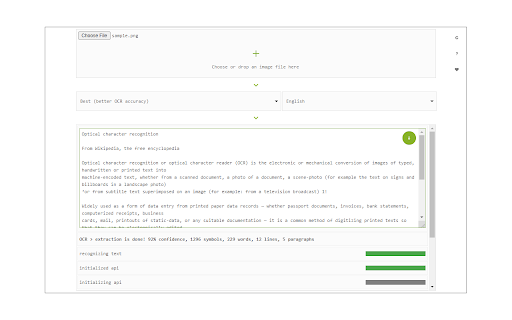
Easily get words out of an image with OCR engine! Image Reader (OCR) extension helps you easily get words out of any image. It uses two different open-source OCR engines. The 1st engine is called Tesseract. Tesseract.js is an open-source JavaScript library and is made via an Emscripten port of the famous Tesseract OCR Engine written in C and C++. Please visit (https://github.com/naptha/tesseract.js) to get more info. The 2nd engine, called Granite Docling, is developed by IBM (https://huggingface.co/ibm-granite/granite-docling-258M). Please note that when you choose IBM Granite Docling, the app needs to download training data (~1200MB) for the AI engine. So please be patient while it is loading. To work with this addon, simply open the addon's interface and load your image via the file selector (top section). Before using the addon, please make sure to select the appropriate OCR engine and language. For Tesseract, the default OCR language is set to English. For Granite Docling, you do not need to set a language; just select the desired backend (CPU or GPU) and wait for the app to load completely. Note: For the Tesseract OCR engine, this addon uses the "https://github.com/naptha/tessdata/tree/gh-pages/" GitHub repo to fetch language data required for the OCR operation. For the IBM Granite Docling, it uses "https://huggingface.co/onnx-community/granite-docling-258M-ONNX" to fetch training data required for the OCR operation. Both language data packs are very large and cannot be included in the addon package. To report bugs, please fill out the bug report form on the extension's homepage (https://mybrowseraddon.com/image-reader.html).

Documate OCR
Documate includes optical character recognition (OCR) functionality to directly extract editable text from scans (JPG, PNG) made with your INSWAN document camera. 1. Connect your INSWAN document camera to your Chromebook using the USB cable. 2. Open the “Documate” software. 3. Capture document images. 4. Go to “Gallery mode” and double click the thumbnail of the captured image. 5. When the thumbnail image is expanded to full screen, click the “Keystone correction” tool to select the area to be scanned and start to correct image distortion. 6. Click on “Save to gallery ” to confirm and save the scanned file as PDF, JPG, PNG, of TIFF. 7. Click the “OCR” icon to extract editable text from the scan. 8. Click on “Return to gallery mode” to return to the thumbnail preview mode to review all captured images. 1. Capture the image and enter gallery mode (Steps 1-6 above.) 2. Click on the “OCR” icon to activate optical character recognition. 3. Select the primary language of the target document. If the document has two languages, select both the primary and secondary languages. 4. Click “Run” to extract text. Extraction may take 2 to 3 minutes, depending on the amount of text. 5. Click “Save” to confirm and save the extracted text file or click on “Exit” to cancel extraction. 1. Go to gallery mode and click on “Import image file” to import a JPG or PNG file to the gallery. 2. Click on the “OCR” icon to activate optical character recognition. 3. Select the primary language of the target document. If the document has two languages, select both the primary and secondary languages. 4. Click “Run” to extract text. Extraction may take 2 to 3 minutes, depending on the amount of text. 5. Click “Save” to confirm and save the extracted text file or click on “Exit” to cancel extraction.

Screenshot OCR
Screenshot and OCR for chrome plugin Custom intercept the area you want for OCR content extraction

Fast OCR
Free! Copy text with OCR from images, videos, PDF scanned and local images of your computer. Use intelligent OCR technology to circle the images, videos or PDF scanned files in the web page, and extract the text of the circle content for free, so as to easily break the ban on the web page. At the same time, it provides the image transfer OCR text extraction function: 1.Support OCR identification of pictures in any software at any location of the computer; 2. Support OCR identification by copying and pasting; 3. Support screenshot pasting OCR identification; 4.Support dragging image OCR recognition; 5.Support batch uploading pictures, OCR identification, batch proofreading, and one click copy of identification results; 6.Support extracting more than 200 pages of PDF scanned text. 7.Support viewing OCR recognition history: You can proofread the recent recognition results for the second time, and copy them to your notes with one click after selection.

OCR Editor - Text from Image
Online OCR editor to extract the text from images, pdf and word files. OCR Editor, a powerful Chrome extension, utilizes advanced OCR technology to seamlessly convert text from images, scanned documents, tables, graphs, and screenshots into plain, editable text with ease. From students typing up papers, to business professionals working on documents, to anyone needing to convert scanned documents to text, this tool saves time and effort in 2025. Accurate Text Extraction: The OCR Editor guarantees precise recognition of text from images and scanned documents. Multi-format Support: It works seamlessly with JPEGs, PNGs, and PDFs, making text extraction from PDF and images as simple as a screenshot. Multi-language Support: Need to work in a language other than English? The OCR Editor detects and translates text in various languages. Preserves Formatting: It keeps the original formatting intact, ensuring smooth PDF to editable text conversions. User-Friendly Interface: The intuitive design makes it easy to work with this online OCR editor, requiring no extensive training. Time Saver: Say goodbye to tedious retyping—this OCR text converter digitizes text quickly and efficiently. Oh, how many times have you needed to copy text from a scanned document or image, only to struggle with retyping it? The OCR Editor makes this process seamless. It’s perfect for: Students and Teachers: Digitize notes, textbooks, and even diagrams in just a few clicks. Professionals and Businesses: Extract text from reports or presentations with ease. Doctors and Lawyers: Quickly convert scanned documents to text, including patient records or legal documents. Content Creators: Capture text from screenshots or convert image to text for your projects. Plus, the tool doubles as a screenshot to text tool and lets you effortlessly extract text from images or PDFs while preserving their formatting. It's a game-changer for anyone working with digital or scanned files regularly. Install the OCR Editor extension from the Chrome Web Store. Open any image, PDF, or screenshot with text you want to extract. Click the OCR Editor icon in your toolbar and select the area or file for text extraction. Copy and edit the extracted text instantly or save it to your clipboard for further use.
