
phiedbebmmcaeemplngfafginbilgikp


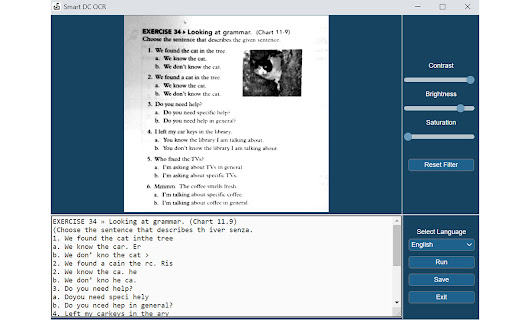
Documate includes optical character recognition (OCR) functionality to directly extract editable text from scans (JPG, PNG) made with your INSWAN document camera. 1. Connect your INSWAN document camera to your Chromebook using the USB cable. 2. Open the “Documate” software. 3. Capture document images. 4. Go to “Gallery mode” and double click the thumbnail of the captured image. 5. When the thumbnail image is expanded to full screen, click the “Keystone correction” tool to select the area to be scanned and start to correct image distortion. 6. Click on “Save to gallery ” to confirm and save the scanned file as PDF, JPG, PNG, of TIFF. 7. Click the “OCR” icon to extract editable text from the scan. 8. Click on “Return to gallery mode” to return to the thumbnail preview mode to review all captured images. 1. Capture the image and enter gallery mode (Steps 1-6 above.) 2. Click on the “OCR” icon to activate optical character recognition. 3. Select the primary language of the target document. If the document has two languages, select both the primary and secondary languages. 4. Click “Run” to extract text. Extraction may take 2 to 3 minutes, depending on the amount of text. 5. Click “Save” to confirm and save the extracted text file or click on “Exit” to cancel extraction. 1. Go to gallery mode and click on “Import image file” to import a JPG or PNG file to the gallery. 2. Click on the “OCR” icon to activate optical character recognition. 3. Select the primary language of the target document. If the document has two languages, select both the primary and secondary languages. 4. Click “Run” to extract text. Extraction may take 2 to 3 minutes, depending on the amount of text. 5. Click “Save” to confirm and save the extracted text file or click on “Exit” to cancel extraction.

Smart DC
A useful tool of document camera for supporting learners and teachers.

OCR - Image Reader
A powerful optical character recognition (OCR) extension to capture and convert images to text This extension adds a toolbar button to your browser to perform OCR. When this action button is pressed, it allows the user to select a region in the currently active window. The extension captures the area and tries to recognize text inside this region using the internal powerful OCR engine (Tesseract engine). This extension uses the "tesseract.js" library that supports more than 100 languages, automatic text orientation, and script detection. This extension loads the JS library on the page and removes it when you are done. This way, there is no long-term resource usage. Engines: Tesseract: Only extracts plain text from images and doesn't preserve formatting IBM Granite-Docling: it can accurately interpret headings, lists, styles (bold, italics), tables, and mathematical equations. Notes: 1. On the first run, the extension might take a few minutes to fetch the training data from the internet. Since this resource is cached, all subsequent calls are going to be fast. 2. Optical character recognition (OCR) is slow, so this extension displays a progress bar for each detection module. 3. This extension does the OCR process offline. There is no server-side interaction. It only fetches the language training database once. 4. This tool can be used to extract the text content out of images, PDF documents, Powerpoint slides, or extract the content of a web page when user-section is forbidden. 5. If the text extraction confidence is low, the extension inverts the image and retries (particularly useful on the dark theme) 6. If the text extraction is not accurate, you can modify the image and drop it into the interface to retry. Change Logs: Version 0.2.4: Supports browser-level page zooming and OS-level screen zooming Adds image language detection (still beta) (slow operation)

SMART Document Camera 650 Software Lite
The SMART Document Camera app makes it easy to add hands-on excitement to your lessons. When combined with a compatible SMART Document Camera, teachers transform images and videos of everyday objects, students’ work and all sorts of curiosities into interactive content.

Image to Text (OCR)
A Fast and simple document scanner app with high quality text output. Unlock the power of seamless text extraction with our Chrome extension! Transform images and PDFs into editable text effortlessly, right from your browser. ✅ Fast and Simple Scanner: Scan documents with high-quality PDF and Text output in a snap. ✅ Multilingual Support: Recognizes text in over 100 languages and variants from around the world. ✅ Context Menu Magic: Extract text from any image by simply right-clicking and selecting "Extract Text" from the context menu. ✅ Versatile OCR: Supports both PDF and Image to Text OCR for flexibility in document types. ✅ Screen Cropping: Crop your current screen to perform OCR on specific sections. ✅ Audio Playback: Play the extracted text as audio for a hands-free experience. ✅ Link Detection: Identify all the links present in the Image/PDF. ✅ Email Detection: Extract all email addresses from the Image/PDF. ✅ Internet Connection: Requires an active internet connection for optimal functionality. More Than a Hundred Languages Supported: Our extension is your global companion, supporting a diverse range of languages. Visit our homepage for the complete list: imagetext.xyz Open Source Project: We believe in collaboration! Check out the source code on GitHub: https://github.com/fxnoob/image-to-text-ocr Explore a world of possibilities with our Image to Text (OCR) Chrome extension. Download now and elevate your browsing experience!
