
bomdbfmieohagcjbfckpihndjdeeabgo
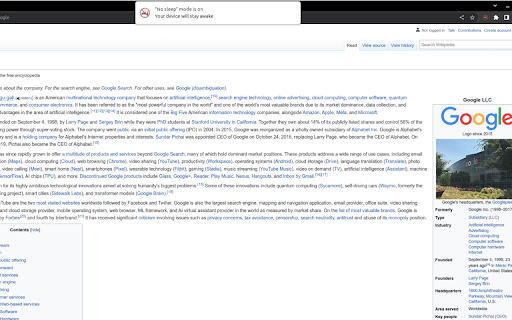
This extension allows you to prevent your device from going to dim/sleep/hibernate/lock Chrome extension to keep your device awake, that works on mobile phones What it does? This extension allows you to prevent your device from going to dim/sleep/hibernate/lock state when there is no user activity. It is helpful for example during reading article or cooking meal using recipe from your favourite food blog. The lock is active only on the page on which you activate it, so you don't have to remember to release it when you're done. How it works? When you are on the page, and you don't want your screen to go dim while reading this page just click the icon of this extension. The lock releases when you: - go to another page - change tab in your browser - refresh the page - close/minimize browser - click on extension icon again Technical explanation Extension is using native browser api - wakelock, that was created exactly for this purpose. Attribution Icons used in this plugin are created by surang and were found on Flaticon website https://www.flaticon.com/free-icons/sleep

Keep Computer Awake (for a While)
Keep your computer running or screen on, and return to default state by a timer. Similar to other "Keep Awake" extensions, the basic function of this extension is to override current system energy-saving setting, and prevent your computer from sleeping or turning off the screen. In addition, this extension provides a countdown timer that can switch to default state and (optionally) close the active tab. For example you can keep your computer running for a while, then let it go to sleep. It also supports keyboard shortcuts to change the state. Click the extension icon, you can switch between three states: ● Keep screen on: The computer does not go to sleep, and the screen keeps on. For example, when you do a presentation. ● Keep system running: The computer does not go to sleep, but the screen can be turned off. For example, when you upload or download files, the screen can be turned off, but need to keep the system running. ● System default state: Cancel the above two states. Whether to go to sleep or turn off the screen depends on the energy-saving setting of your operating system. This extension provides a countdown timer. You can use it: 1. Switch to default state. For example, when a program is being executed, it may take some time to complete. In this situation, you can set the state to keep system running, and switch to default state an hour later. 2. Set a timer to close the tab that is playing a podcast or video when you go to bed. This may help you fall asleep better. Note: if you turn your computer to sleep manually (e.g. close the laptop lid), or quit the browser completely, this extension can't keep your computer running.

Stay Awake: Keep Your Computer Awake
Keep your system and display awake whenever you need it or during long downloads. Introducing Stay Awake, the keep awake extension for Google Chrome™. Keep your system awake on demand whenever you want or let Stay Awake automatically activate during downloads. Whenever you need your system to stay awake, simply activate the extension by clicking the extension icon and choosing "Activate" or using the keyboard shortcut Ctrl+Shift+O / Command+Shift+O at any time. Tired of downloads being unexpectedly interrupted by your system going to sleep? Enable the "Activate while downloading files" option and Stay Awake will automatically activate while a download is is progress. Once all your downloads are complete, Stay Awake will deactivate itself, allowing your system to rest peacefully. Activate the extension by clicking the extension icon and choosing "Activate" or use the keyboard shortcut Ctrl+Shift+O / Command+Shift+O at any time. The arrow keys can be used to navigate the menu or keyboard shortcuts can be used to quickly access the menu items. Once installed, you can access the extension by clicking the extension icon in the toolbar. - Click Activate or use the global shortcut Command+Shift+O to enable the extension. - Manage preferences from the popup.

Don't Sleep
Keep your computer awake by overriding power-saving settings, which can prevent the screen from turning off or going to sleep. Never let your computer sleep on the job again 😴 "Don't Sleep" gives you precise control over your computer's sleep settings, directly from your browser. Stop unwanted interruptions, protect your workflow, and keep your device on when it matters most. __________________________________________________________________ ⭐ CORE FEATURES ⭐ - One-Click Control: Instantly activate or deactivate with a single click on the icon - At-a-Glance Status: Icon changes from monochrome (off) to color (on) when its active - Powerful Weekly Scheduler: Set up a time period each day of the week for the extension to activate - On-Demand Timers: Right-click on the icon to keep your PC awake for a set time, like 3 hours, without changing your schedule Choose between two active modes:: - Display and System Mode: Prevents both the screen and system from sleeping. - System Mode: Allows the screen to turn off while background tasks keep running. Tip: Pin the extension to the toolbar after installing, to make it easiest to use! __________________________________________________________________ 📅 ULTIMATE AUTOMATION TOOL: THE SCHEDULER 📅 This is the "set it and forget it" feature you've been missing, no longer requiring you to have to turn on or off the extension yourself for repetitive uses. - Automate Your Workday: Automatically keep your screen active from 9-to-5, Monday to Friday - Perfect for Students: Schedule it to be active for study sessions or online classes - Media Server: Keep your computer active when you use it to stream movies or games

Keep Awake
Keep Awake: Prevent screen dimming & sleeping during tasks. Boost productivity effortlessly. A must-have Chrome Extension! 🚀 Boost Your Productivity with Keep Awake Chrome Extension 😴 Are you tired of your screen dimming or slipping into sleep mode? 💻 Enter Keep Awake, the ultimate solution to keep your screen alive and enhance productivity. 🌟 Keep Awake ensures your screen remains fully responsive, eliminating the need for constant interaction to prevent dimming or sleep mode. 🔝 Top-notch user experience awaits you: ➤ Enjoy a user-friendly interface for seamless navigation. ➤ Rest assured with absolute security and confidentiality of communications. ➤ Access all features quickly and efficiently for enhanced productivity. 🚀 Quick Start Tips 1. Click "Add to Chrome" 2. Confirm Installation 3. Wait for Installation 4. Activate Keep Awake 5. Start Enjoying Uninterrupted Productivity 💎 Here's who can benefit from using Keep Awake: 🔹 Students: Whether you're studying for exams 🔹 Professionals: From professionals working on important presentations 🔹 Content Creators: If you're a content creator recording tutorials 🔹 Freelancers: Freelancers working on tight deadlines 🔹 Researchers: Conducting online research or analyzing data 🔹 Web Developers: Working on coding projects or testing websites 🔹 Anyone Seeking Productivity: Ultimately, anyone seeking to enhance their productivity 🛡️ Safety and Privacy: 🔹 Zero Data Collection: Keep Awake doesn't collect data, ensuring your information stays private. 🧐 FAQs about the extension 🤔 What is Keep Awake Chrome Extension? 💡 Keep Awake is a Chrome extension designed to prevent screen dimming. 💡 It ensures uninterrupted screen activity during tasks. 🔄 How does Keep Awake work? 💡 Once activated, Keep Awake runs in the background. 💡 It constantly monitors your screen activity, preventing it from dimming or entering sleep mode. ⚙️ Can I customize the settings of Keep Awake? 💡 Absolutely! Keep Awake offers customizable settings. 💡 You can adjust the duration to keep your screen alive and specify active websites. 🖥️ Does Wakeful Screen consume a lot of system resources? 💡 No, Wakeful Screen is designed to consume minimal system resources. 💡 It ensures smooth operation without slowing down your device or draining your battery unnecessarily. ⏰ How long can I disable sleep mode with Temporarily Disable Sleep Mode? 💡 With Temporarily Disable Sleep Mode, you can disable sleep mode indefinitely. 💡 It ensures uninterrupted screen activity for as long as you need it. ⏲️ Can I set timers to disable sleep mode for specific durations? 💡 Yes, Keep Awake allows you to set timers to automatically disable sleep mode for specific durations. 💡 It enables you to focus on your tasks without worrying about screen dimming or interruptions. ✨ Is Keep Awake easy to install and use? 💡 Absolutely! Keep Awake features an intuitive interface and user-friendly design. 💡 It makes it quick and easy to install and activate with just a few clicks. 📲 How can I get started with Screen Alive? 💡 To get started with Screen Alive, install the extension from the Chrome Web Store and activate it. 💡 Customize the settings to suit your preferences and enjoy uninterrupted screen activity and enhanced productivity! 💸 Can I use it for free? 💡 Yes, the extension is available as a free Chrome extension. Free Turn off sleep mode. 📥 How do I install? 💡 To install the Turn off sleep mode, go to the Chrome Web Store and select "Add to Chrome". 💡 It will be added to your browser, and you can start using it.
