
hjfibcmcdbeaikcglnhineogdmpdchio
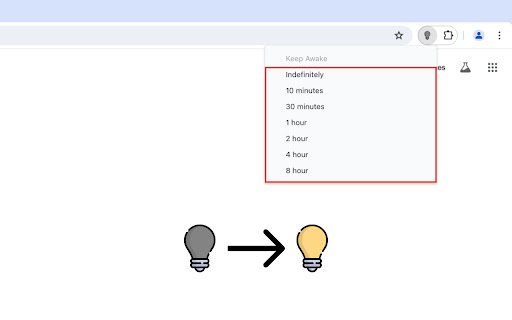
Keep Awake: Prevent screen dimming & sleeping during tasks. Boost productivity effortlessly. A must-have Chrome Extension! 🚀 Boost Your Productivity with Keep Awake Chrome Extension 😴 Are you tired of your screen dimming or slipping into sleep mode? 💻 Enter Keep Awake, the ultimate solution to keep your screen alive and enhance productivity. 🌟 Keep Awake ensures your screen remains fully responsive, eliminating the need for constant interaction to prevent dimming or sleep mode. 🔝 Top-notch user experience awaits you: ➤ Enjoy a user-friendly interface for seamless navigation. ➤ Rest assured with absolute security and confidentiality of communications. ➤ Access all features quickly and efficiently for enhanced productivity. 🚀 Quick Start Tips 1. Click "Add to Chrome" 2. Confirm Installation 3. Wait for Installation 4. Activate Keep Awake 5. Start Enjoying Uninterrupted Productivity 💎 Here's who can benefit from using Keep Awake: 🔹 Students: Whether you're studying for exams 🔹 Professionals: From professionals working on important presentations 🔹 Content Creators: If you're a content creator recording tutorials 🔹 Freelancers: Freelancers working on tight deadlines 🔹 Researchers: Conducting online research or analyzing data 🔹 Web Developers: Working on coding projects or testing websites 🔹 Anyone Seeking Productivity: Ultimately, anyone seeking to enhance their productivity 🛡️ Safety and Privacy: 🔹 Zero Data Collection: Keep Awake doesn't collect data, ensuring your information stays private. 🧐 FAQs about the extension 🤔 What is Keep Awake Chrome Extension? 💡 Keep Awake is a Chrome extension designed to prevent screen dimming. 💡 It ensures uninterrupted screen activity during tasks. 🔄 How does Keep Awake work? 💡 Once activated, Keep Awake runs in the background. 💡 It constantly monitors your screen activity, preventing it from dimming or entering sleep mode. ⚙️ Can I customize the settings of Keep Awake? 💡 Absolutely! Keep Awake offers customizable settings. 💡 You can adjust the duration to keep your screen alive and specify active websites. 🖥️ Does Wakeful Screen consume a lot of system resources? 💡 No, Wakeful Screen is designed to consume minimal system resources. 💡 It ensures smooth operation without slowing down your device or draining your battery unnecessarily. ⏰ How long can I disable sleep mode with Temporarily Disable Sleep Mode? 💡 With Temporarily Disable Sleep Mode, you can disable sleep mode indefinitely. 💡 It ensures uninterrupted screen activity for as long as you need it. ⏲️ Can I set timers to disable sleep mode for specific durations? 💡 Yes, Keep Awake allows you to set timers to automatically disable sleep mode for specific durations. 💡 It enables you to focus on your tasks without worrying about screen dimming or interruptions. ✨ Is Keep Awake easy to install and use? 💡 Absolutely! Keep Awake features an intuitive interface and user-friendly design. 💡 It makes it quick and easy to install and activate with just a few clicks. 📲 How can I get started with Screen Alive? 💡 To get started with Screen Alive, install the extension from the Chrome Web Store and activate it. 💡 Customize the settings to suit your preferences and enjoy uninterrupted screen activity and enhanced productivity! 💸 Can I use it for free? 💡 Yes, the extension is available as a free Chrome extension. Free Turn off sleep mode. 📥 How do I install? 💡 To install the Turn off sleep mode, go to the Chrome Web Store and select "Add to Chrome". 💡 It will be added to your browser, and you can start using it.

Dark Reader - Dark Mode for Chrome
Turn on dark mode for Chrome. Take care of your eyes, and use a dark theme for the night and daily browsing. Dark Reader - Dark Mode for Chrome is a fast, lite, and simple extension that automatically turns the colors of your browser content warmer or darker. This eye-care extension enables night mode by creating dark themes for websites on the fly. Dark Reader inverts bright colors, making them high contrast and easy to read at night. What will you get from the Dark Mode extension: 1) An easy way to create dark mode on every website. In addition, you can customize your dark theme visual from Brightness, Contrast, to Saturation. 2) A night shift mode that changes the website’s color to warmer, making it much more pleasing to watch. Night Shift Activate Night Shift mode to invert the usual light from the screen to a warmer tone, thus, preventing your eyes from harm. You can turn the tool on and off with a single click when you need it. Dark Mode extension automatically shifts the colors of your browser content to the warmer end of the color spectrum after dark. Dark Reader extension will put a dark theme on all websites, suitable for those who work at night and dark reader for online news or book reading. Dark Theme for YouTube extension converts the YouTube theme to a highly customizable dark charcoal/blue theme. This Dark Reader extension is built on top of the default YouTube theme (native dark theme).

Stay Focused
Supercharge self-control with Stay Focused: The ultimate Chrome tool for mindful, focused work sessions and stay on track! 👩💻 Maximize Your Productivity with the Stay Focused Extension With endless distractions, it's challenging to maintain productivity. The Stay Focused Chrome extension helps you take control of your time, boost self-control, and block sites that hinder progress. Whether you're working or want to know how to stay focused while studying, this focus app can help you stay on top of your goals. 🫵 Our extension helps you: Block distracting websites to maintain laser-sharp focus Track daily productivity goals with detailed insights Use scientifically-designed focus timers for optimal work sessions Build lasting self-control habits that enhance productivity 🔑 Key Features That Keep You Focused ⭐ Intelligent site Blocking: Take control of your browsing habits by blocking distracting sites during work hours. Our smart blocking system helps you stay focused when it matters most. ⭐ Progress Analytics: Track your focus improvements over time with detailed statistics and insights. See how your self control strengthens as you use the extension. ⭐ Distraction-Free Mode: Create the perfect environment for deep work with our comprehensive blocking features. Stay focused longer by eliminating digital interruptions. 🏆 Perfect For: Simple, intuitive interface Powerful self control features Research-backed focus techniques Regular updates and improvements Staying focused refers to the mental ability to direct your attention to a particular task or subject without getting distracted. It's the process of honing your attention on one thing at a time, allowing you to give it your full cognitive energy. Whether you're working on a project, studying for an exam, or engaging in a creative activity, staying focused is essential for achieving success. In today's fast-paced digital world, maintaining focus can be challenging, but it's a skill that can be developed with practice and the right tools, such as a self control app or focus app. There are several reasons why people struggle to stay focused. The most common causes include: 🟥 Distractions: Constant notifications, social media, and other online distractions can make it difficult to stay focused. 🟥 Mental Fatigue: Long hours of work or study can cause burnout, leading to a lack of energy and focus. 🟥 Multitasking: Trying to juggle multiple tasks at once hinders your ability to stay focused on any one thing. 🟥 Lack of Self Control: Many people struggle with staying focused due to a lack of self control. Without the ability to resist distractions, concentration becomes a real challenge. In order to stay focused effectively, it’s crucial to identify the root causes of your distractions and address them with strategies that promote self control. 🚀 Ways to Improve Your Self Control to Stay Focused Improving your ability to stay focused is a gradual process, but there are several proven methods to enhance self control and maintain mental clarity. Here are a few tips to get started: 🎯 Set Clear Goals: Knowing exactly what you need to accomplish makes it easier to stay on track. Break down large tasks into smaller, more manageable goals to avoid feeling overwhelmed. 🎯 Eliminate Distractions: Use tools like the Stay Focused extension to block distracting sites, helping you stay focused and resist procrastination. 🎯 Practice Mindfulness: Mindfulness exercises, such as meditation or deep breathing, can help improve focus, reduce mental clutter and foster better self control. 🎯 Take Regular Breaks: Incorporate regular breaks into your routine. This helps to reset your brain, allowing you to stay focused and maintain productivity over long periods. 🎯 Work in a Quiet Environment: Minimizing external noise and distractions in your workspace can help you stay focused for longer periods. By implementing these strategies, you can build better self control and improve your ability to stay focused, leading to enhanced productivity and better overall performance. Improving concentration isn’t something that happens overnight, but with consistent effort and the right tools, like a Stay Focused extension, you can train your brain to stay focused longer. Whether you're asking how to focus at work or how to study and stay focused, the key is to eliminate distractions, set clear goals, and practice good concentration habits. Install Stay Focused from the Chrome Web Store Select sites to block Start building better productivity habits Don't let distractions control your day. Join thousands of productive users who've discovered how to stay focused with our powerful self control extension. Install Stay Focused now and transform your productivity habits forever.

Chrome Screenshot
Use Chrome Screenshot: smart screenshot chrome extension! Capture, edit, save any page. Explore how to screenshot on chrome browser Ultimate Webpage snapshot extension: Edit, save & screenshot in chrome Effortlessly 🚀 Struggling with how to screenshot on chrome? Capture content with chrome screenshot extension. Screengrab anything instantly - snippets, webpages, or dynamic elements. Perfect for professionals needing precision and simple users! 🔑 Core Advantages of full page screenshot chrome extension. Experience unmatched versatility: 1️⃣ Simple click screenshot snipping tool of selected area 2️⃣ Built-in easy to use tools (blur, arrows, etc.) 3️⃣ Access to chrome screenshot by URL for instant access 4️⃣ Lightweight and user friendly design avoids slowdown ⚡ Optimized Performance. This screen capture chrome extension works seamlessly on: ⭕ Media-heavy sites 📰 ⭕ E-commerce platforms ⭕ Google Docs/Atlassian 🎗️Simple 3-Step Workflow. Master screen grab plugin effortlessly: ➤ Click the toolbar icon 🖱️ ➤ Choose mode: area, visible, or chrome browser screenshot ➤ Annotate and export formats 🎯 Advanced screen capture extension. Transform snapshots with screenshot edit toolkit: - Highlight elements with shapes - Blur/hide sensitive data privately - Add text labels and mark with arrows - Crop/resize before saving in chrome screenshot 🧩 Instant Installation of screen capture extension. Start in 30 seconds: 🎨 Add chrome screenshot extension 🎨 Pin to toolbar, you will see the set of different tools you can use 🎨 Edit the webpage using several instruments at the same time 🎨 Picture now! Save as a file local on your PC. Or make a URL share it 📌 Aside from Basic Tools Unlike google snipping tool, our screen grab chrome plugin excels at: 🖍️ Infinite-scroll social media 🖼️ 🖍️ Hover menus and dropdowns 🖍️ HD snapshot web making 💼 Ideal For Diverse Users. This screen tool serves: 1. Designers: Visual UI feedback 2. snapshot extension archives 3. Marketers: Social visuals 4. Educators: Tutorial notes 🌐 Universal Compatibility. Works as: — screenshot snipping tool — screen grab plugin for academics — screenshot addon chrome for devs ◾Computer Science Student. During late-night coding sessions, our group project’s UI kept glitching. With chrome screenshot app I captured dynamic error states with one click, circled flaws in red, and shared annotated visuals over Slack. We fixed the React component before sunrise 🛠️. By the way, go full page chrome extension mode also helped a lot. ◾ IT Support Specialist. When finance reported a disappearing invoice button, I replicated the issue instantly. Instead of vague emails, I sent a visual with circled elements and workflow notes. Developers resolved it in one sprint cycle thanks to chrome screenshot extension ⏱️. ◾ DevOps Engineer. During a major outage, our team needed real-time evidence. Due to screenshot google chrome I grabbed live monitoring dashboards during peak failure, annotated traffic spikes, and created a timeline PDF. The post-mortem cleared us in 20 minutes 🚨. Thanks to chrome screenshot tool. ◾ Project Manager. Remote sprint reviews became chaotic with verbal updates. I started manually making daily progress snapshots—Jira boards, design mockups, and test logs—into a single annotated PDF. Stakeholders finally stopped micromanaging ✅. Thanks to chrome screenshot. ◾ IT Student. Final exam portals crashed constantly. Before each test, I secured a full capture of instructions and login paths. When systems failed, my offline archive became the class lifeline 💻. By virtue of chrome screenshot addon. FREQUENTLY ASKED QUESTIONS for how to screenshot on google chrome browser ❓ How do I install this tool? 💡 Simply visit the Web Store, search for our app, click *Add*, and pin the icon to your toolbar. No restart needed for chrome screenshot. ❓ How to edit the web picture before snapshot? 💡 Use our screen shot editing panel. Just choose needed tool, for example: Blur sensitive areas, or Add arrows/text, or Crop/resize, etc. ❓Can I save the edited capture local on my PC? 💡 Of course. Select the exact mode and save it in one-click in chrome screenshot.

Screen Shader | Smart Screen Tinting
Shades Chrome to a soothing orange color to decrease eye-strain, eye fatigue and to appease your brain's day/night cycle. Now open source! Check out the source code and contribute here: https://github.com/MarcGuiselin/screen-shader 😁Do your eyes a favor, Install Screen Shader! 😍The most popular screen tinting application for Chrome! 🧐This extension is in not endorsed by or affiliated to f.lux Software LLC. Computer displays produce bright blue light which can strain your eyes late at night and interfere with your sleeping cycle. Screen Shader is designed to tint your computer display a “cozy” orange color to reduce eye-strain, eye fatigue, and restore day/night balance, while also providing a wide variety of settings for everyone's different tastes! With over two months of very hard work I present version 2.0! ⭐A completely redesigned modern menu! ⭐A completely new shading algorithm based off the newest research ⭐Full control over geopositioning, color, and darkness settings ⭐Bug fixes for countless websites ⭐Optimized to never slow chrome down 👌Works everywhere you'd expect it to. YouTube, Facebook, Reddit, you name it! 👍Continually tested on windows, mac, and chrome OS, and is constantly being bugfixed and updated with feedback from its users. 🤟Includes these keyboard shortcuts to control the shade: ALT SHIFT UP to increase ALT SHIFT DOWN to decrease ALT SHIFT S to toggle on or off And many more! Edit them in the menu. Be sure to read the research that this extension is based off of: https://justgetflux.com/research.html 📞Contact me at screenshaderapp@gmail.com ⭐⭐⭐⭐⭐ Rate this extension Q: I'm young and have good eyes. I don't need this. A: Young teens may be twice as sensitive to light at night, and the elderly much less so. These results have important implications for schools, senior care, and device usage at night, too. Simply put: everyone has a use for this and will notice benefits from decreased blue light. Q: Why not G.lux or Night Light? A: Other extensions like G.Lux or Night Light just change your display's color. Screen Shader is the only extension available that smartly changes the color of your screen throughout the day using sunset/sunrise times! Research has proven that the circadian rhythm is tied to solar time. Individuals have shown greater preference for screen tinting applications that take that into account. Q: Does this really remove blue light from my display? A: Yup! Screens work by individually tweaking the amount of red, green, and blue each pixel of your emits. Pixels being the small square of colors that together form the image. Screen Shader alters the coloration of websites to a redder color. To show these colors, the display will tweak its pixels to show more red light, less green light, and considerably less blue light; but just enough so you can still see different colors. The more you increase the shade, the more the color of the website will be reddened, the less your computer display will emit blue light! Q: Why do I need this? Can’t I simply change my screen's brightness? A: Changing the luminosity does not remove white and blue light from your display. Those colors are still unnatural and will irritate your eyes, even if dimmed. A full day in front of your computer can wreak havoc upon your melatonin cycle and internal clock. The unnatural light can also harm your eye retina. Screen Shader is designed to considerably reduce these effects by eliminating enough white and blue light to provide you with the best browsing experience and eye comfort. 2.0: Everything is coded from scratch! New menu - very nice Fixes bugs on countless websites New shading algorithm Manually set your location Better optimized shading engine Just try it out! 1.7: Fixes for pages using buggy backdrops and backgrounds. Big speed optimization for bug fixing subsystem. Fixed bug with 10px bar at the top of websites Force-loads itself on every tab when it loads up, so every tab is tinted :) Can safely work in incognito mode (if you enable it to do so on chrome://extensions) The party easter egg was unfortunately removed because too many people were running into it accidentally Fixed issues on xml documents Fixed issues with lastpass extension Fixed scrollbar issues in upcoming chrome versions Now works with podStation Podcast Player, another great extension you should totally try out! Fixed incompatibility issues with norton security extensions. Save extension settings to a file and load settings from save file. Added new shortcuts Fixed a bunch of visual bugs on a variety of websites. Other various bug fixes. 1.6: Works on anything fullscreen! Content scripts have been rewritten to pure js. No more JQuery! Won't accidentally mess with your printing anymore Polished the cross-extension messaging feature Will now stay off if you turned it off and close the browser Bugs with newtab page should now be fixed Option to disable party mode and scroll shortcut New keyboard shortcuts to increase/decrease darkness A few bug fixes (of course) 1.5: New option to set shade as high as you desire. No White Flash script implemented Fixed bugs with the new interface Added donation page. Using chrome.commands api, so now you can create your own keyboard shortcuts! Added a ton of new keyboard shortcuts. A lot of bugfixing. 1.4: Fixed printing issue for google docs Added a cool dynamic icon changer Switched from hex color values and opacity to rgba color values(150% faster!) Fixed blinking bug when using the ctrl alt + shortcut Compressed unnecessarily large images. -1.4 MB size! Completely new and improved UI, thanks Jeeves! Mix-blend-mode option for chrome. 20% cooler! 1.3: Fixed bug where the settings menu did not display correctly Switched to a more reliable geo-ip service Completely rewrote the shaded scrollbar, so it is now usable. 1.2: Fixed slowness issues on slow computers like chromebooks Removed a good portion of the unnecessary code used for debugging Improved the loading speed of the popup by running some scripts after the popup loads Redid loader for map display Removed console.logs Updated sendRequests to sendMessages for next chrome update Changed the 'Thank you' page to be more visually appealing 1.1: Finally! I updated/removed old code, improving performance. Added ctrl alt scroll shortcut, and now keyboard shortcuts affect all tabs Added the language option Fixed a few bugs relating to the custom url option Wrote a global system that manages shading settings on every tab simultaneously When settings are changed, it affects all the tabs at the same time, so you don't see a blink or a flash when you change tabs Page reload is no longer required on install 1.0: Uploaded to web store. yay :D Added fullscreen mode Added shaded scrollbar Added custom urls option Added a larger color selection interface + a new color picking menu Added a install page to thank you guys for downloading the extension! Proud to be Ad and Analytics free :) Time article: http://healthland.time.com/2012/09/13/computer-eye-strain-explained-and-how-to-avoid-it/ I am in no way endorsed by or affiliated to Time inc or its partners. The article was written by Laura Newcomer
