
bfcmkkdlpnmjeedpgadjlifdechejolg


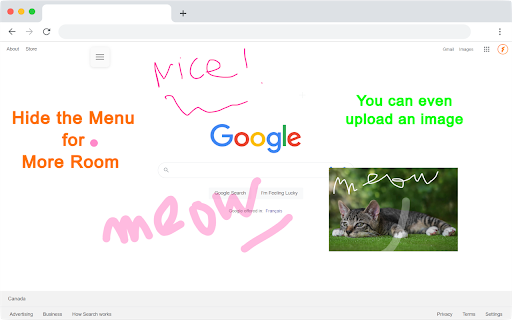

Draw on any webpage in real time! Draw, highlight, add shapes & more. Easy to use, perfect for studying & teaching. Hey there! Meet Web Marker – your new companion that lets you draw directly on websites! With Web Marker, you can draw and write on any webpage like it's a piece of paper. It's super easy and fun! To make things even easier, we've included some handy keyboard shortcuts for you: · P : Toggle pencil mode. · H : Toggle highlighter mode. · R : Toggle rectangle mode. · C : Toggle circle mode. · T : Toggle text mode. · L : Toggle line mode. · E : Toggle eraser mode. · S : Toggle selection mode. · X : Toggle pointer mode. · I : Add an image. · M : Hide/Show the menu. · D : Download annotations as image. Here's why users are falling in love with it: ✔ Simple Drawing and Highlighting: Whether you're studying, teaching, or just love getting creative online, you can easily draw and highlight on pages without any complicated tools. Our keyboard shortcuts make things even easier. You can draw using just your keyboard, whether the menu is collapsed or uncollapsed. ✔ Draw Anything: You have all the drawing tools you need, from circles to rectangles, a highlighter, pencil, eraser, lines, and text. Easily undo, redo, clear, zoom in, zoom out, select, delete, move, resize, change colors, and adjust the marker size. Choose from a variety of colors or select one of the 33+ default colors. You have plenty of options! ✔ Easy to Use: Simply click on the extension icon or use a keyboard shortcut to get started (the default shortcut is Ctrl + Shift + L ) ✔ Scrollable: It's the ONLY extension that seamlessly keeps what you've written after scrolling up and down the page, ensuring that as you scroll, the drawn content moves along with the page. ✔ Works with Your Stylus: Got a stylus? Great! Web Marker plays nice with it. ✔ Collapsible and Movable Menu: You know that menu where you find all the tools? You can collapse it to get more space. Plus, you can move it around wherever you like. ✔ Fix Mistakes with Ease: Messed up? No worries! Use the eraser or hit delete – it's like magic. ✔ Add Pictures: You can even add images and draw on them. How cool is that? ✔ Zoom In, Zoom Out: Zoom in to see details or zoom out to see the big picture. It's all up to you. ✔ Undo and Redo: Oops, made a mistake? No problem! Just hit undo and redo until it's perfect! ✔ Copy or Download Your Drawing: When you're finished, you can copy your drawing or download it as a high-quality image to use it anywhere else. And here are two more cool things: ✔ ✔ No Data Collection: Your data stays YOURS. We do NOT collect ANY of your personal info – doodle in peace! ✔ ✔ No Special Permissions Needed: Just install and go! Web Marker doesn't need special browser permissions. And guess what? It's completely FREE! But hold on, you're probably thinking, how do we keep this awesome tool free for everyone?!! Well, here's the deal: we believe in keeping things simple and user-friendly. Instead of bombarding you with ads or charging for premium features, we've chosen to operate on a donation basis. Yep, that's right! We rely on the generosity of users like you who appreciate what we do and want to support us in keeping Web Marker awesome. So, If you love using Web Marker and find it valuable, we'd be incredibly grateful if you could consider contributing a donation of any amount you can. Every donation goes a long way in helping us maintain and make Web Marker even better for you. Also feel free to reach out to us with any concerns, feedback, or suggestions you might have. Happy drawing with Web Marker!

Page Marker - Draw on Web
Draw or highlight on any website in real time. Add text, lines, and shapes. Move, undo, or redo anything you draw. Draw on any website, add text, add lines, and highlight! With Page Marker, you can use your mouse or touchscreen to draw on the web or on PDFs and save it to your computer. Paint, draw, and mark on any webpage or website. Instructions: 1. Click the puzzle piece-shaped extensions icon in the top right corner of your browser. Pin the Page Marker red marker icon for ease of access. 2. Begin drawing on any webpage with your mouse or touchscreen. 3. To change the color of the marker, click on the color selecting box. 4. To change thickness, use the size slider. 5. Use the highlighter tool to highlight lines of text. 6. Use the eraser tool to erase parts of your drawing. 7. Use the text tool to add text to the website. 8. Use the line tool to draw straight lines. 9. To undo or redo, click the corresponding undo/redo buttons. 10. Change the default color or thickness in the options menu when you right click the Page Marker icon.

Page Marker - Web Paint on Pages
Draw or highlight on any website in real time. Add text, lines, and shapes, then make screenshot the result. Draw or highlight on any website in real time. Add text, lines, and shapes, then make screenshot the result. Are you accustomed to highlighting important text in books or do you want to draw directly on websites in real-time from your browser? Perhaps you need to share your screen for tasks like reporting technical issues, creating product demonstrations, or crafting how-to tutorials. Whether you're a student, a professional, or just someone who loves browsing the web is a must-have extension. You'll have access to an array of advanced annotation tools, including a pencil, highlighter, color picker, arrow, polygon, text, emoji, and more. It contains the tools you need: - Pencil tool - draw custom lines - Text tool - add annotation - Emoji - add fine emoji on any web pages - Bucket fill tool - fill shapes and drawn with any color from palette - Line tool - put start and end point to paint straight line - Quadratic curve - draw a quadratic curve with the selected line width - Bezier curve - paint a bezier curve with the selected line width - Polygon tool - paint a polygon with the selected line width - Ellipse tool - draw an ellipse or a circle with the selected line width - Eyedropper tool - pick a color from the web page or your drawings - Screenshot tool - screenshot maker allows saving result in PN or JPG Privacy Policy By design, your data stays at all times on your Google account, never saved in our database. Your data aren’t shared with anyone, including the add-on owner. We complies with privacy laws (especially GDPR & California Privacy Act) to protect your data. All data you upload are automatically deleted every day.

Web Paint - Page Marker & Editor
Web Paint - Page Marker & Editor enables you to make annotations and modifications on websites. This extension allows you to draw, add text, insert lines, and highlight content directly on web pages and PDFs. The tool is compatible with both mouse and touchscreen inputs, giving you the ability to create and save your edits to your device. Whether you're a student, a professional, or simply an avid web user, this extension is a valuable addition. It offers a range of advanced annotation tools, such as a pencil, highlighter, color picker, arrow, polygon, text, and emojis. Are you accustomed to highlighting important text in books or do you want to draw directly on websites in real-time from your browser? Perhaps you need to share your screen for tasks like reporting technical issues, creating product demonstrations, or crafting how-to tutorials. Here's why you should consider using our extension: - It includes all the features found in MS Paint. - You can adjust the thickness, transparency, and choose preset colors. - Capture a screenshot of the entire page. Paint Online is a lightweight and free Chrome extension designed for educational purposes, introducing anyone to the world of drawing right within their browser. Additionally, it offers the opportunity to practice the alphabet, numbers, and artwork while learning. The extension allows for full-page screen captures, saving the screenshots as PDFs or images. These instant captures are stored locally and don't generate online traffic. The screenshot tool functions offline and is incredibly user-friendly. You can easily choose between full-screen or partial area captures with a single click. Furthermore, you have the flexibility to customize the screenshots by adding text, drawing lines, arrows, and shapes. The extension provides the following features: 1.Convenient hotkeys for each tool 2. Save drawings along with screenshots 3. Save images to your PC or print them 4. Crop and save specific image areas We value your feedback! Our team is dedicated to offering you the best Chrome experience possible. If you find our extension helpful, please consider giving it a 5-star rating.

Scribble Pad - Paint On Web
Scribble Pad turns any website into your personal canvas. Draw, sketch, write notes, capture screenshots and annotate in real time. Sketches and Notes persists across refreshes or window closures, so you can come back anytime and pick up where you left off. Whether you're a student, a professional, or just someone who loves browsing the web is a must-have extension. You'll have access to an ranges of advanced annotation tools, including a pencil, highlighter, color picker, arrow, quadratic curve, text, emoji, and more. You can use your mouse or touchscreen to draw on the web or on PDF and save it to your computer. Paint, draw, and mark on any webpage or website. Easy to set up extension: 1. Install the Scribble Pad extension, and reload the page to let the extension work. 2. Click on the extension whenever you need to draw or highlight something. 3. It comes with shortcut keys to present you with specific tools. 4. Take Screenshot. 5. Reload the page to exit the draw mode from the browser. 🔒 - Enabling screen lock for touch users, prevents scrolling and lets them sketch directly on the canvas ⛶ - Switch Full-Screen/Window Mode 📸 - Take Screenshot of a webpage 🖥️ - Interact with the webpages. 🪄✨- Laser Sketch ❤︎ - Switch sketch shapes (Rectangle, Circle, Line, Quadratic Curve). 1 - 🎨 Open the Palette – choose colors and adjust stroke size. 2 - Open the Eraser – erase parts of your sketch. 3 - 🖱️ Open Cursor Tools – change cursor size or appearance. 4 - ✏️ Add Texts – insert text anywhere on the canvas. 5 - 📝 Make Draggable Notes – create sticky-style notes you can move around. 6 - 🖥️ Switch to Whiteboard Mode – expand into fullscreen whiteboard. 7 - 🎨 Open the Palette - choose background colors for Whiteboard Mode. ↩ - Undo Sketch. 8 - 🔄 Reset Everything – clear the canvas. ↪ - Redo Sketch. Esc - 🔄 Reset Configured Tools. Delete - 🚮 Pressing Delete key on draggable notes or backspacing every character until the last one, will simply delete them. Rate us! We work hard to provide you with the best experience for Chrome. If you like our extension, please provide us with a 5 star rating!
