
apmicgkbejflkgeljipcebaoeigmangd
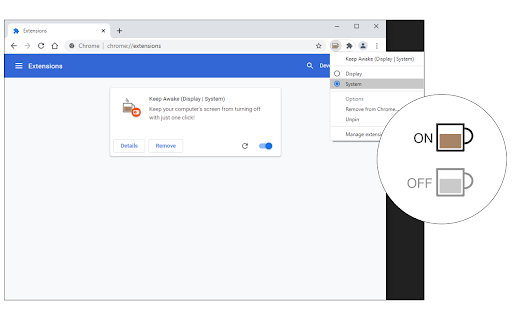
Keep your system or display from going to sleep with just one click! Keep Awake (Display | System) is an addon that helps you keep your computer's screen (monitor) or your system from turning off without changing the power settings in your machine. The toolbar button serves as an ON|OFF switch. This addon has two modes: Display & System. In Display mode, it prevents the screen from turning off. In System mode, it prevents the system from going to sleep. To change the modes, please right-click on the toolbar button and select your desired mode from the context menu. To work with this addon, simply turn it ON (with yellow toolbar icon) and your screen will NOT going to turn off at all (display mode). This add-on does not change the power settings in your PC/MAC. For example, when you set to turn the screen OFF after 5 minutes while this addon is active, your monitor will not be going to turn off at all. To report bugs, please fill the bug report form at the addon's homepage (https://mybrowseraddon.com/keep-awake.html).

Keep Awake
Keep Awake: Prevent screen dimming & sleeping during tasks. Boost productivity effortlessly. A must-have Chrome Extension! 🚀 Boost Your Productivity with Keep Awake Chrome Extension 😴 Are you tired of your screen dimming or slipping into sleep mode? 💻 Enter Keep Awake, the ultimate solution to keep your screen alive and enhance productivity. 🌟 Keep Awake ensures your screen remains fully responsive, eliminating the need for constant interaction to prevent dimming or sleep mode. 🔝 Top-notch user experience awaits you: ➤ Enjoy a user-friendly interface for seamless navigation. ➤ Rest assured with absolute security and confidentiality of communications. ➤ Access all features quickly and efficiently for enhanced productivity. 🚀 Quick Start Tips 1. Click "Add to Chrome" 2. Confirm Installation 3. Wait for Installation 4. Activate Keep Awake 5. Start Enjoying Uninterrupted Productivity 💎 Here's who can benefit from using Keep Awake: 🔹 Students: Whether you're studying for exams 🔹 Professionals: From professionals working on important presentations 🔹 Content Creators: If you're a content creator recording tutorials 🔹 Freelancers: Freelancers working on tight deadlines 🔹 Researchers: Conducting online research or analyzing data 🔹 Web Developers: Working on coding projects or testing websites 🔹 Anyone Seeking Productivity: Ultimately, anyone seeking to enhance their productivity 🛡️ Safety and Privacy: 🔹 Zero Data Collection: Keep Awake doesn't collect data, ensuring your information stays private. 🧐 FAQs about the extension 🤔 What is Keep Awake Chrome Extension? 💡 Keep Awake is a Chrome extension designed to prevent screen dimming. 💡 It ensures uninterrupted screen activity during tasks. 🔄 How does Keep Awake work? 💡 Once activated, Keep Awake runs in the background. 💡 It constantly monitors your screen activity, preventing it from dimming or entering sleep mode. ⚙️ Can I customize the settings of Keep Awake? 💡 Absolutely! Keep Awake offers customizable settings. 💡 You can adjust the duration to keep your screen alive and specify active websites. 🖥️ Does Wakeful Screen consume a lot of system resources? 💡 No, Wakeful Screen is designed to consume minimal system resources. 💡 It ensures smooth operation without slowing down your device or draining your battery unnecessarily. ⏰ How long can I disable sleep mode with Temporarily Disable Sleep Mode? 💡 With Temporarily Disable Sleep Mode, you can disable sleep mode indefinitely. 💡 It ensures uninterrupted screen activity for as long as you need it. ⏲️ Can I set timers to disable sleep mode for specific durations? 💡 Yes, Keep Awake allows you to set timers to automatically disable sleep mode for specific durations. 💡 It enables you to focus on your tasks without worrying about screen dimming or interruptions. ✨ Is Keep Awake easy to install and use? 💡 Absolutely! Keep Awake features an intuitive interface and user-friendly design. 💡 It makes it quick and easy to install and activate with just a few clicks. 📲 How can I get started with Screen Alive? 💡 To get started with Screen Alive, install the extension from the Chrome Web Store and activate it. 💡 Customize the settings to suit your preferences and enjoy uninterrupted screen activity and enhanced productivity! 💸 Can I use it for free? 💡 Yes, the extension is available as a free Chrome extension. Free Turn off sleep mode. 📥 How do I install? 💡 To install the Turn off sleep mode, go to the Chrome Web Store and select "Add to Chrome". 💡 It will be added to your browser, and you can start using it.

Keep Awake
Chromium/Chrome extension to override system power-saving settings. ------------------------------------------ This extension makes it easy to temporarily disable power management on Chrome OS. It adds an icon in the upper-right corner of the browser that can be clicked to switch between modes where the screen is kept on (sun icon), the system is prevented from sleeping (sunset), or power-saving settings are left unchanged (moon). * Will this extension prevent a Chromebook from suspending when its lid is closed? No, but if an external display is connected, recent versions of Chrome OS will remain awake when the lid is closed. * What's the difference between the "screen is kept on" and "system is prevented from sleeping" modes? When the system is prevented from sleeping (sunset icon), network connections will remain active; this may be useful if using e.g. the Secure Shell app. The screen will still dim and turn off eventually, though. In the "screen is kept on" mode (sun icon), the system will avoid sleeping and the display will additionally remain on. * What do the icons mean? The sun icon means that the screen will be kept on. The moon icon means that the system will behave the same way that it would if the extension were not installed. The sunset icon is a middle ground: the system will avoid sleeping (as described above) but the screen will still turn off. | Release notes for version 1.9.1 (1.9.0 was never published): - It was updated to Manifest Version 3. - Updated the manifest.json file with more values. - Added more icon image sizes. | Release notes for version 1.8 (1.7 was never published): - Removed windows.onCreated hack added to work around http://crbug.com/222473 on Chrome OS.

Stay Awake: Keep Your Computer Awake
Keep your system and display awake whenever you need it or during long downloads. Introducing Stay Awake, the keep awake extension for Google Chrome™. Keep your system awake on demand whenever you want or let Stay Awake automatically activate during downloads. Whenever you need your system to stay awake, simply activate the extension by clicking the extension icon and choosing "Activate" or using the keyboard shortcut Ctrl+Shift+O / Command+Shift+O at any time. Tired of downloads being unexpectedly interrupted by your system going to sleep? Enable the "Activate while downloading files" option and Stay Awake will automatically activate while a download is is progress. Once all your downloads are complete, Stay Awake will deactivate itself, allowing your system to rest peacefully. Activate the extension by clicking the extension icon and choosing "Activate" or use the keyboard shortcut Ctrl+Shift+O / Command+Shift+O at any time. The arrow keys can be used to navigate the menu or keyboard shortcuts can be used to quickly access the menu items. Once installed, you can access the extension by clicking the extension icon in the toolbar. - Click Activate or use the global shortcut Command+Shift+O to enable the extension. - Manage preferences from the popup.

Keep Awake your System or Display
Keep your system or display from going to sleep with just one click! Keep Awake -- Prevent your system or display from going to sleep with one click Keep Awake adds a one-click toolbar toggle that prevents your computer from sleeping. No settings to configure, no complicated options -- just click the Keep Awake icon to stop your system or display from going to sleep, and click again to turn it off. Your computer goes to sleep at the worst times -- during presentations, downloads, long installations, video calls, or when you step away briefly. Keep Awake gives you instant control. One click on the Keep Awake button and your system stays awake for as long as you need it. ✅ Click the Keep Awake toolbar button to prevent sleep -- click again to allow sleep ✅ Choose between System mode (prevents full system sleep) or Display mode (keeps only the screen on) ✅ Keep Awake shows clear ON/OFF status in the toolbar icon and notifications ✅ Right-click the Keep Awake icon to switch between System and Display mode ✅ Lightweight and fast -- Keep Awake uses minimal resources and works entirely offline ✅ Prevent sleep during presentations, screen sharing, or video calls ✅ Keep your system running during long downloads, uploads, or file transfers ✅ Stop the display from dimming while reading long articles or documentation ✅ Keep your computer awake during software installations or system updates ✅ Prevent screen lock when monitoring dashboards, logs, or live data Keep Awake is designed for anyone who needs reliable control over their computer's sleep behavior. Whether you are a developer, presenter, remote worker, or power user, Keep Awake saves you from constantly adjusting your power settings. ✔️ Free and open source ✔️ No data collection, no tracking, no ads ✔️ Works on Chrome and Microsoft Edge ✔️ Lightweight -- minimal resource usage, works offline ✔️ Manifest V3 compliant for maximum security and performance Install Keep Awake now and never worry about your computer sleeping at the wrong time again.
